Add and Manage Multiple Brands in Nudge Account
In this video, we will show you how to add a new brand to your Nudge account — perfect for agencies or founders managing more than one Shopify store.
Introduction to Adding New Brand
In this video, we'll show you how to add a new brand to your Nudge account, ideal for agencies or founders managing multiple Shopify stores.
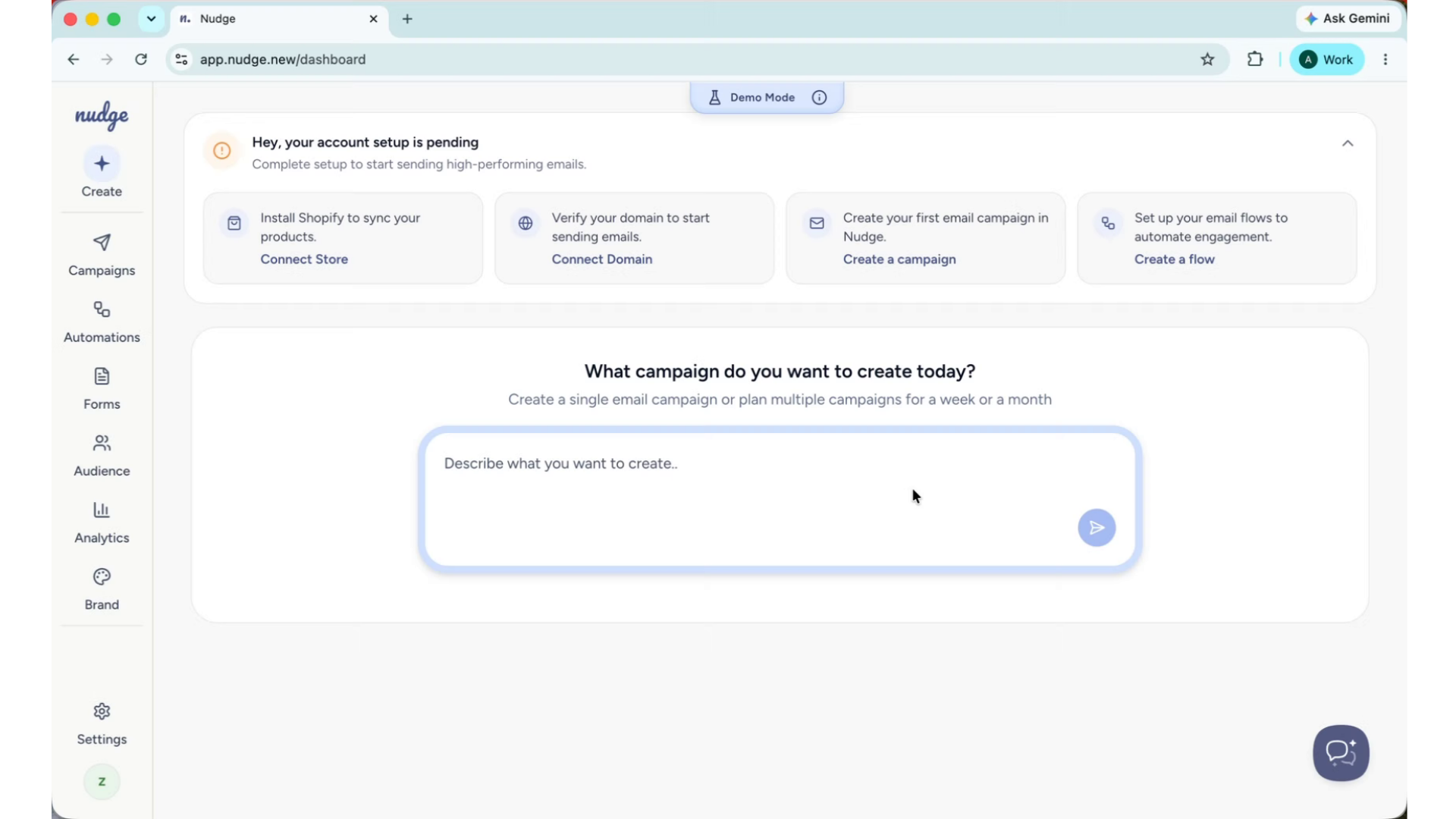
Access Account Settings
If you manage multiple Shopify brands, Nudge makes it easy to handle them all from a single account. Each brand has its own campaigns, flows, contacts, and brand kit — completely separate from your other brands. Here is how to add one.
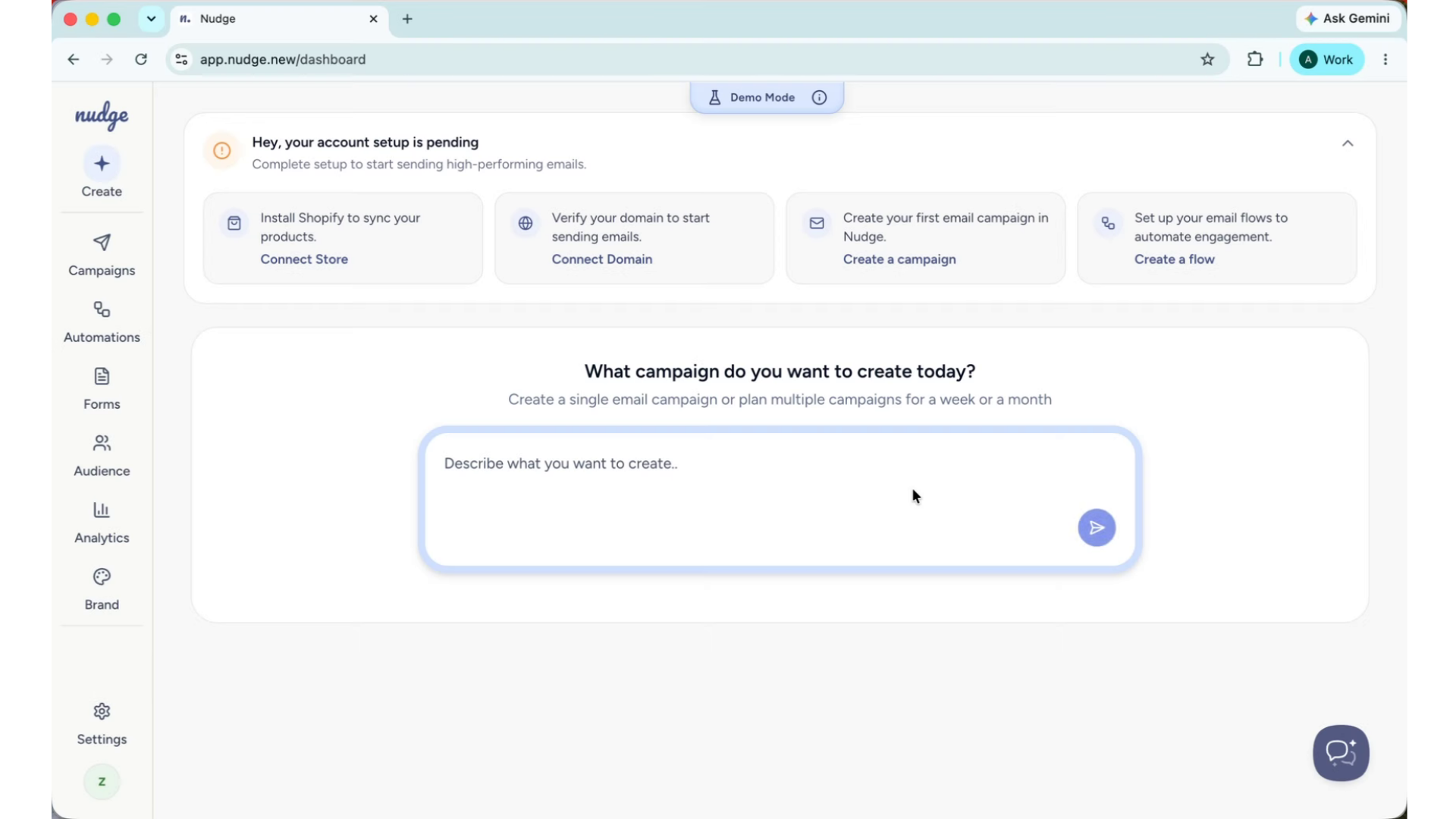
Add New Brand URL
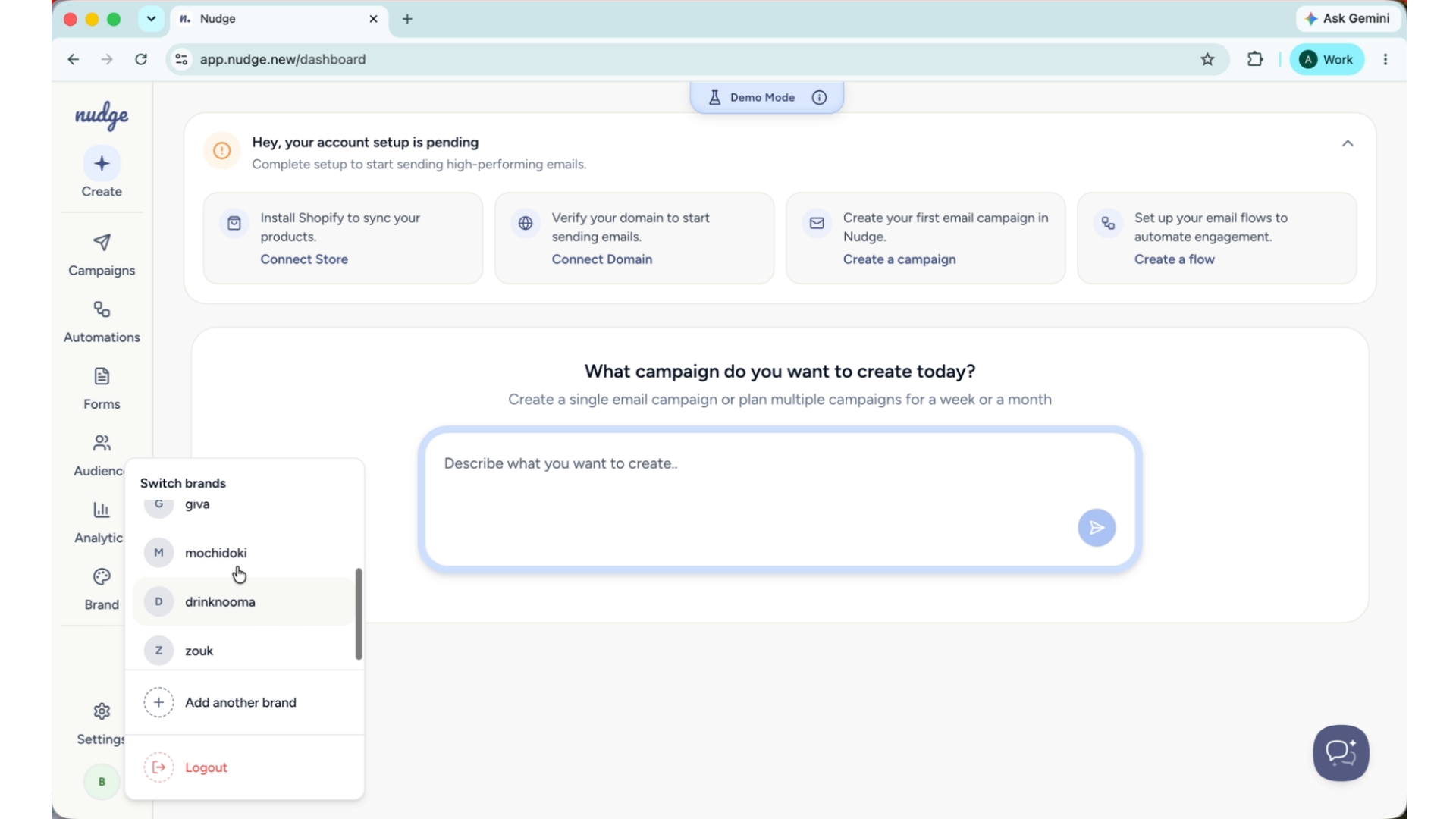
From the dashboard, click on your account name in the bottom corner. Here you will see an option to add a new brand. Click Add Brand to get started.
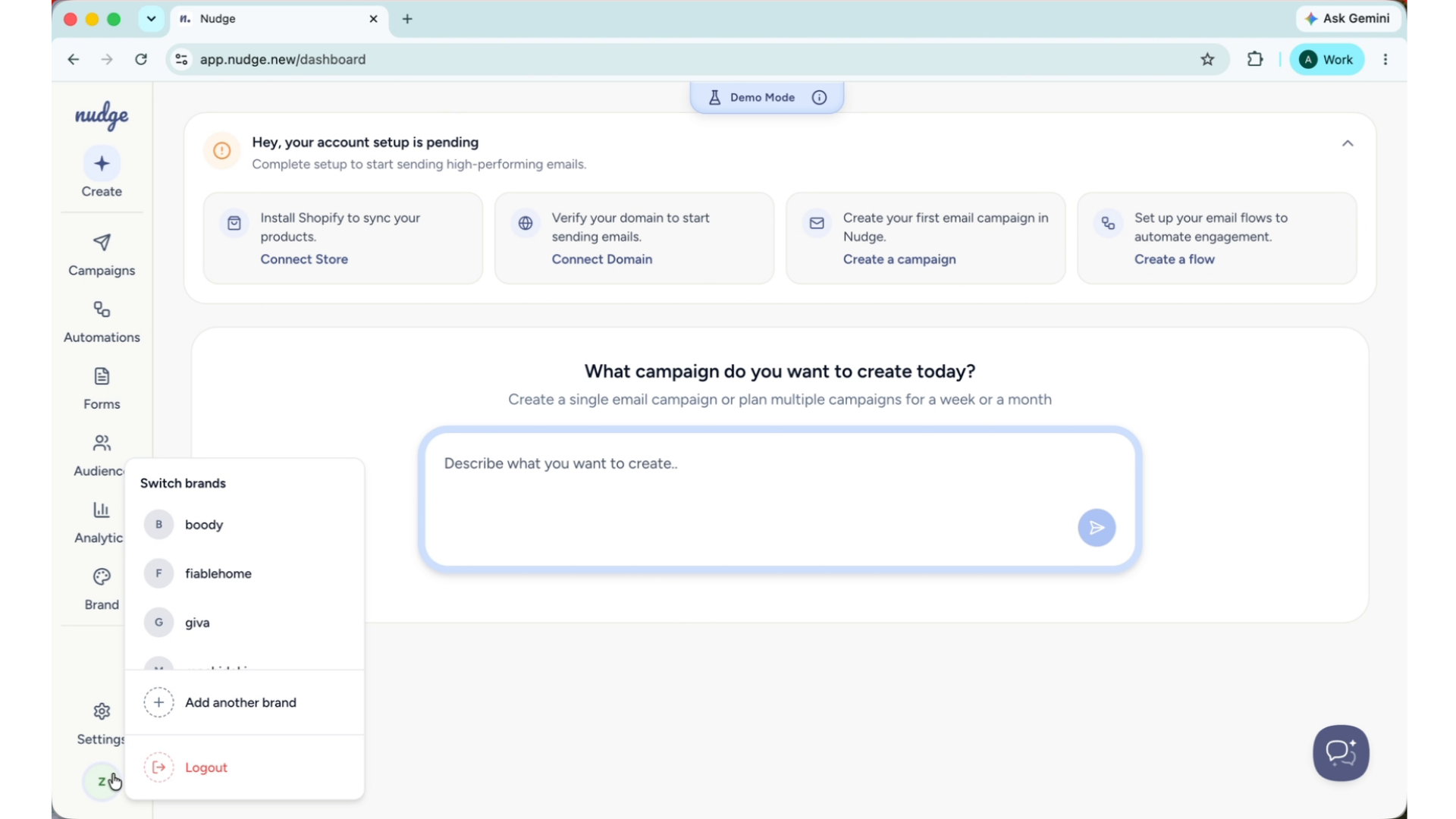
Add New Brand URL - Segment
Type in the website URL of the new brand you want to add and click on "Continue"
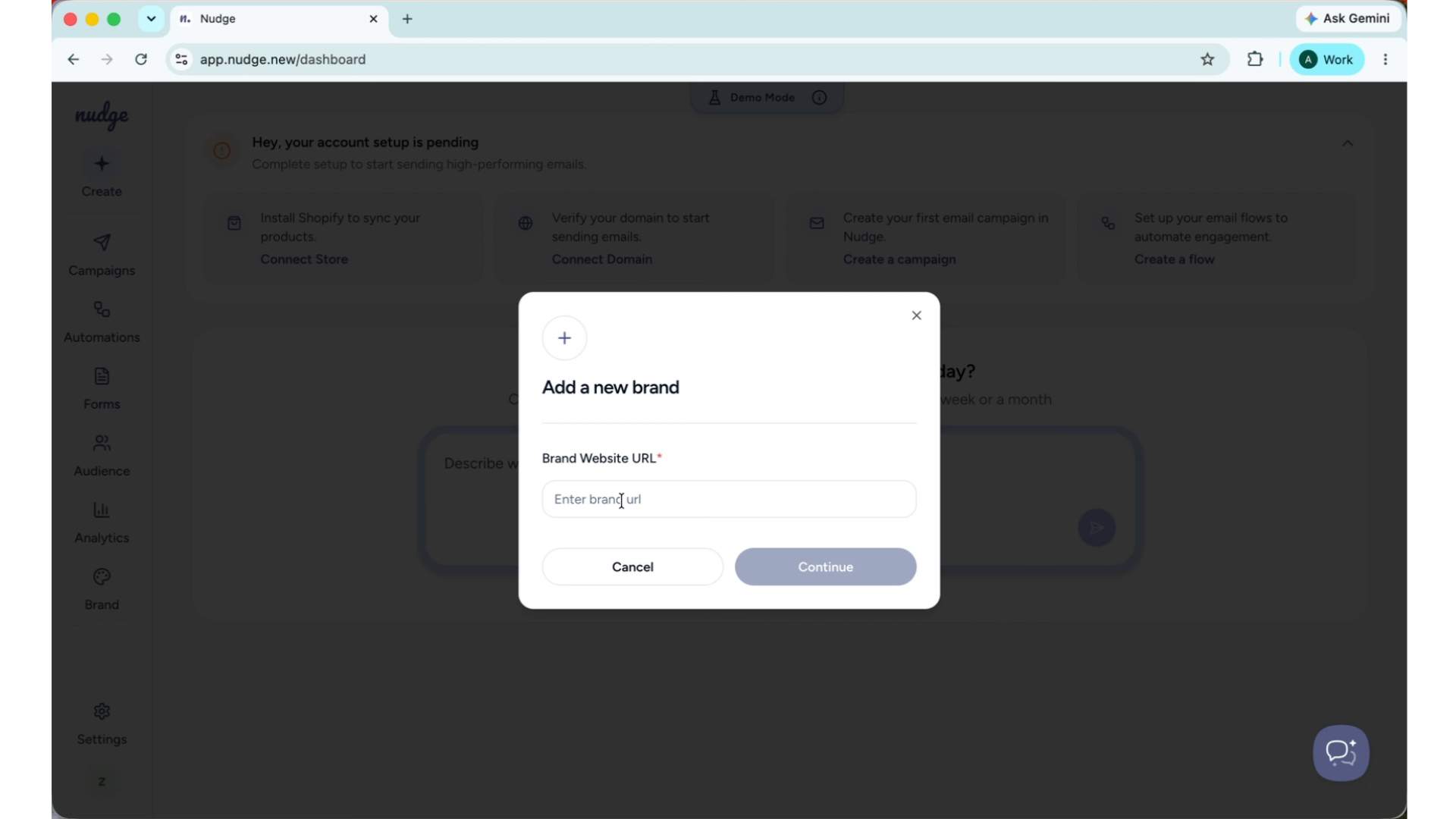
Automatic Brand Styling Fetch - Segment
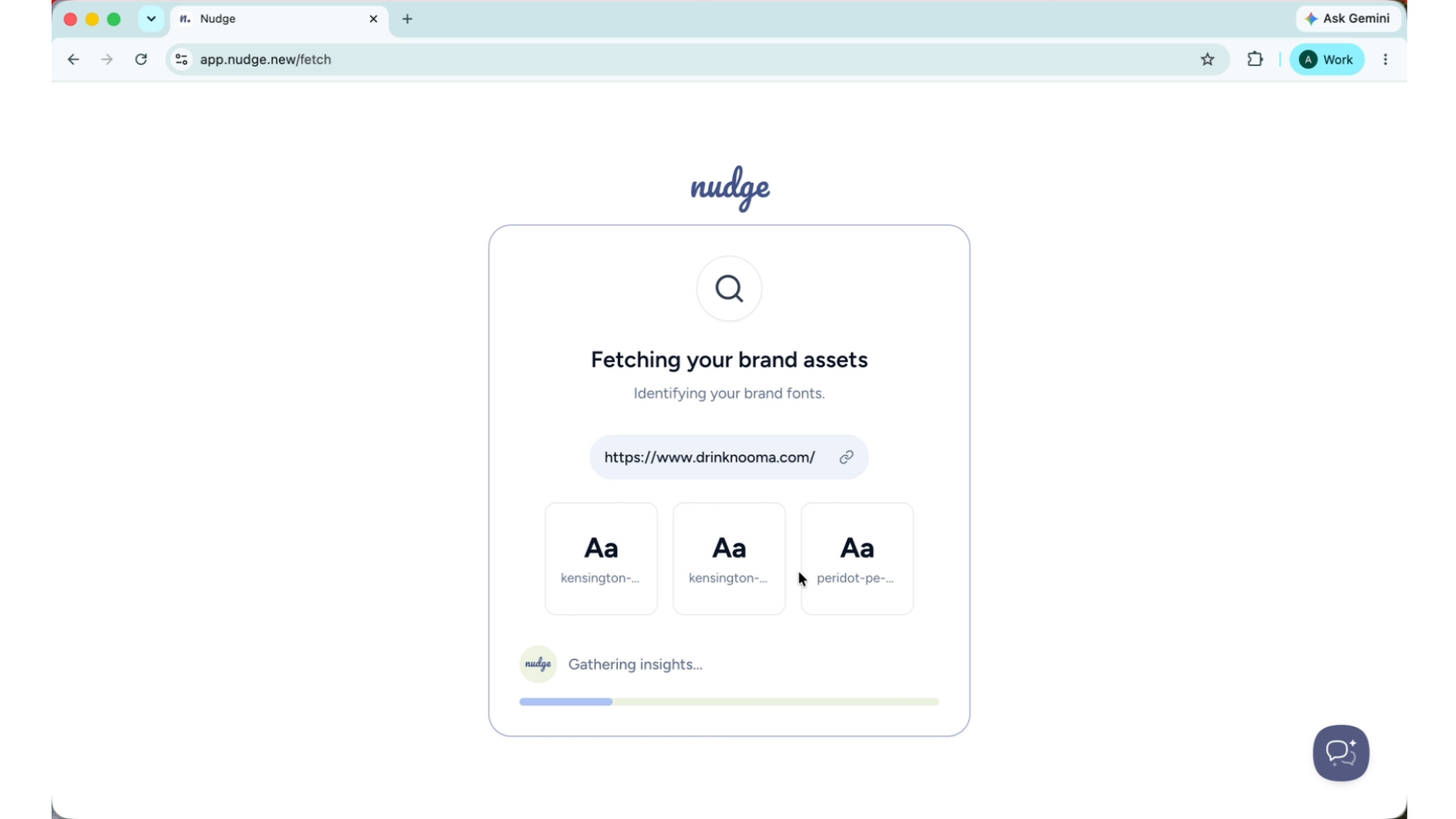
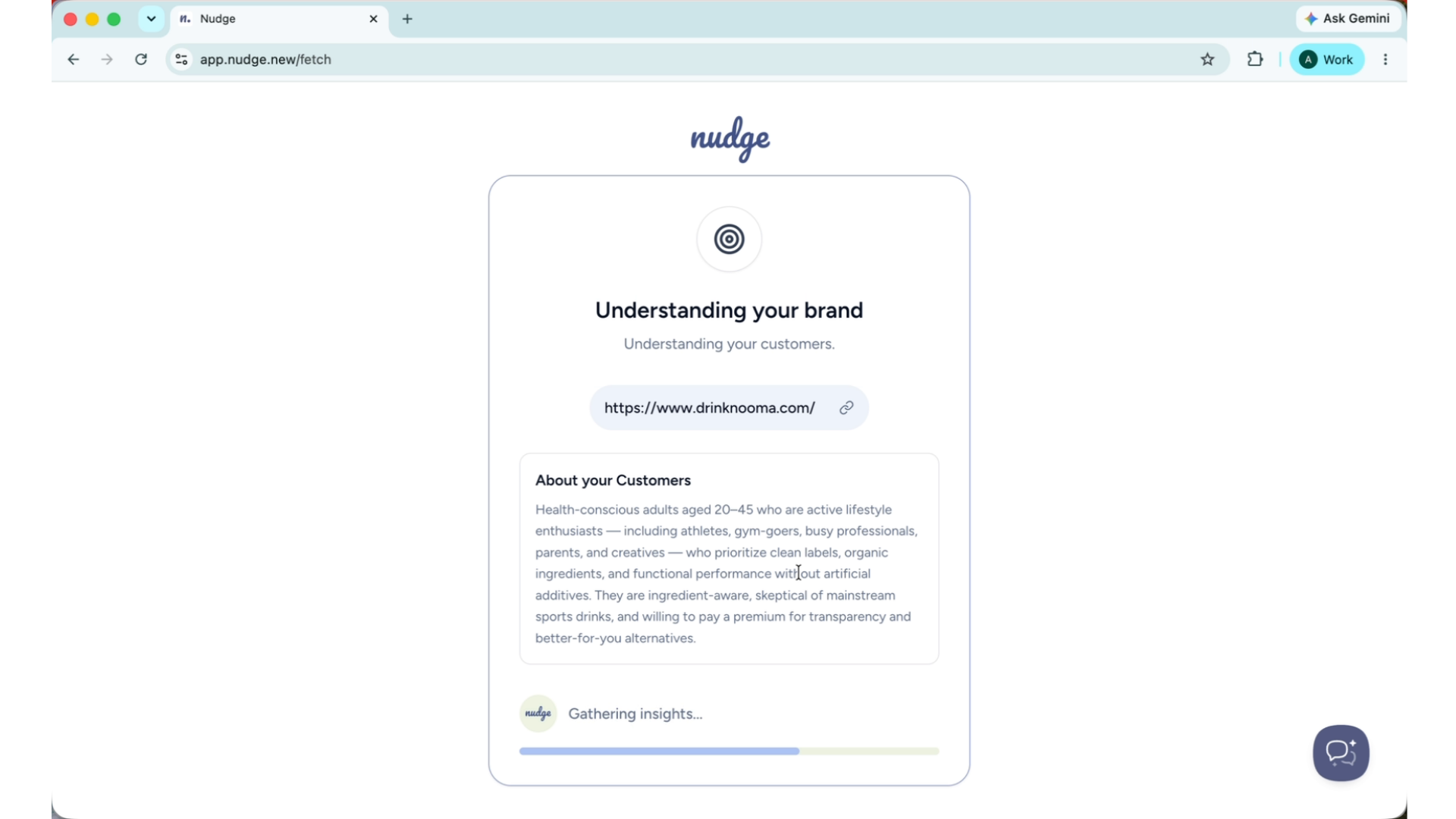
Nudge will immediately start fetching the brand's styling elements in the background — logo, colours, fonts, and tone of voice — just like it did when you first signed up. You do not need to do anything while this is happening.
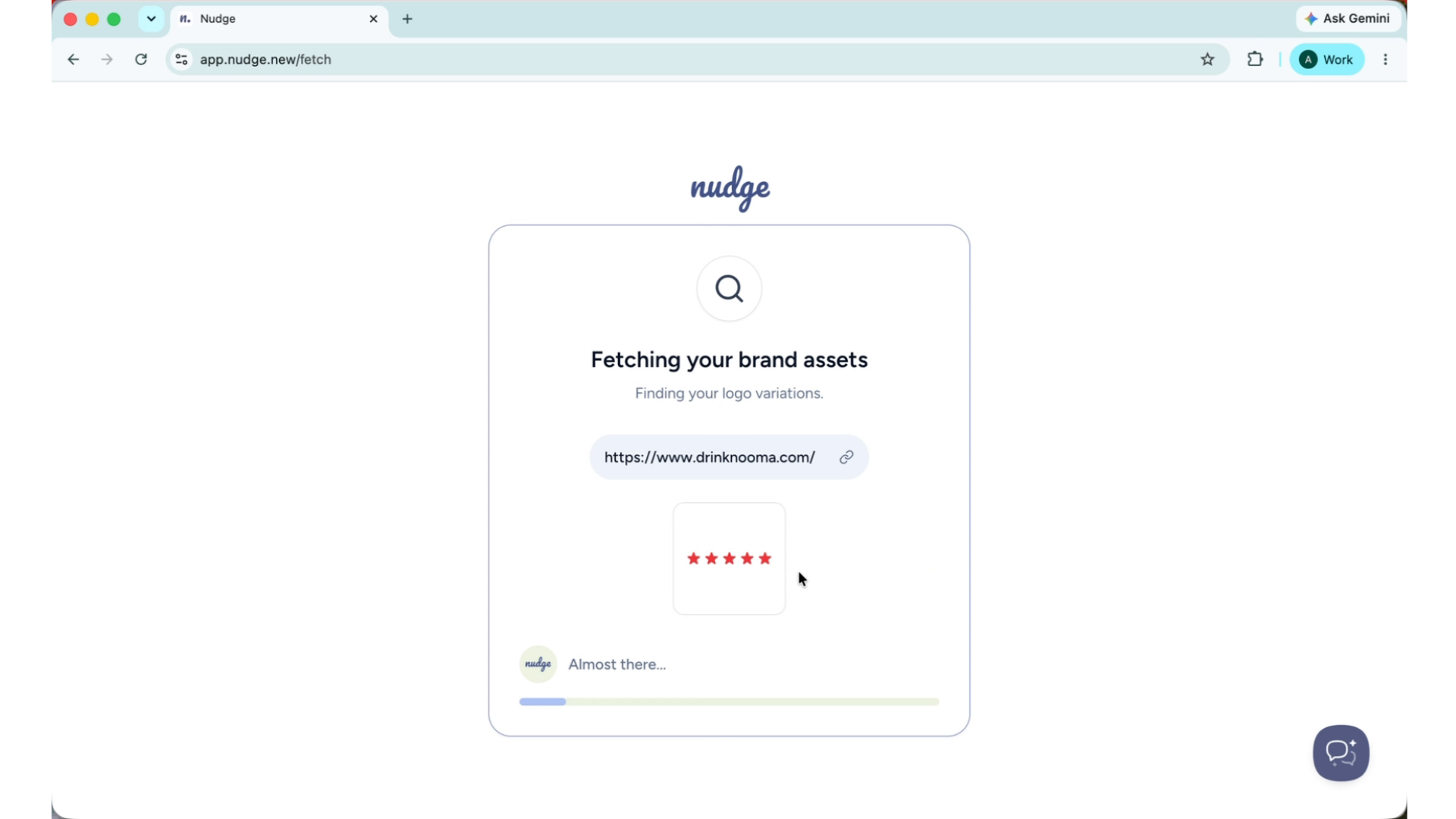
Monitor Brand Setup Status
Nudge will notify you once the brand setup is complete. Depending on the website size, this usually takes a minute or two. Until then, the new brand appears as pending in your brand section.
Expressing Gratitude - Segment
Switch Between Brands
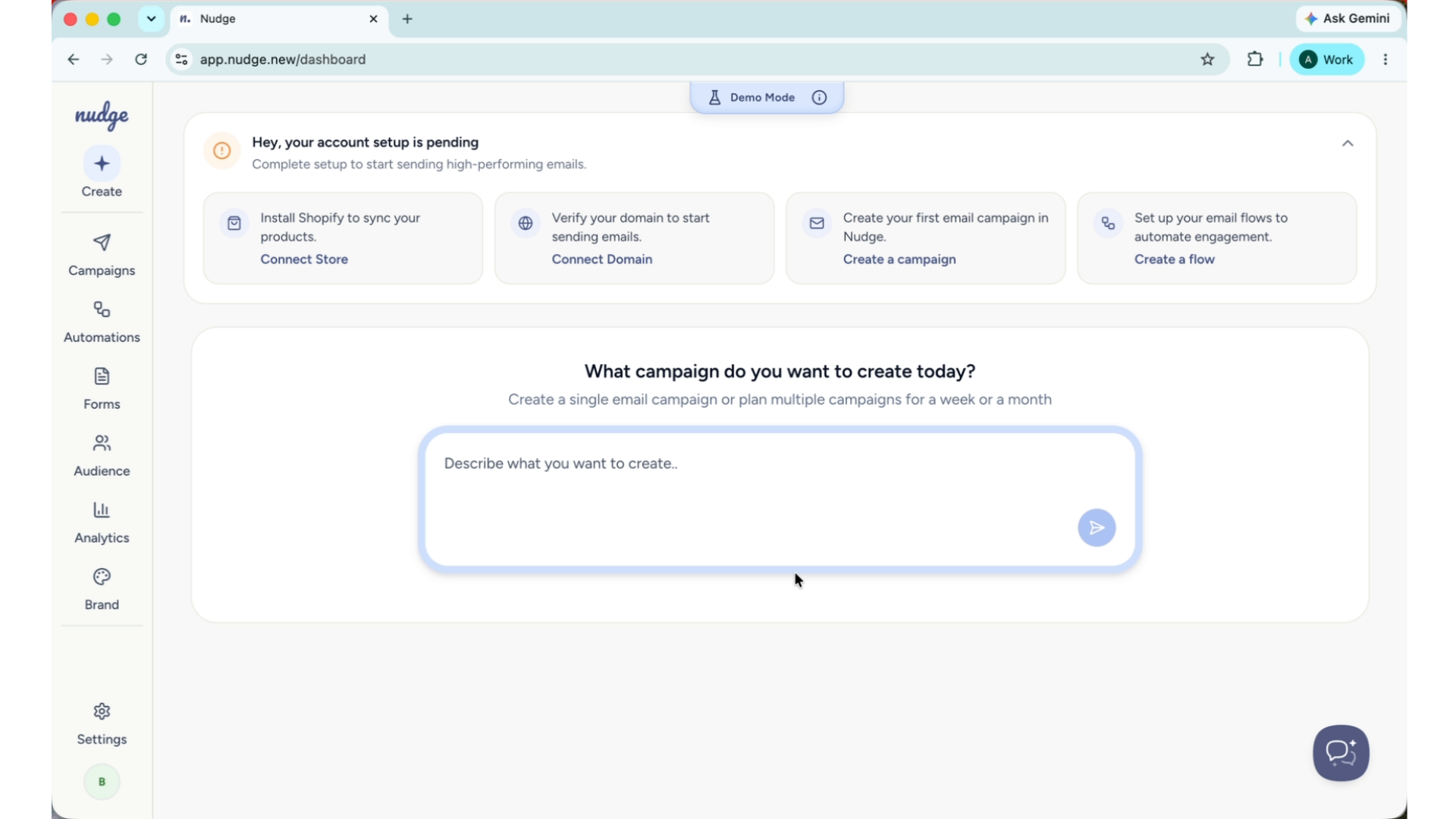
Once the setup is complete, head to the Brands section and you will see your new brand listed there alongside your existing ones. Click on it to switch brands.
Switch Between Brands - Segment
everything you see in the dashboard will now reflect that brand's campaigns, flows, contacts, and settings. Switching back is just as easy
Understand Brand Data Separation
It is worth noting that each brand in your account is completely separate. Campaigns, contacts, flows, and brand kits do not carry over between brands. This means you can manage completely different strategies for each one without anything crossing over.
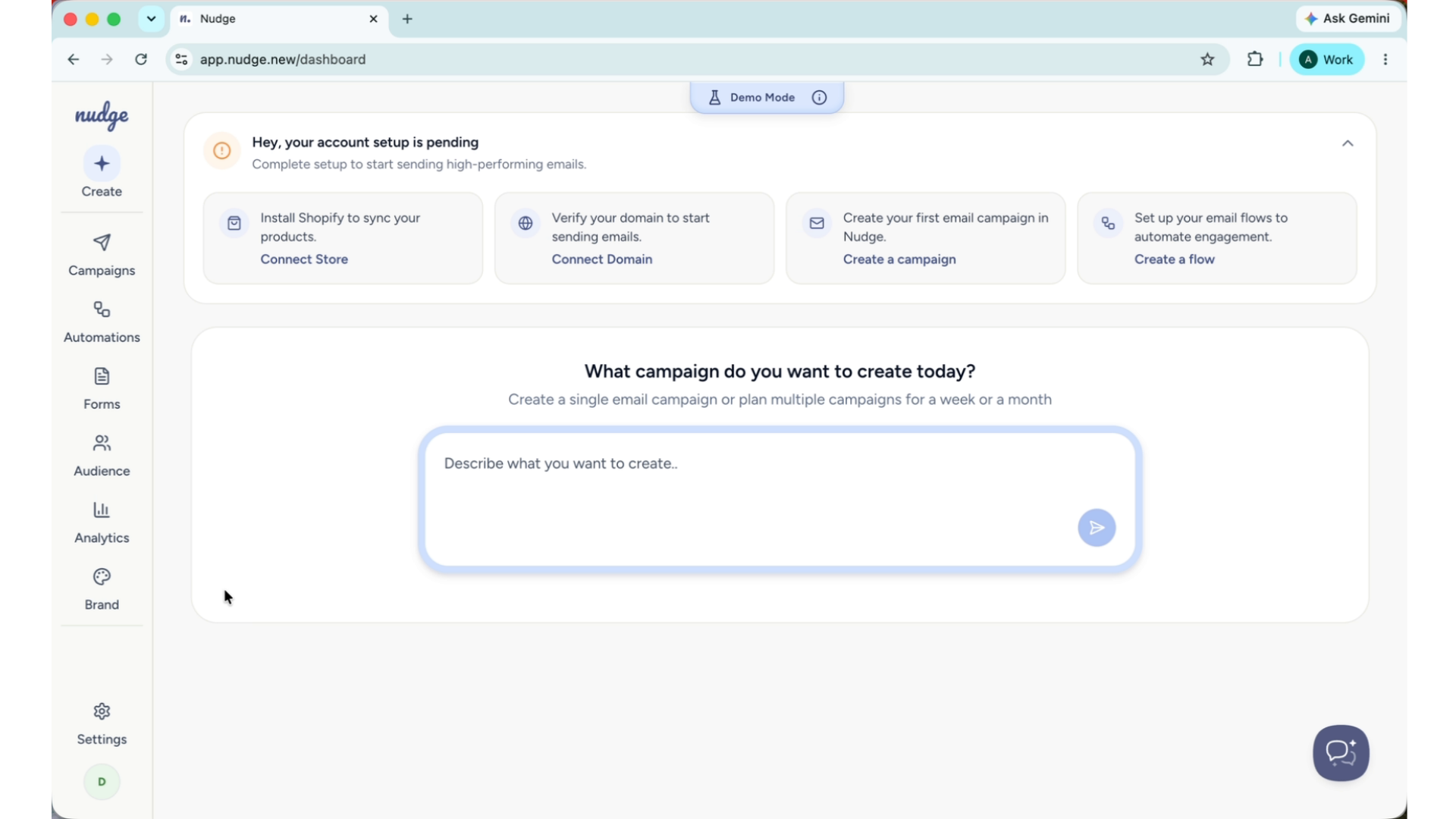
Your new brand is set up and ready to go! From here, you can start building campaigns, setting up flows, and importing contacts just like you did for your first brand. Head to our Getting Started guide if you want a refresher on the first steps to take with a new brand.