Set Up Checkout Abandoned Flow Automation in Nudge
In this video, we will show you how to set up a Checkout Abandonment flow in Nudge — one of the most effective automations you can run for recovering lost sales.
Understand Checkout Abandoned Flow
On average, around 70 percent of online shoppers who reach checkout do not complete their purchase. A well-timed Checkout Abandonment flow can recover a meaningful portion of those sales automatically. Here is how to set one up on Nudge.
Access Automation Setup
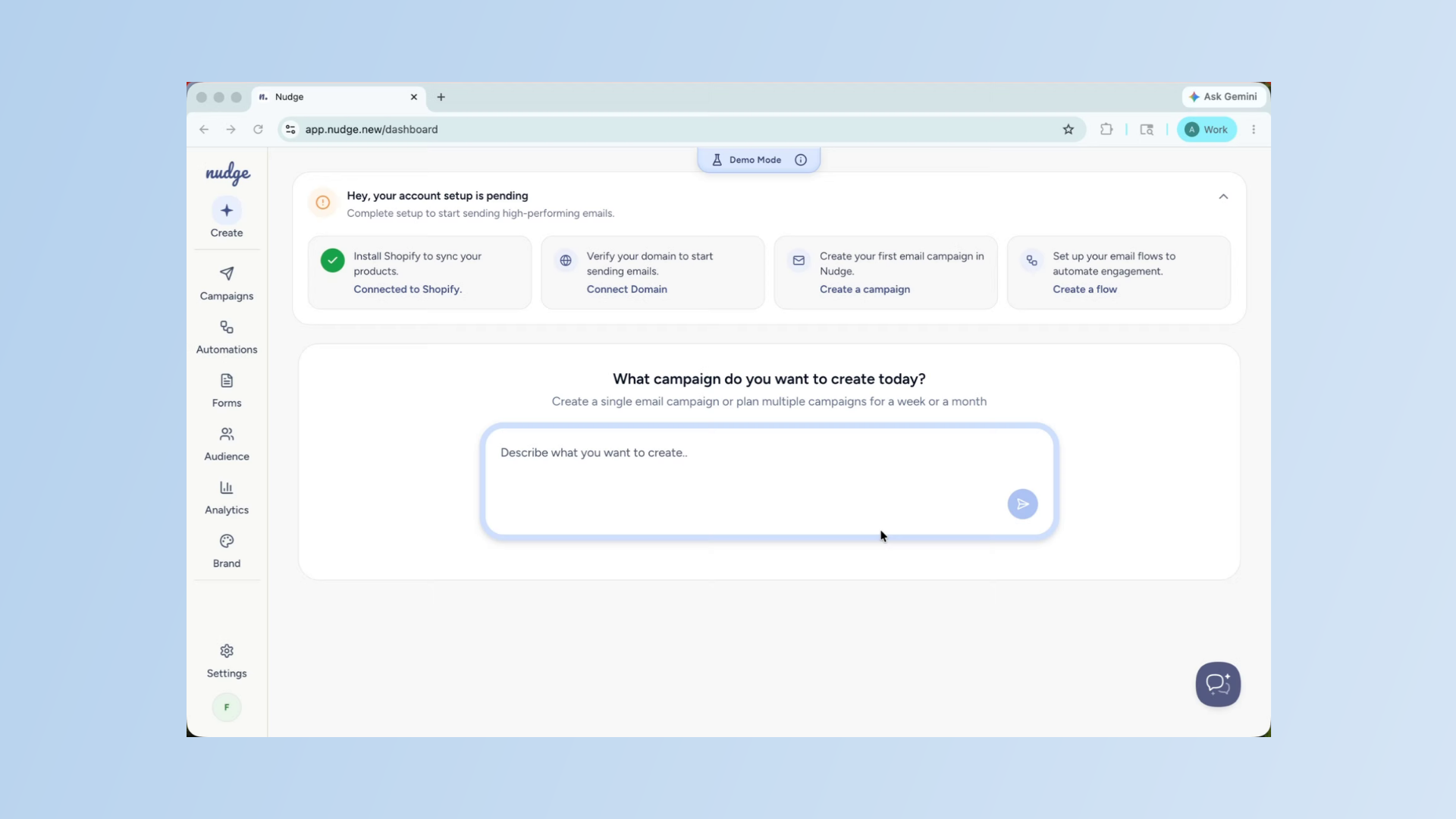
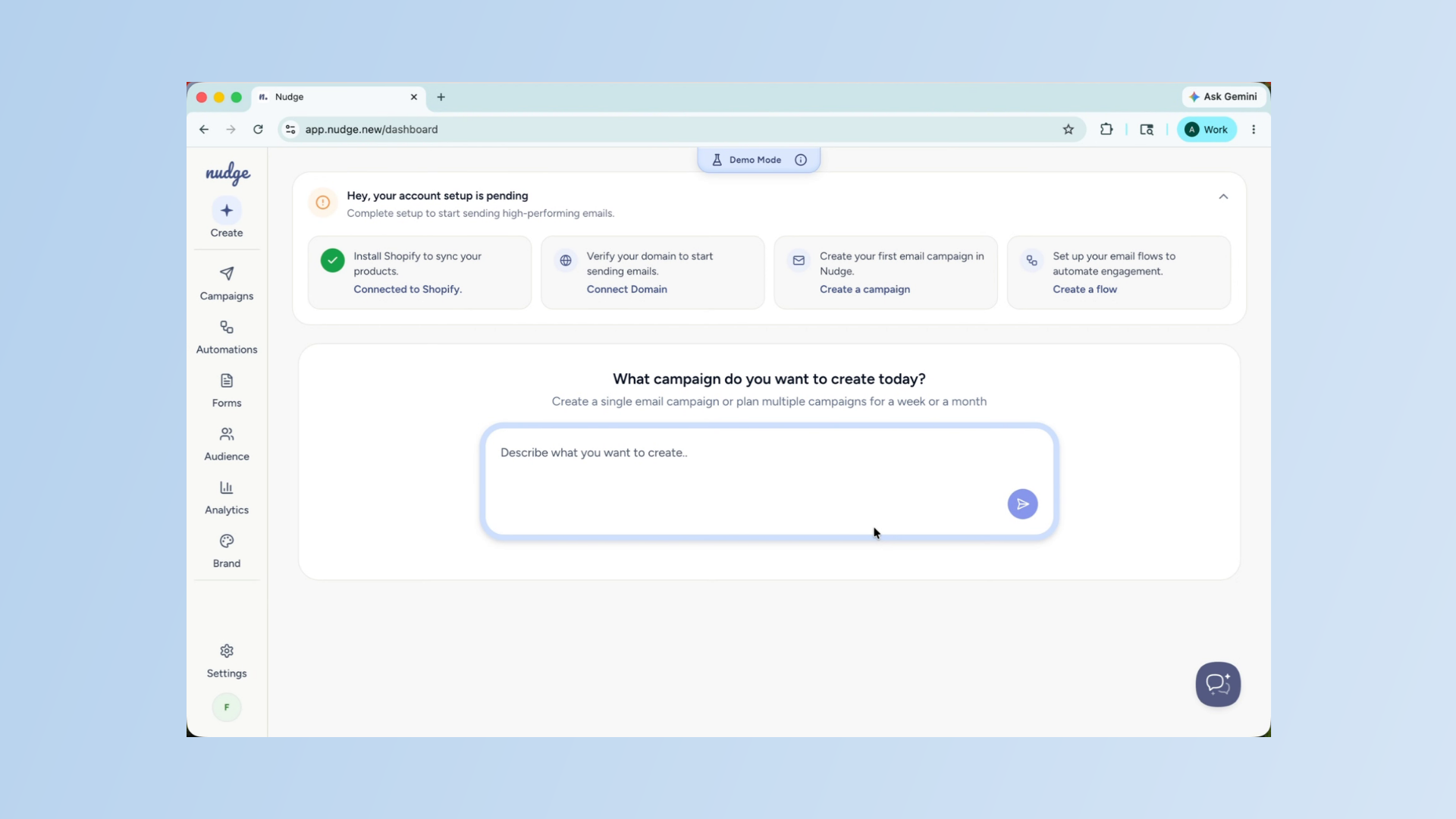
From the dashboard, click on Automations in the left panel and select Set Up Flow. Choose Checkout Abandonment from the available flow types. This flow is triggered automatically whenever a customer adds items to their cart and starts the checkout process but does not complete their order.
Start Flow Setup
Click the Set Up Flow button to begin configuring your checkout abandoned flow in Nudge. This initiates the process to customize the automation for your brand and customers.
Pause Briefly - Segment
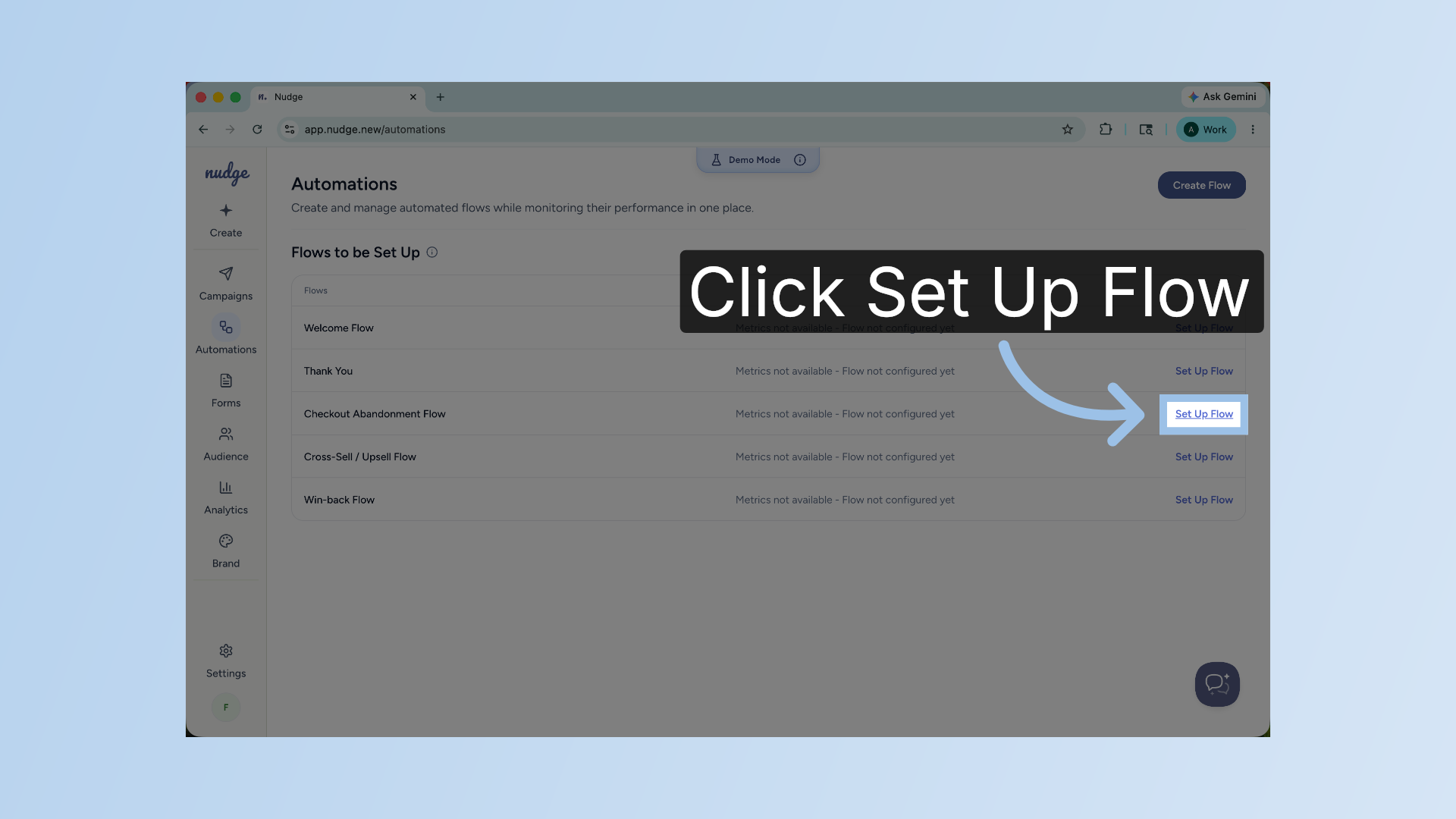
Just like creating a campaign, you will start by giving Nudge some context. Tell it about your brand, the type of products you sell, and whether you want to include an incentive — like free shipping or a small discount — to bring customers back. The agent will use this to shape the tone and content of your emails.
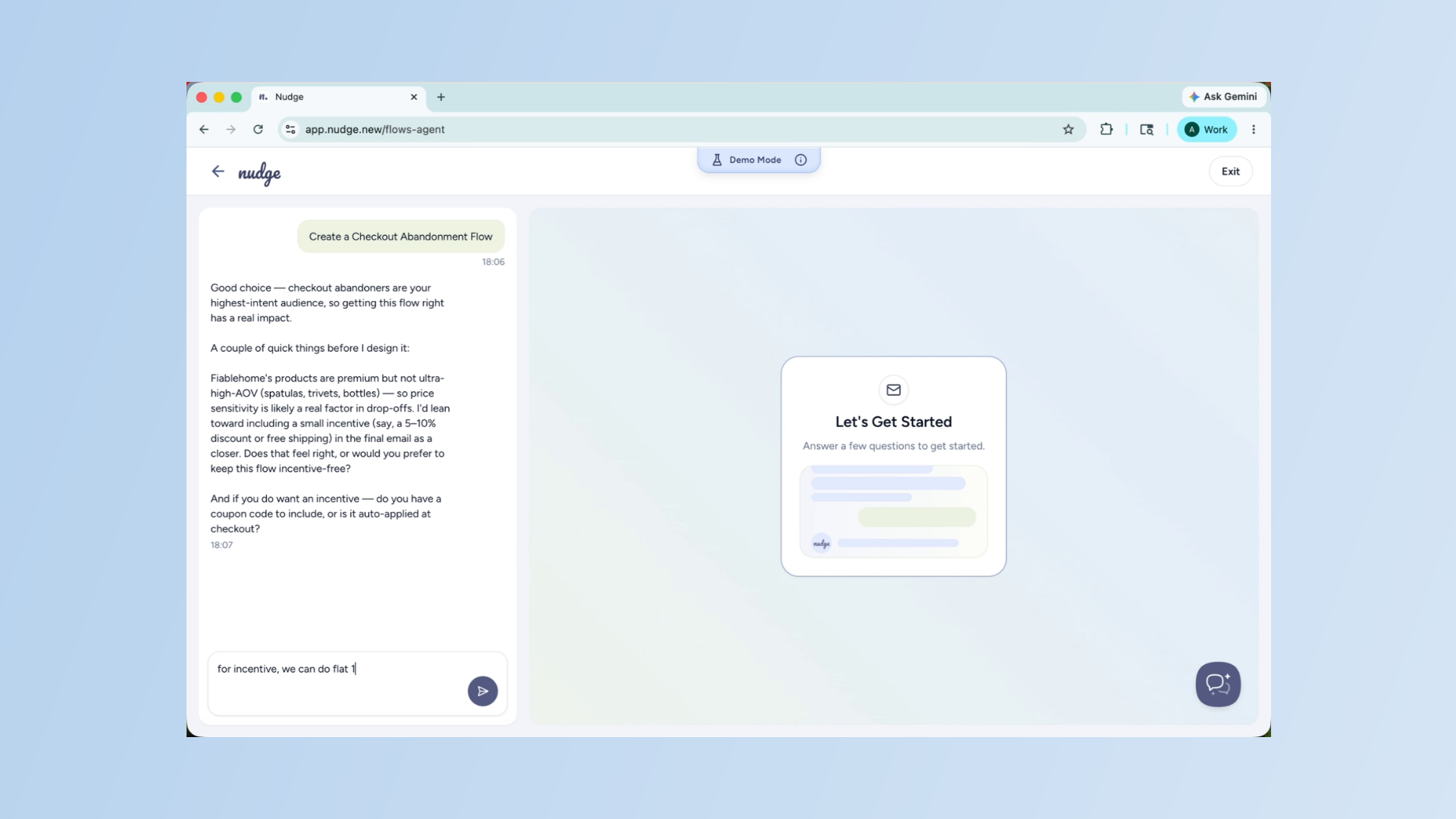
Review Suggested Email Sequence
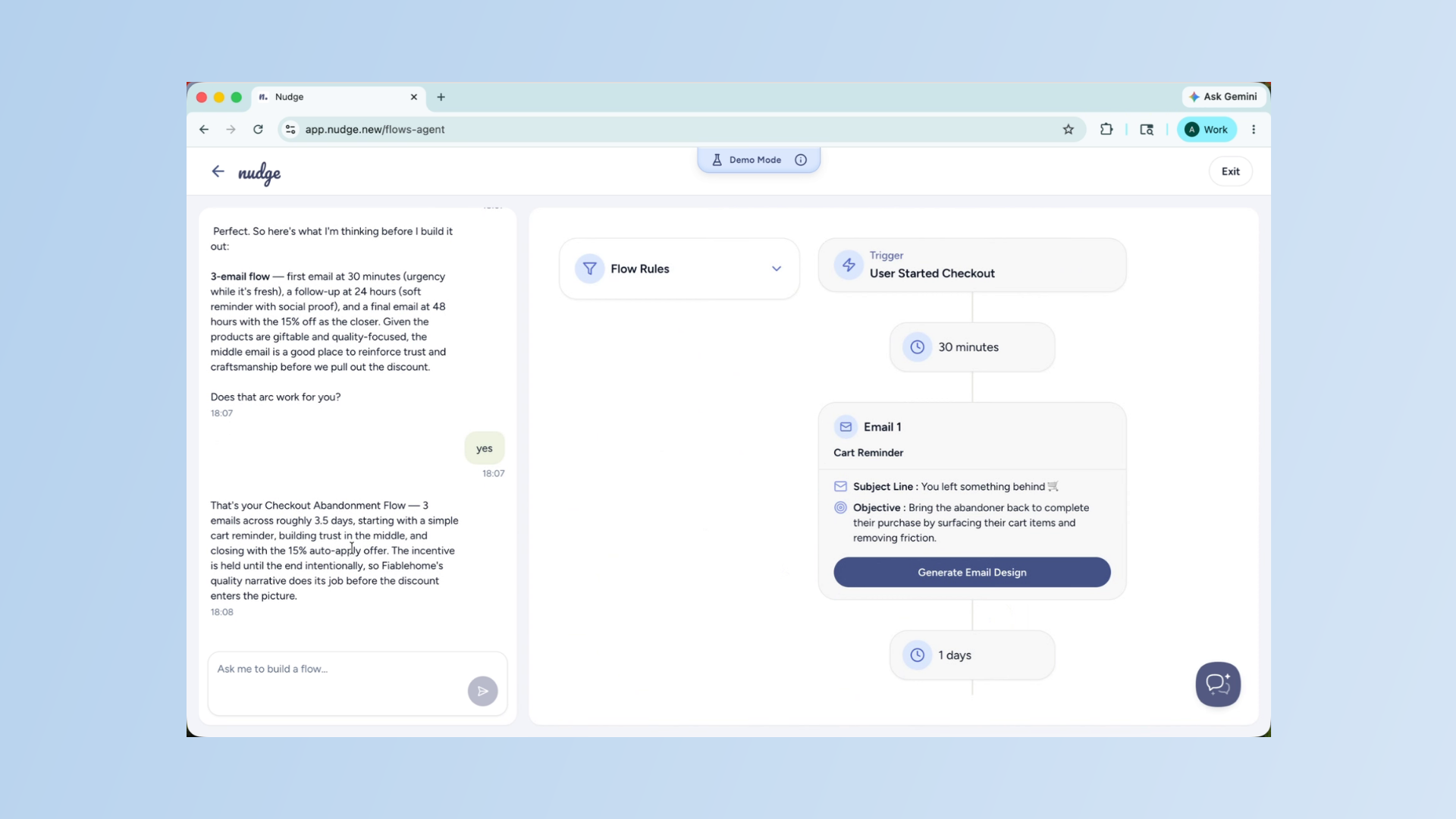
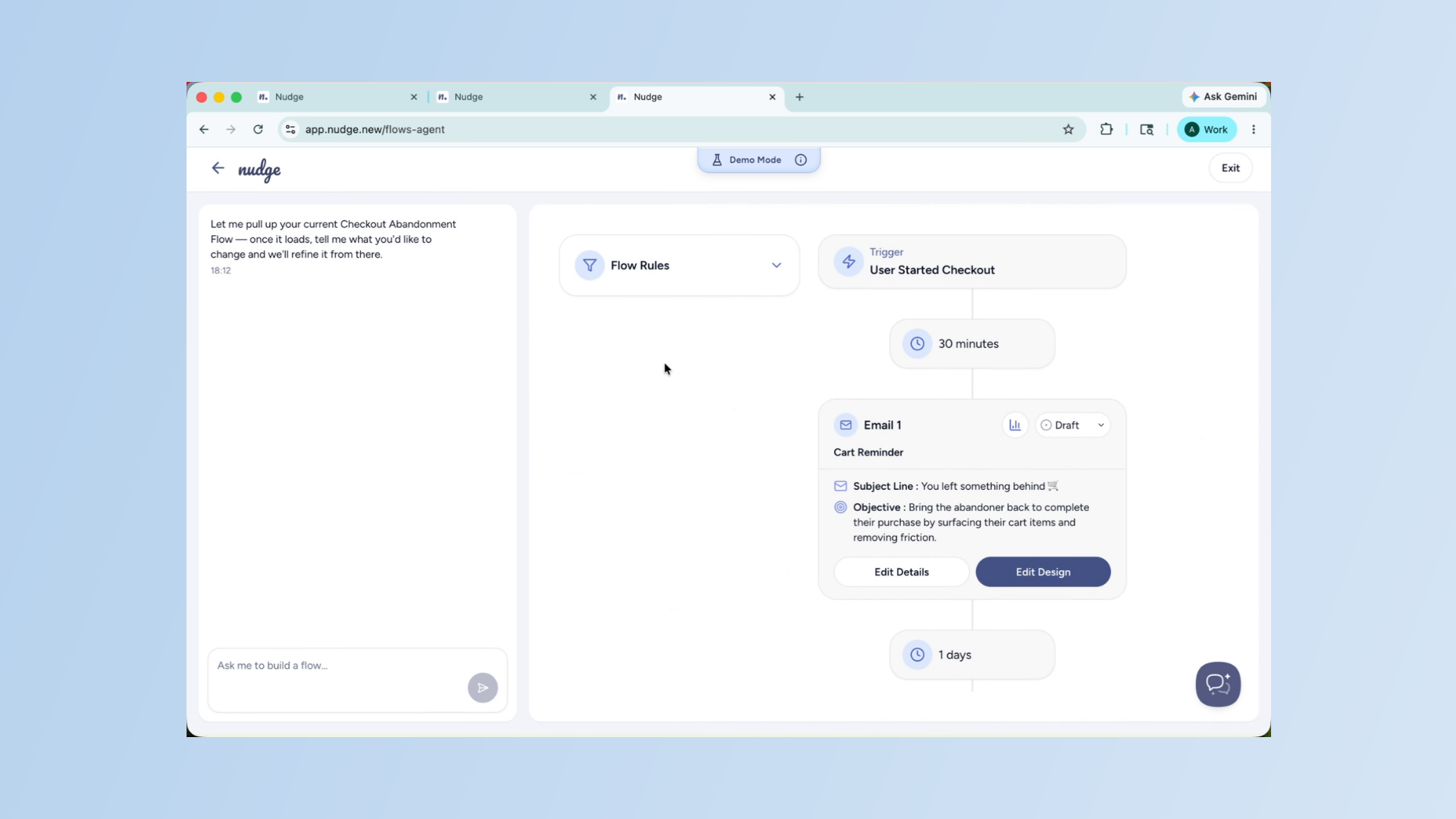
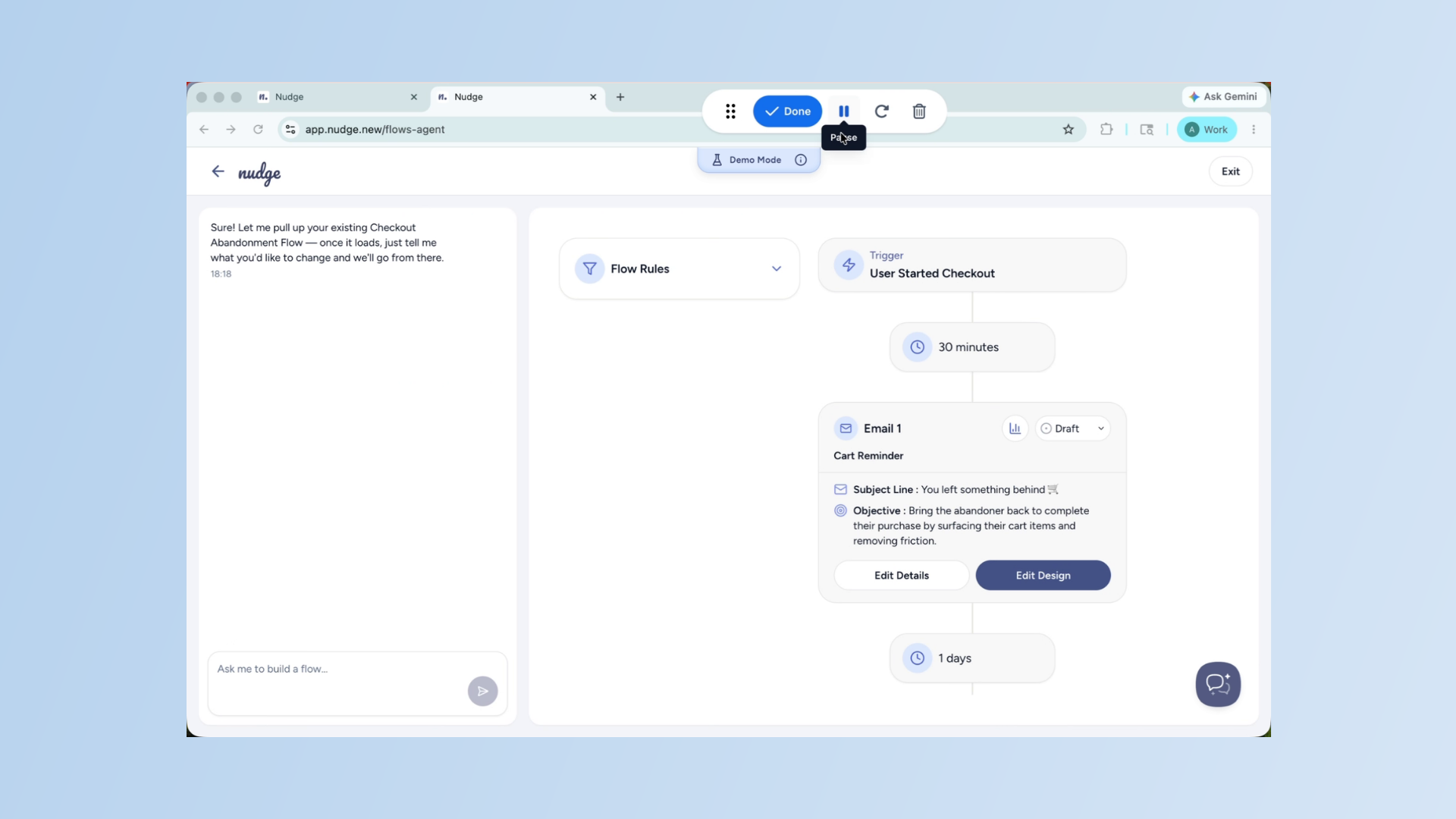
Nudge will suggest a sequence of emails for your flow. A typical Checkout Abandonment flow has three emails. The first goes out one hour after abandonment — a gentle reminder with the items they left behind.
Adjust Email Timing and Content
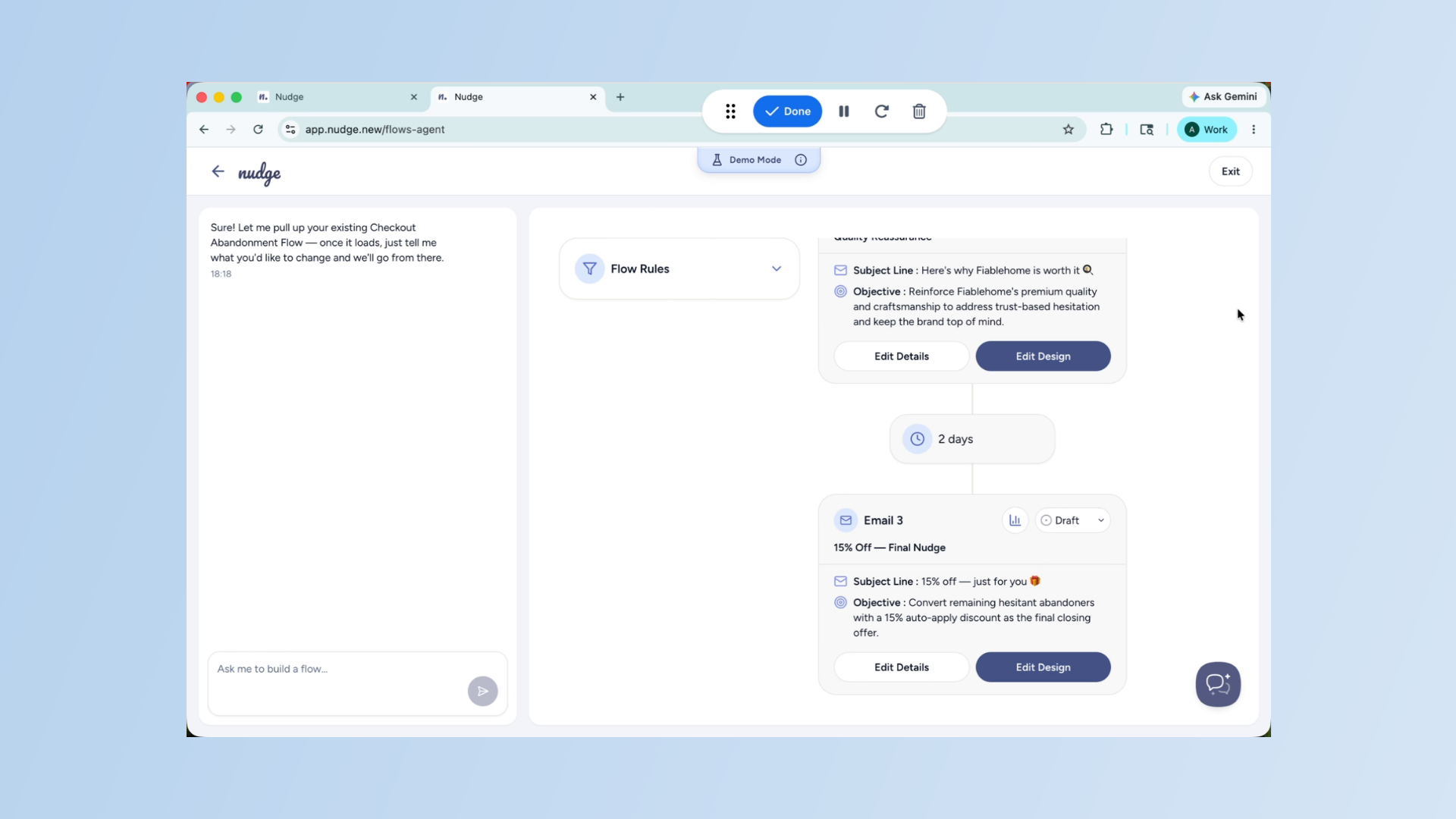
The second goes out 24 hours later — a slightly stronger nudge, possibly with a benefit or reassurance. The third goes out 72 hours later — a final push, often with a small incentive to close the sale. Review this structure and adjust anything that does not feel right for your brand.

Generate Email Designs
Now go ahead and generate design for each email in the flow.
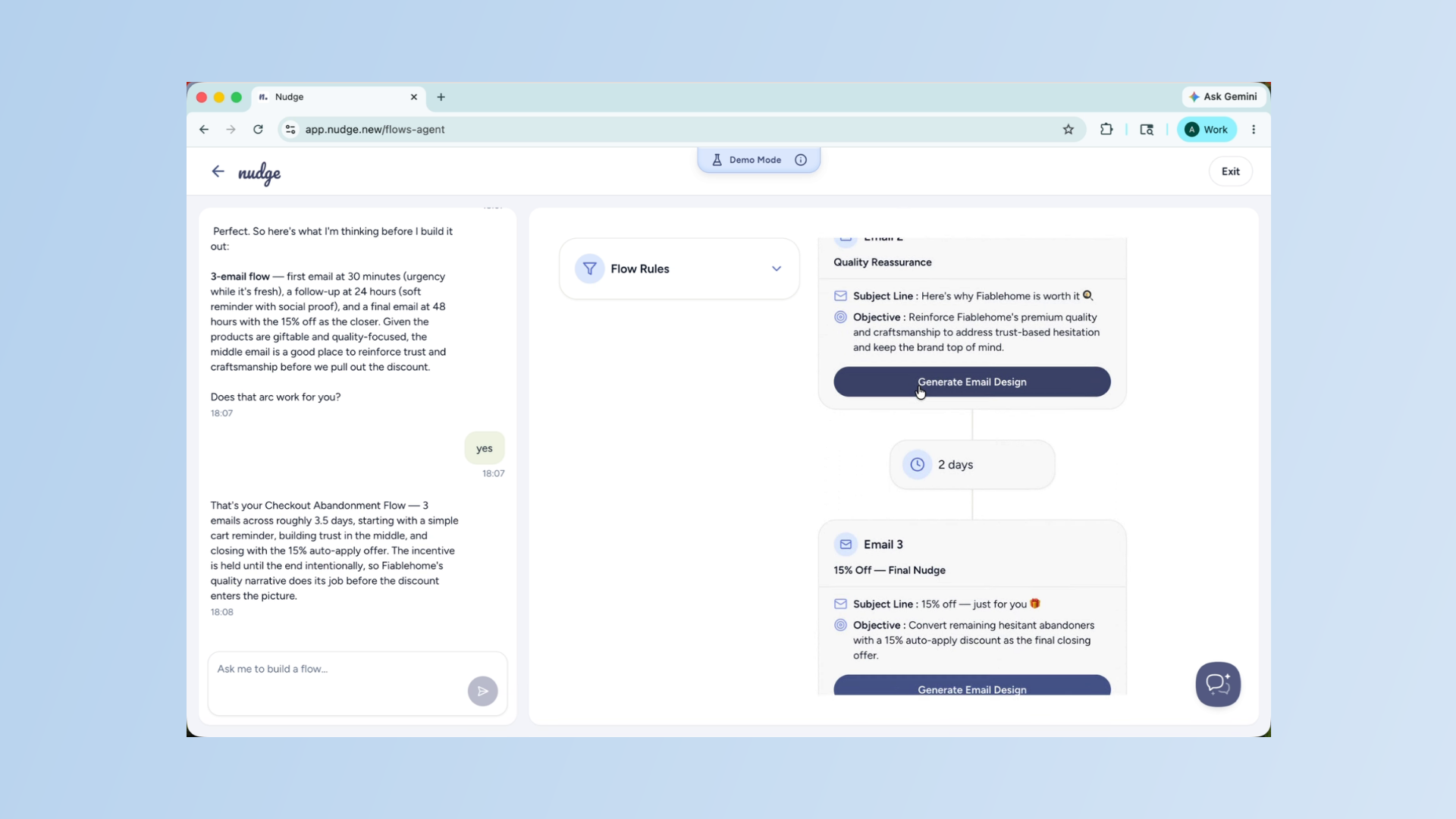
Generate Email Designs - Segment
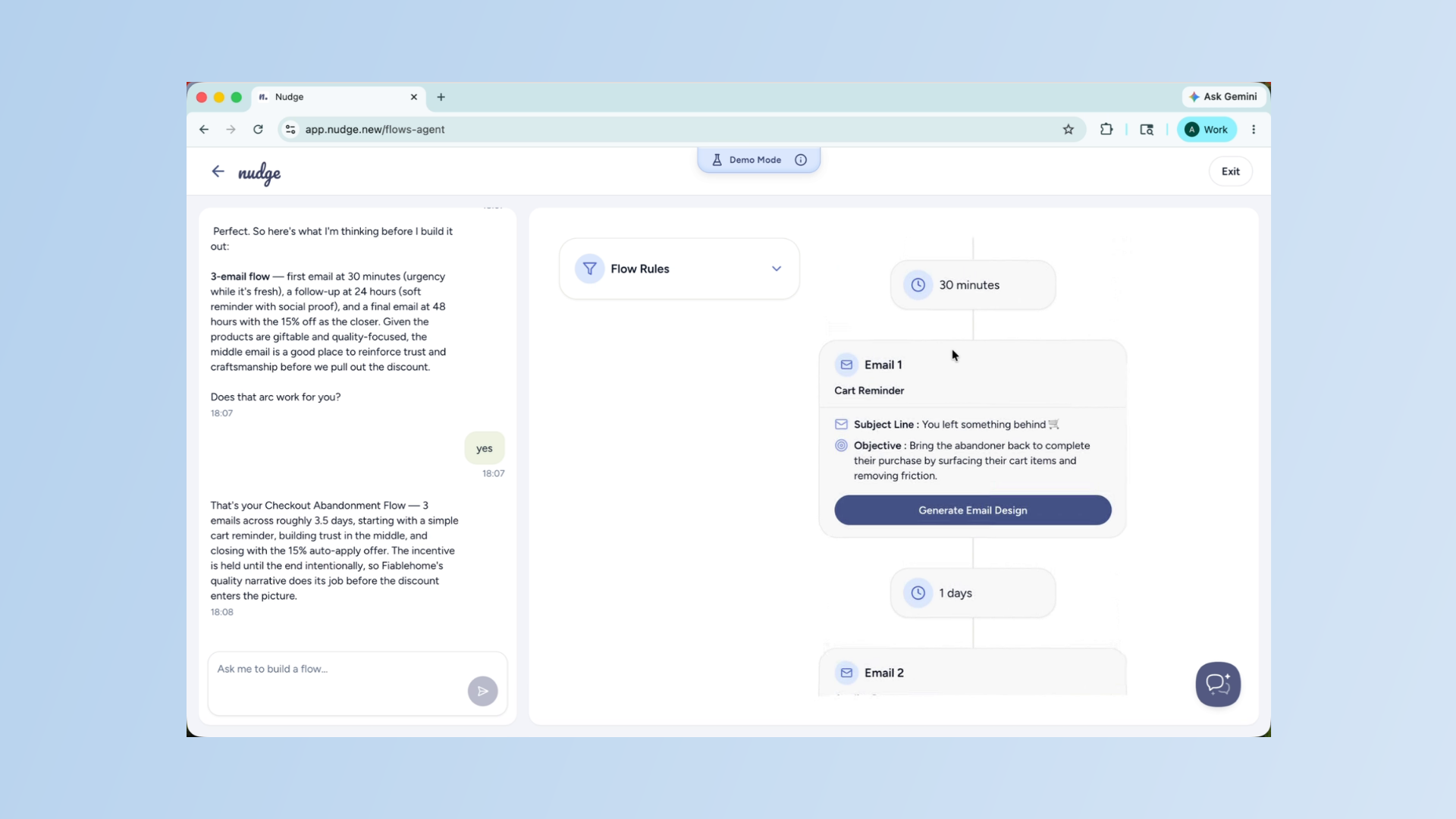
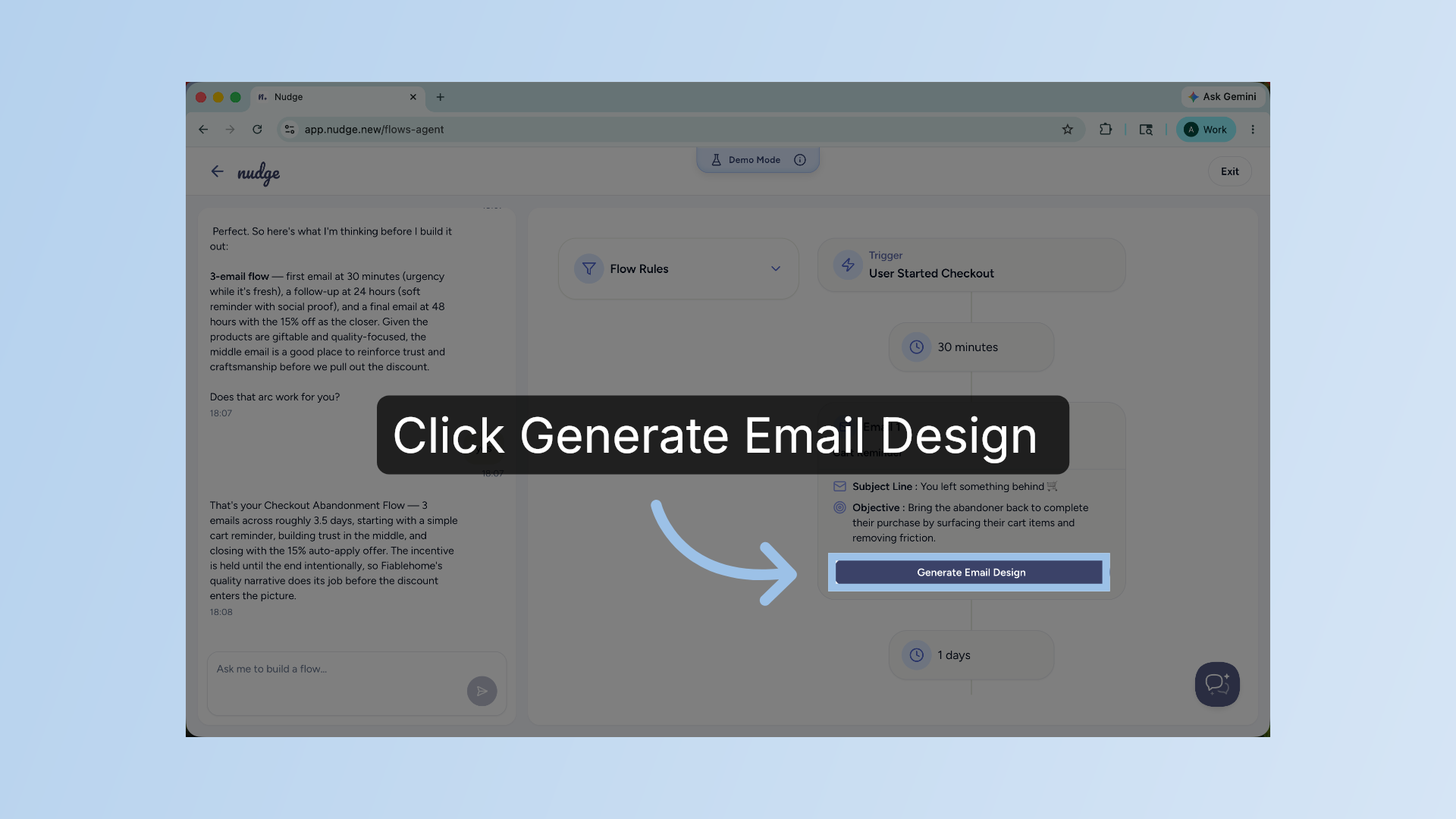
Click Generate Email Design
Click the Generate Email Design button to create the first email's design using your brand assets and flow details.
Create Dynamic Email Content
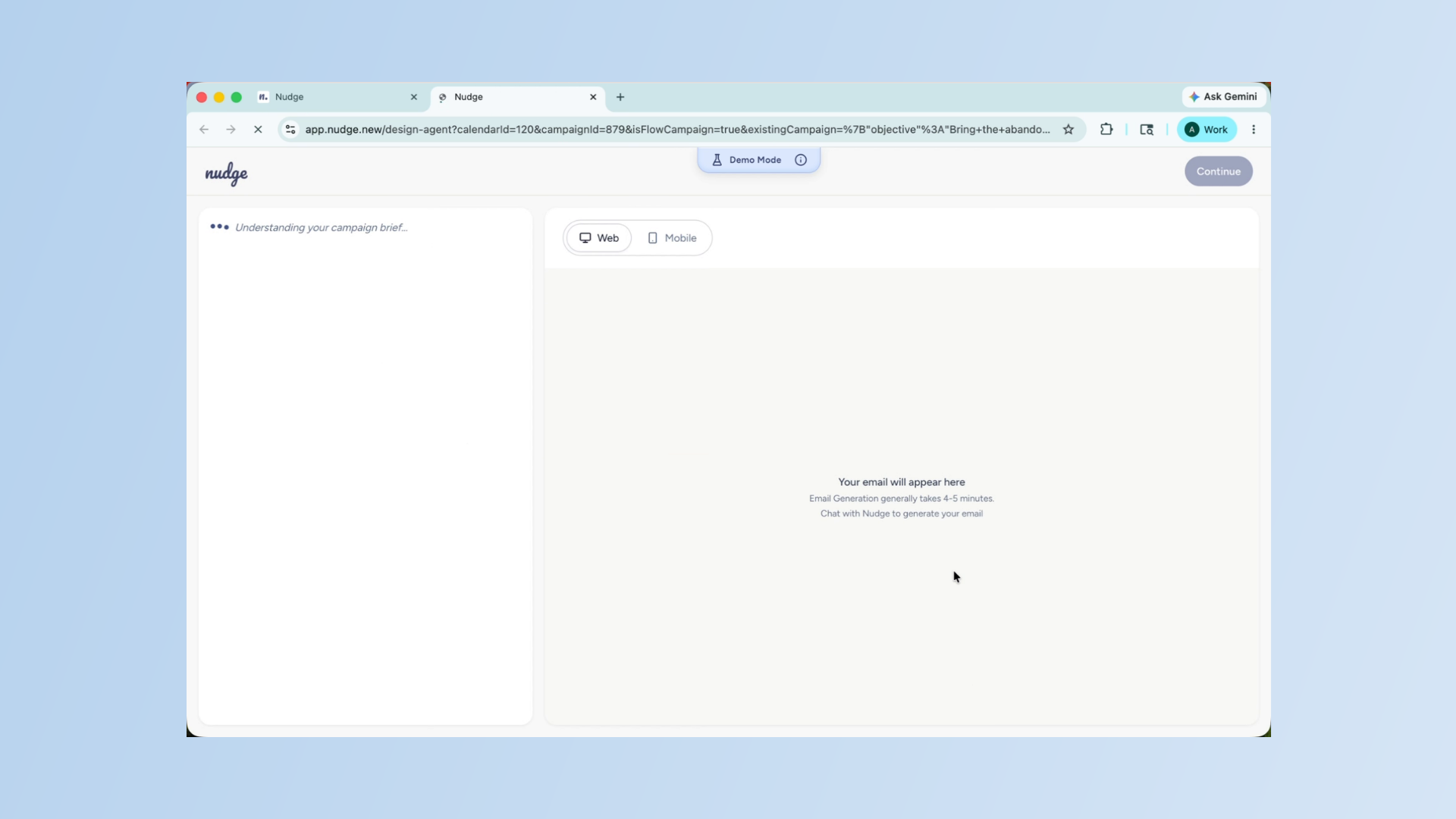
Click generate email design for the first email, and Nudge will build it using your brand assets, the abandoned product details, and the brief you provided.
Pause Briefly
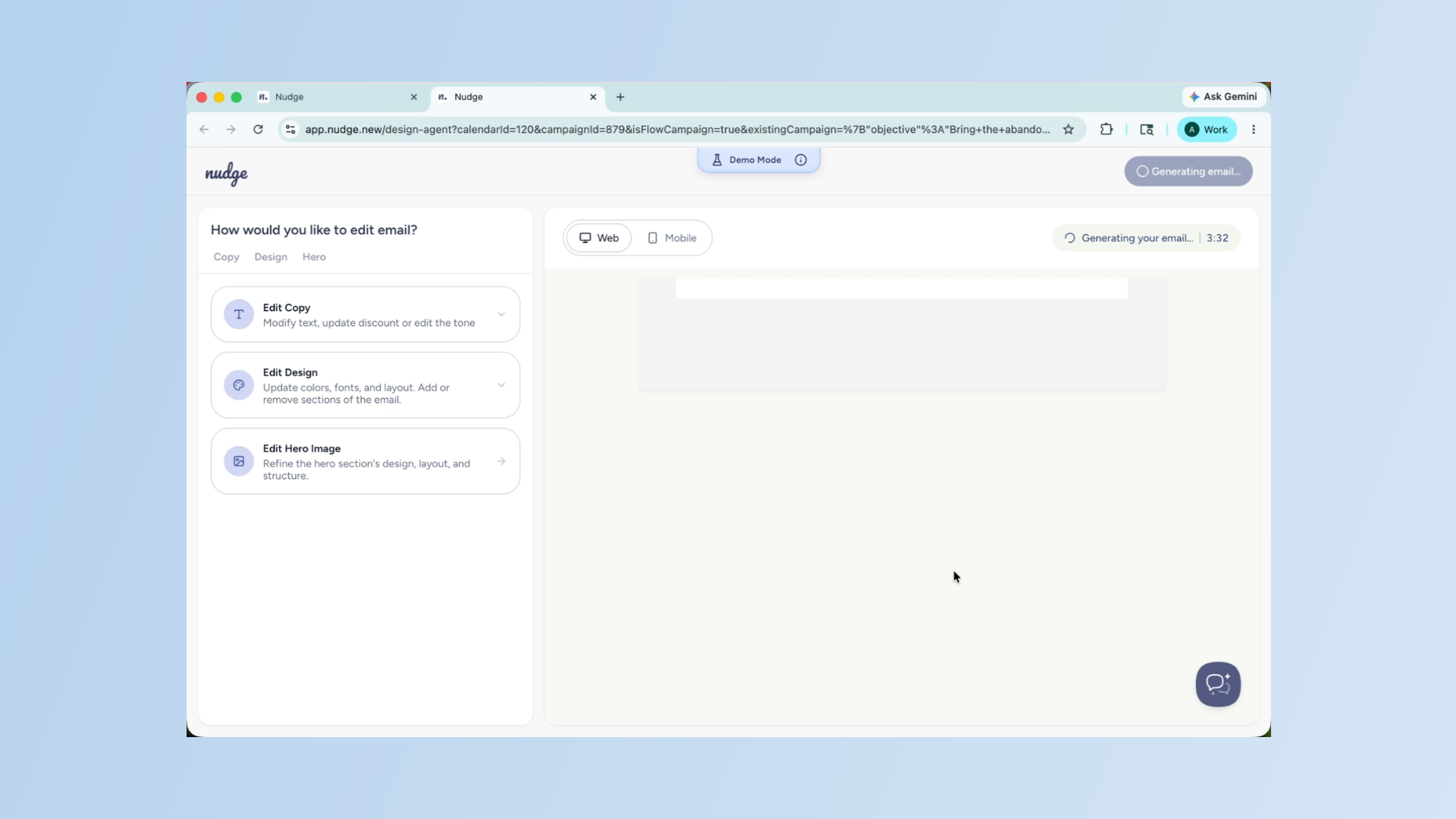
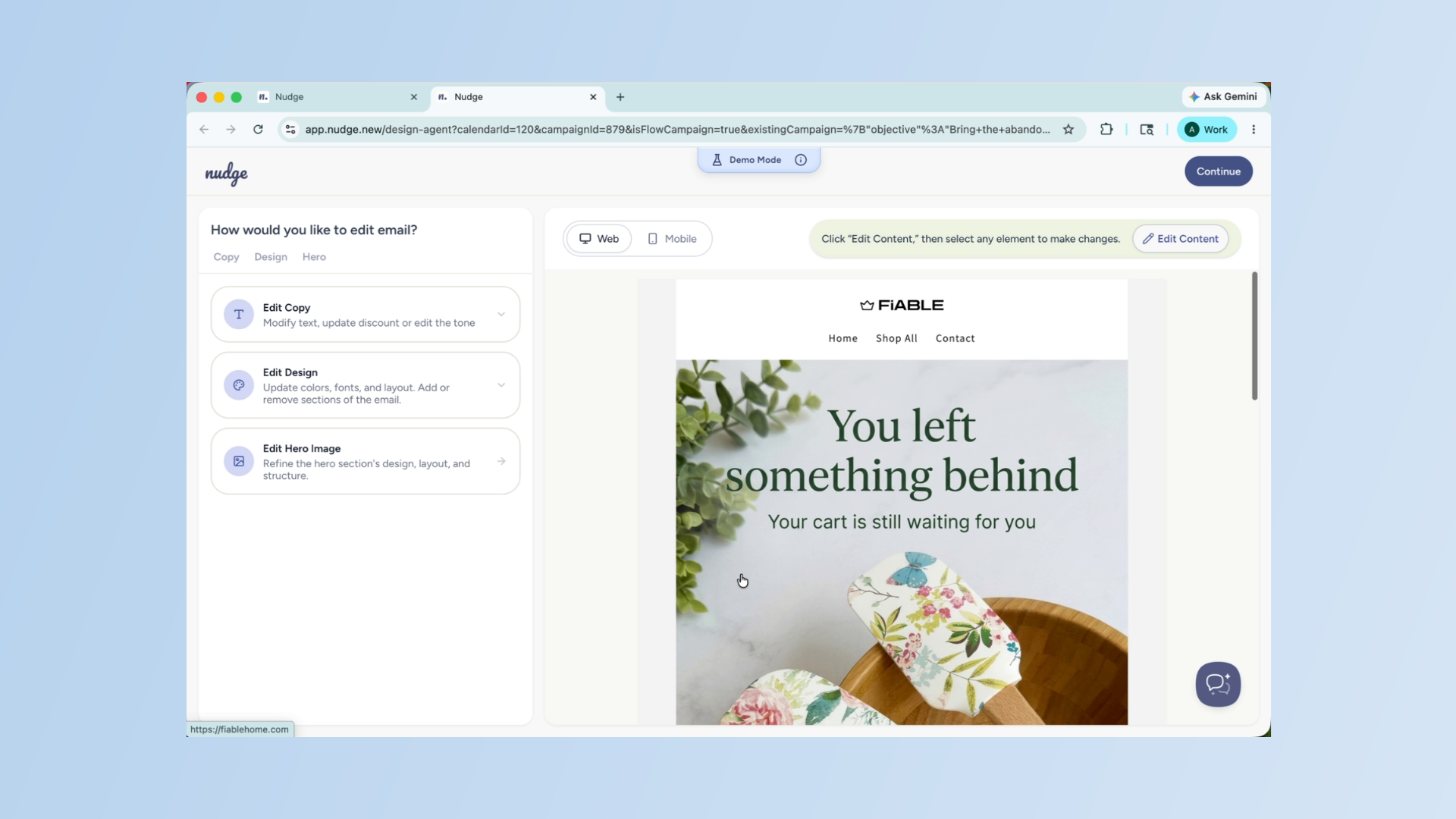
The email will include a placeholder for the abandoned product image and name, which will get filled in dynamically for each customer.
Edit and Finalize Emails
Once the email is generated, you get an option to edit the copy, the design, or the hero image. When you are happy, you can click continue.
Edit and Finalize Emails - Segment
Now go ahead and generate the designs of the other two emails of the flow.
Set Email Delays and Frequency
Between each email, set a time delay that feels natural for your customer. The recommended timing is 30 mins for the first email, 24 hours for the second, and 72 hours for the third. You can adjust these in days, hours, and minutes from the flow builder. Avoid sending too quickly or too frequently — it can feel pushy and lead to unsubscribes.
Activate the Flow
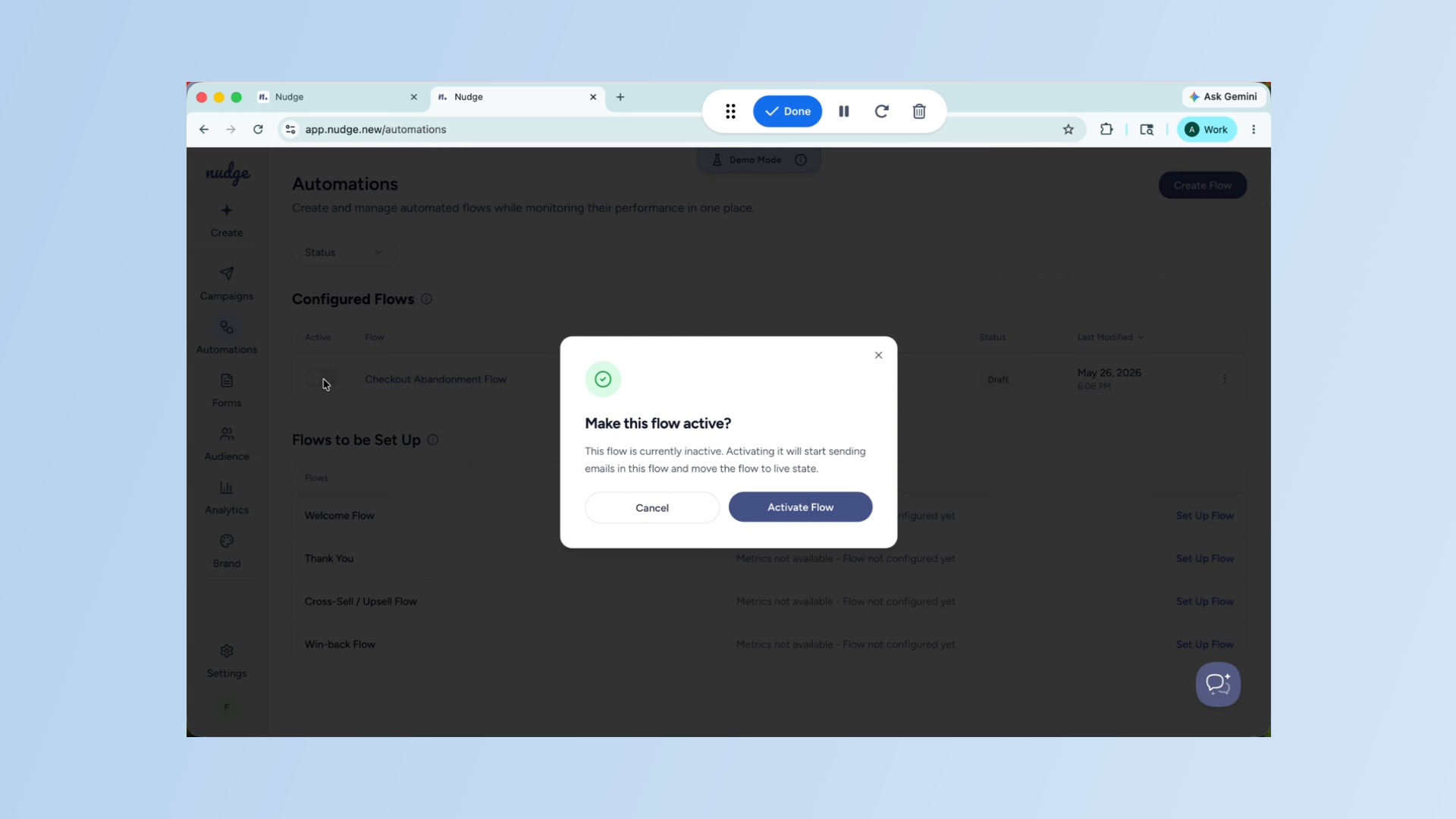
Once all your emails are designed and the delays are set, click active and click on activated flow.
Activate the Flow - Segment
Automate Customer Email Trigger
From this point on, every customer who abandons checkout will automatically enter the flow and receive your emails at exactly the right time. No manual work needed on your end.
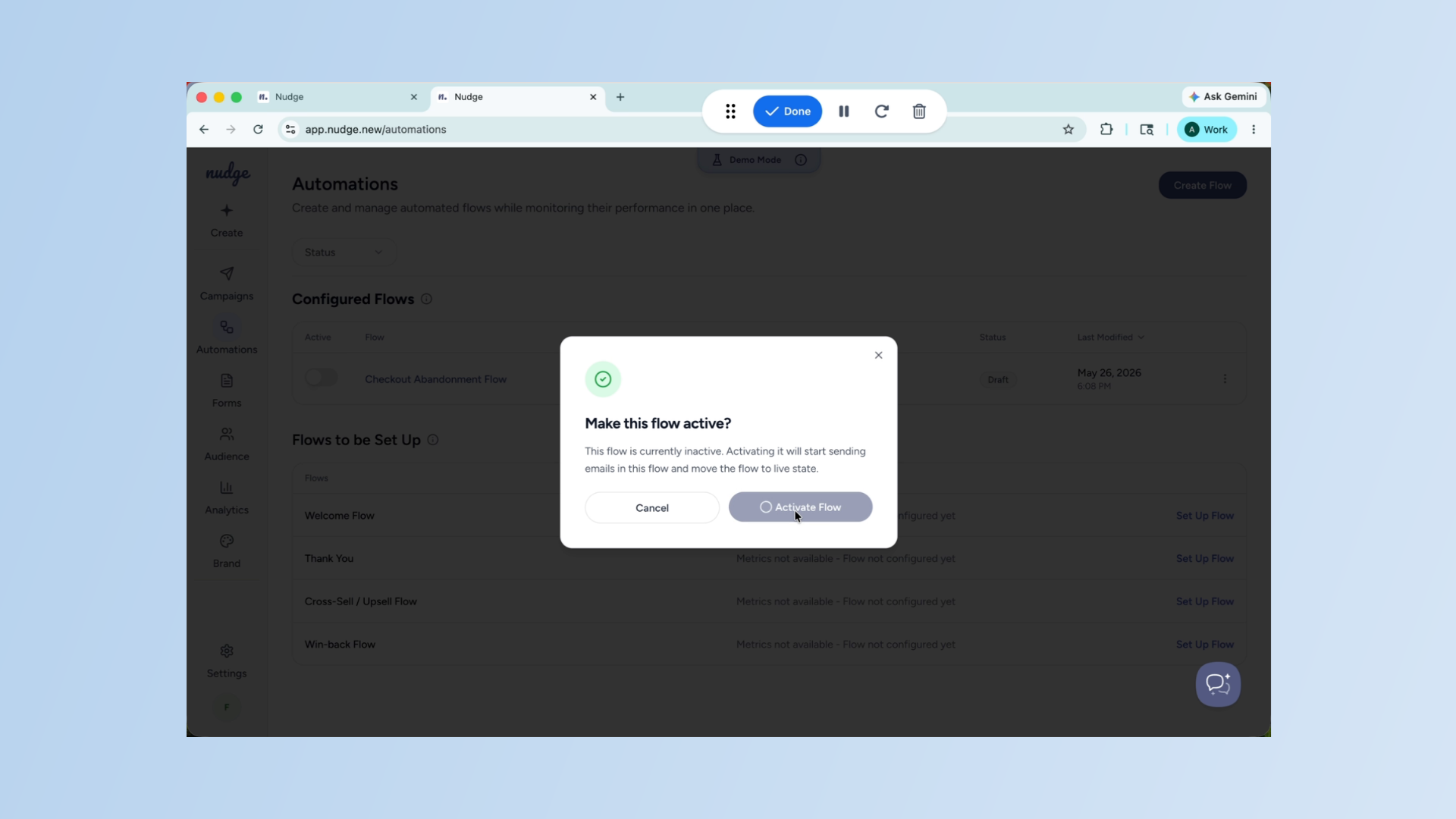
Your Checkout Abandonment flow is now live and working in the background to recover sales you would otherwise lose. Check your flow analytics after the first two weeks to see your recovery rate and open rates, and refine from there. See you in the next one!