How to Invite Your Team to Nudge
In this video, we will show you how to invite your team members to Nudge so you can collaborate on campaigns and flows together.
Introduce Team Invitation Purpose
Whether you are working with a co-founder, a marketing manager, adding team members to your Nudge account means everyone can contribute without having to share login details.
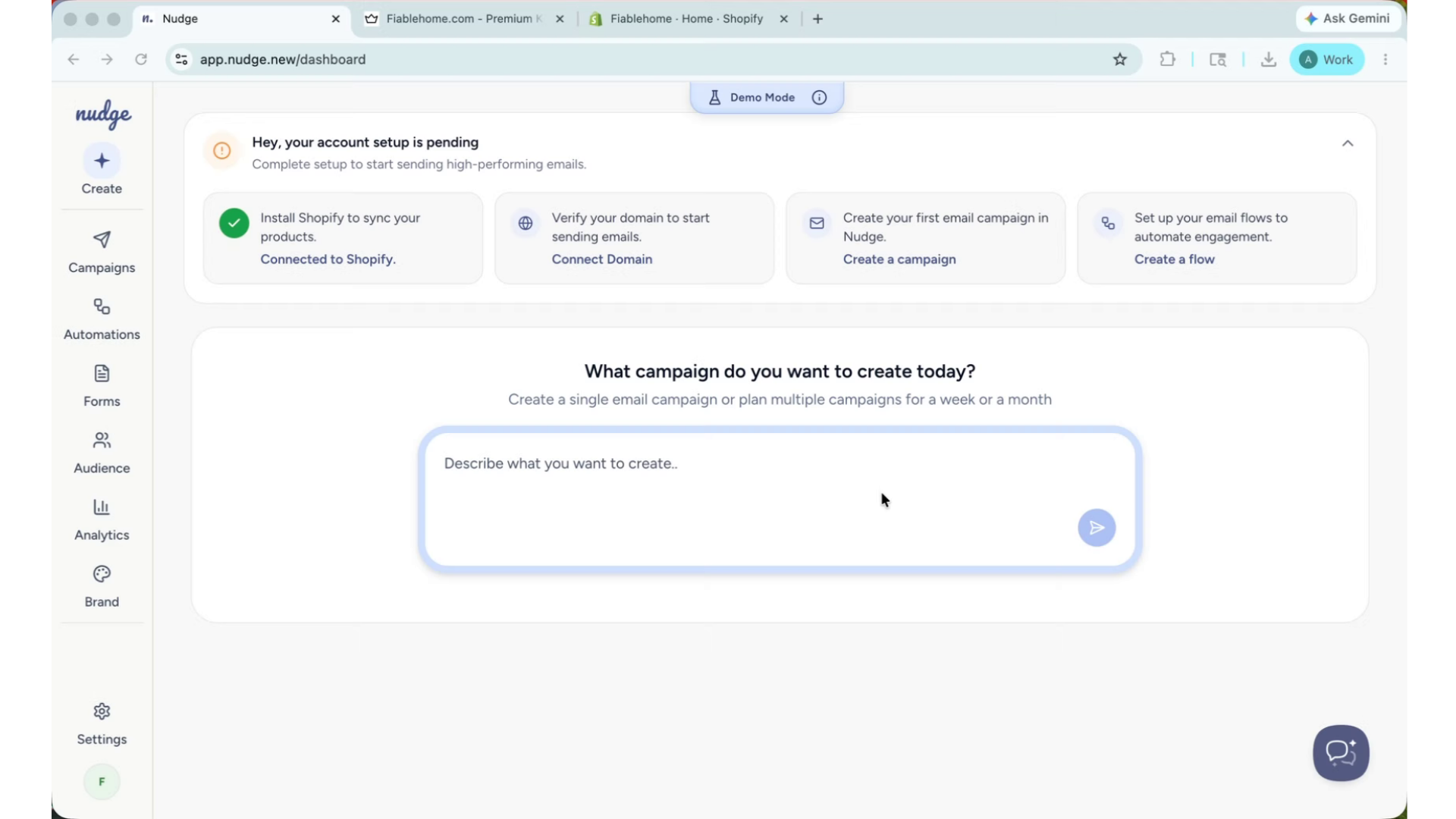
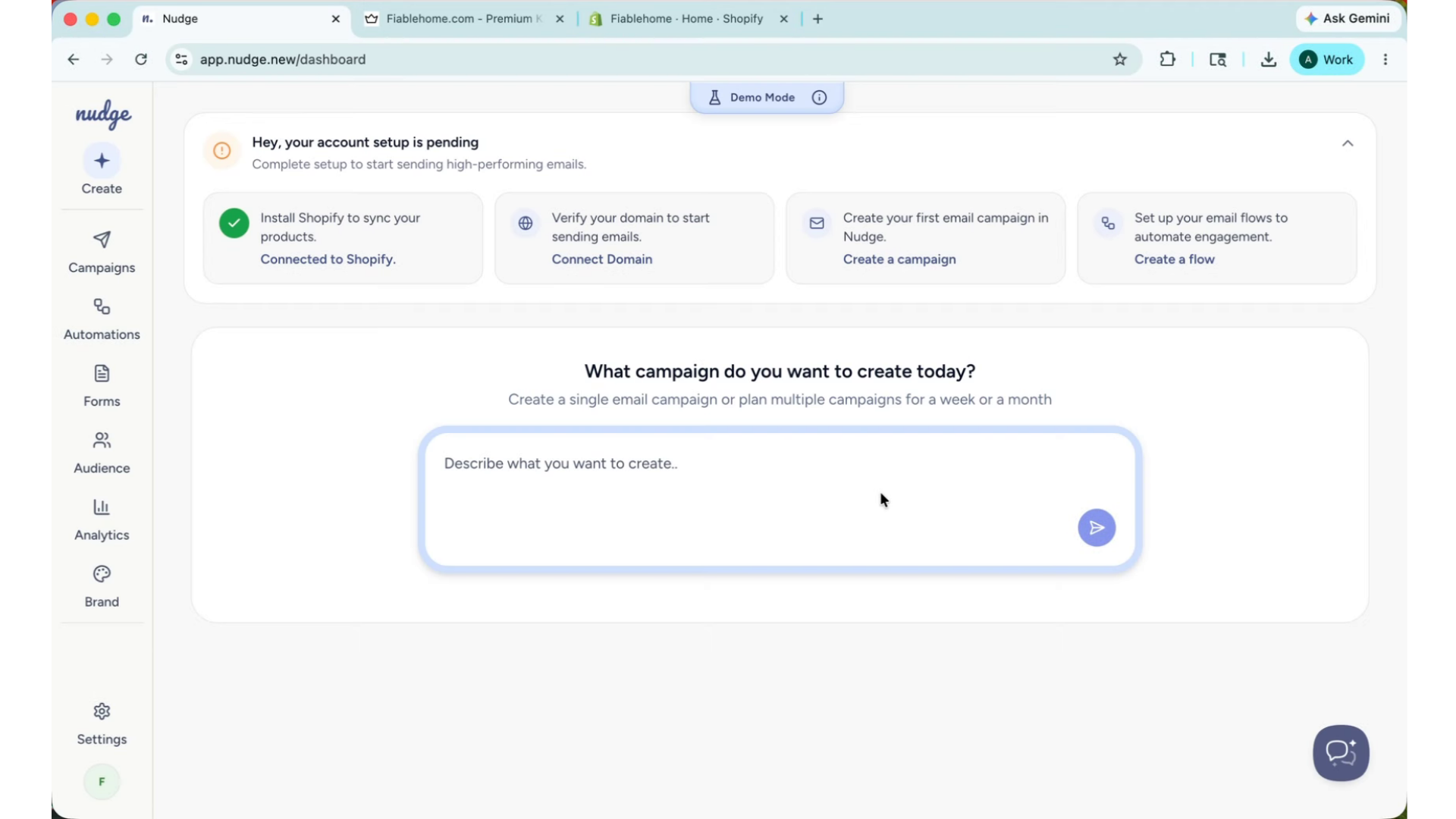
Access Team Settings
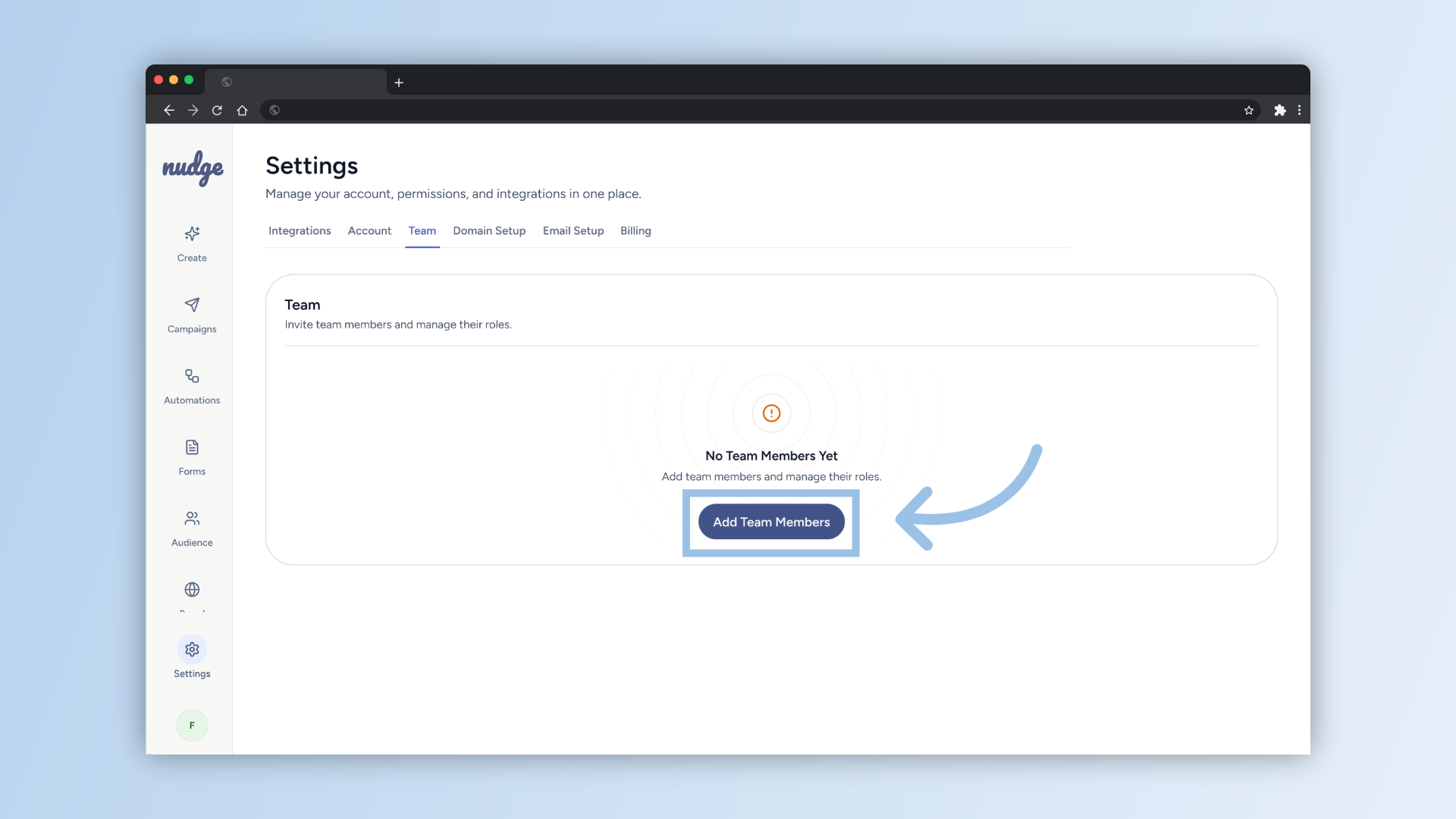
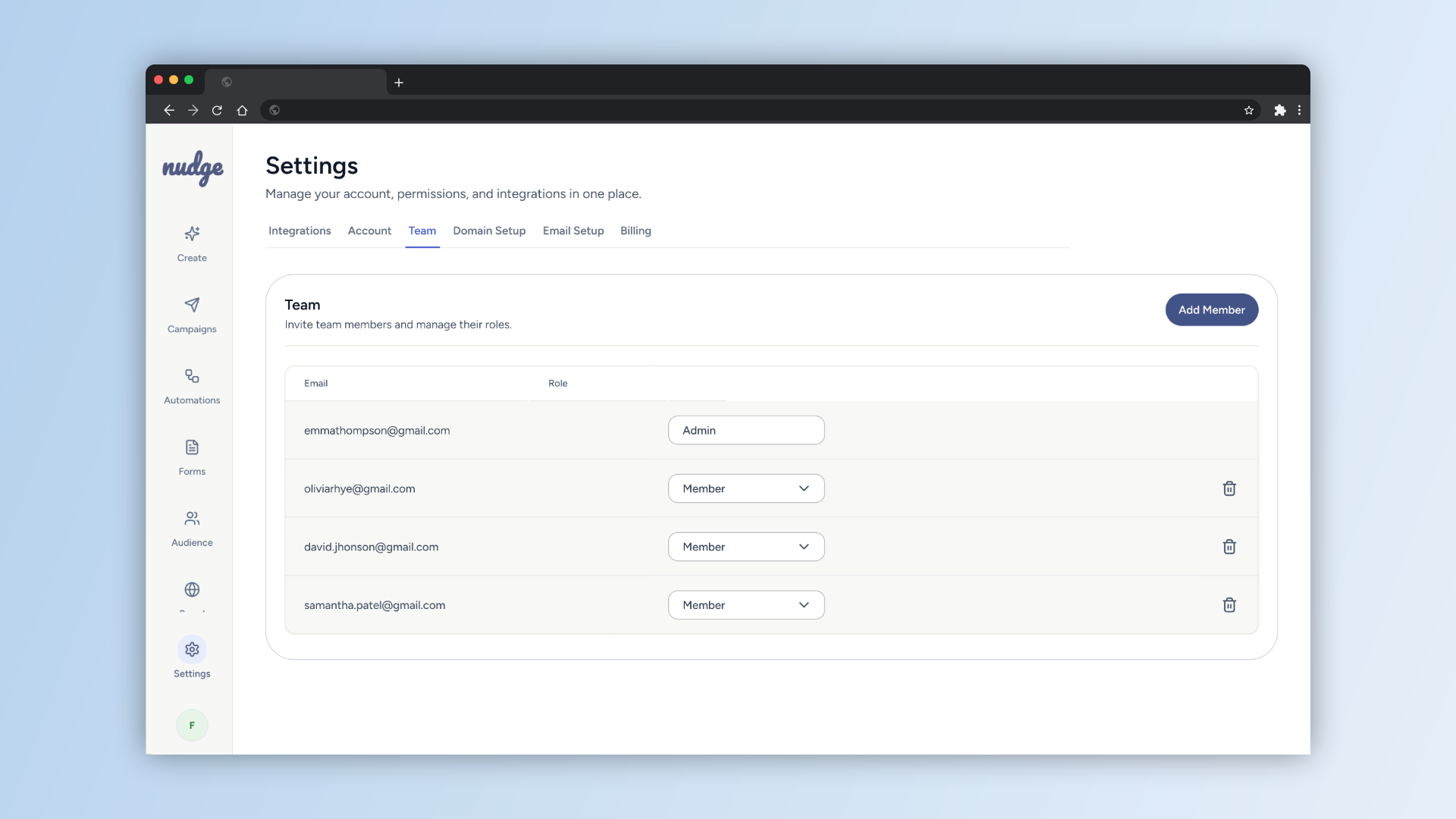
From the dashboard, go to settings and click on "team"
Send an Invitation
Click Invite Team Member
Send an Invitation
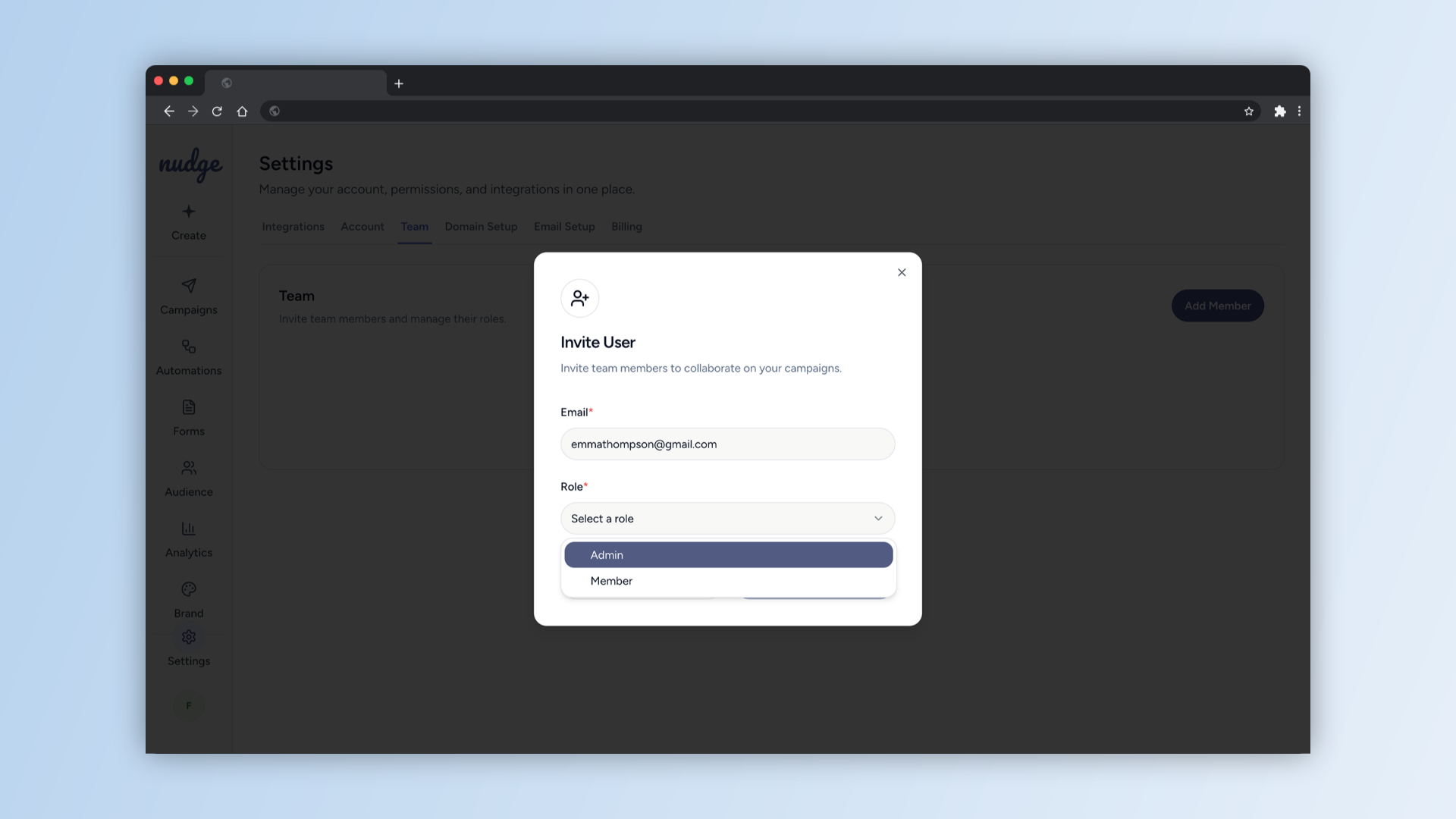
and enter the email address of the person you want to add. Next, select their role — either Admin or Member. Take a moment to choose the right one, as roles determine what each person can do within the account.
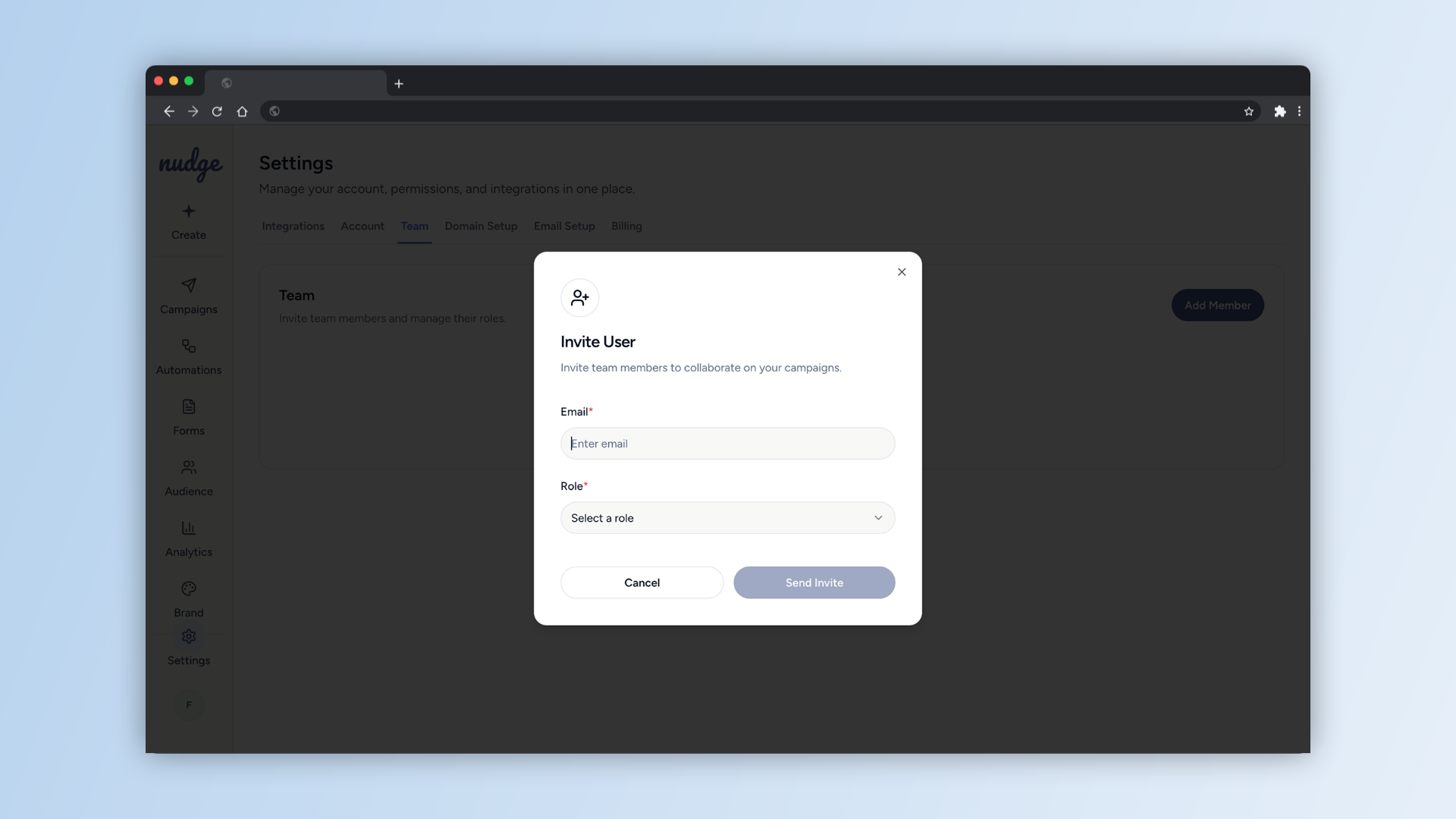
Understanding Roles
A Member can create and manage campaigns, flows, and pop-ups. An Admin has full access, including settings, billing, and the ability to manage other team members. Only one person can hold the Admin role at a time, so assign it to whoever should have overall ownership of the account.
Accepting the Invitation
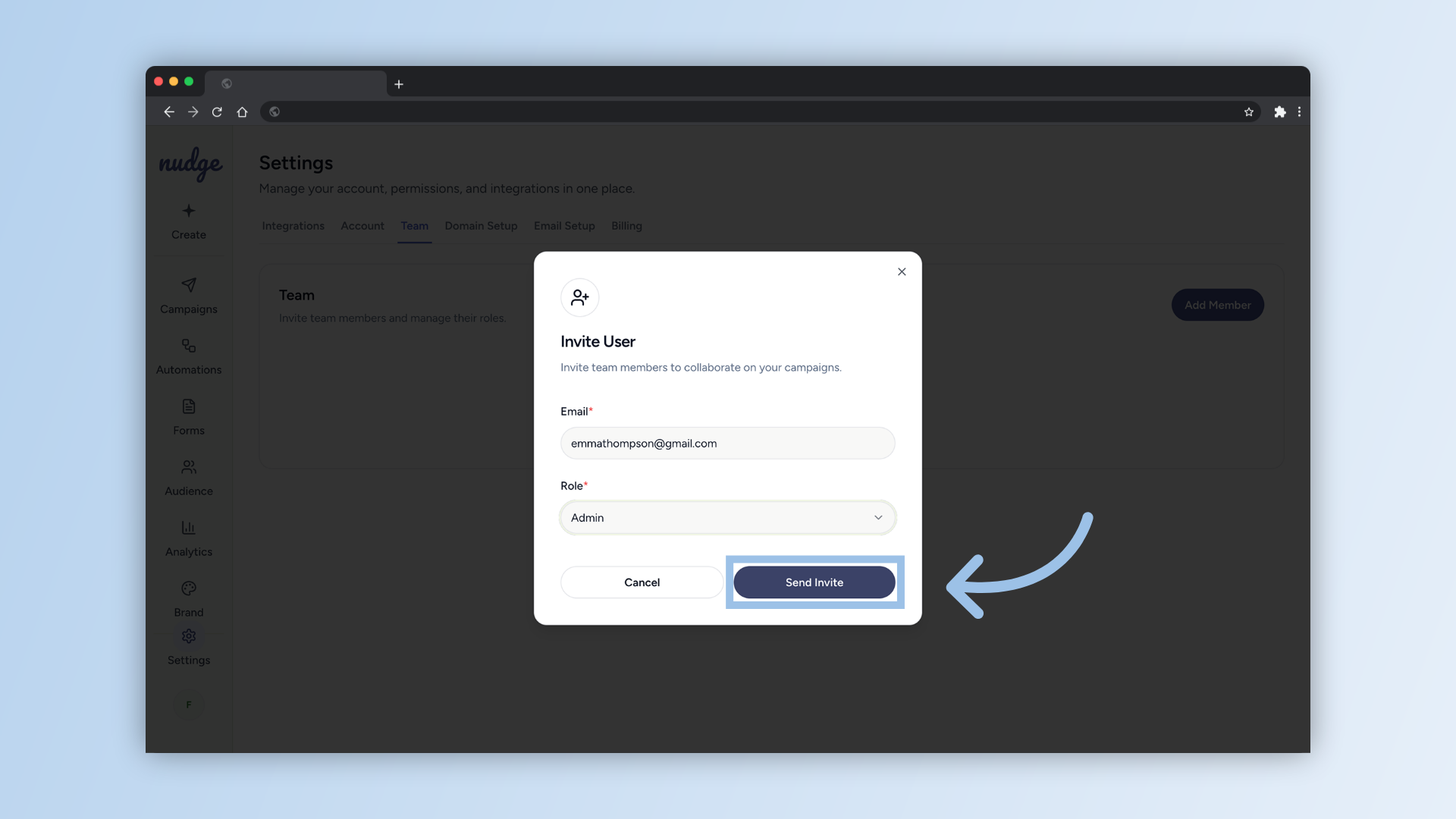
Once you click Send Invite, the team member will receive an email invitation.
Accepting
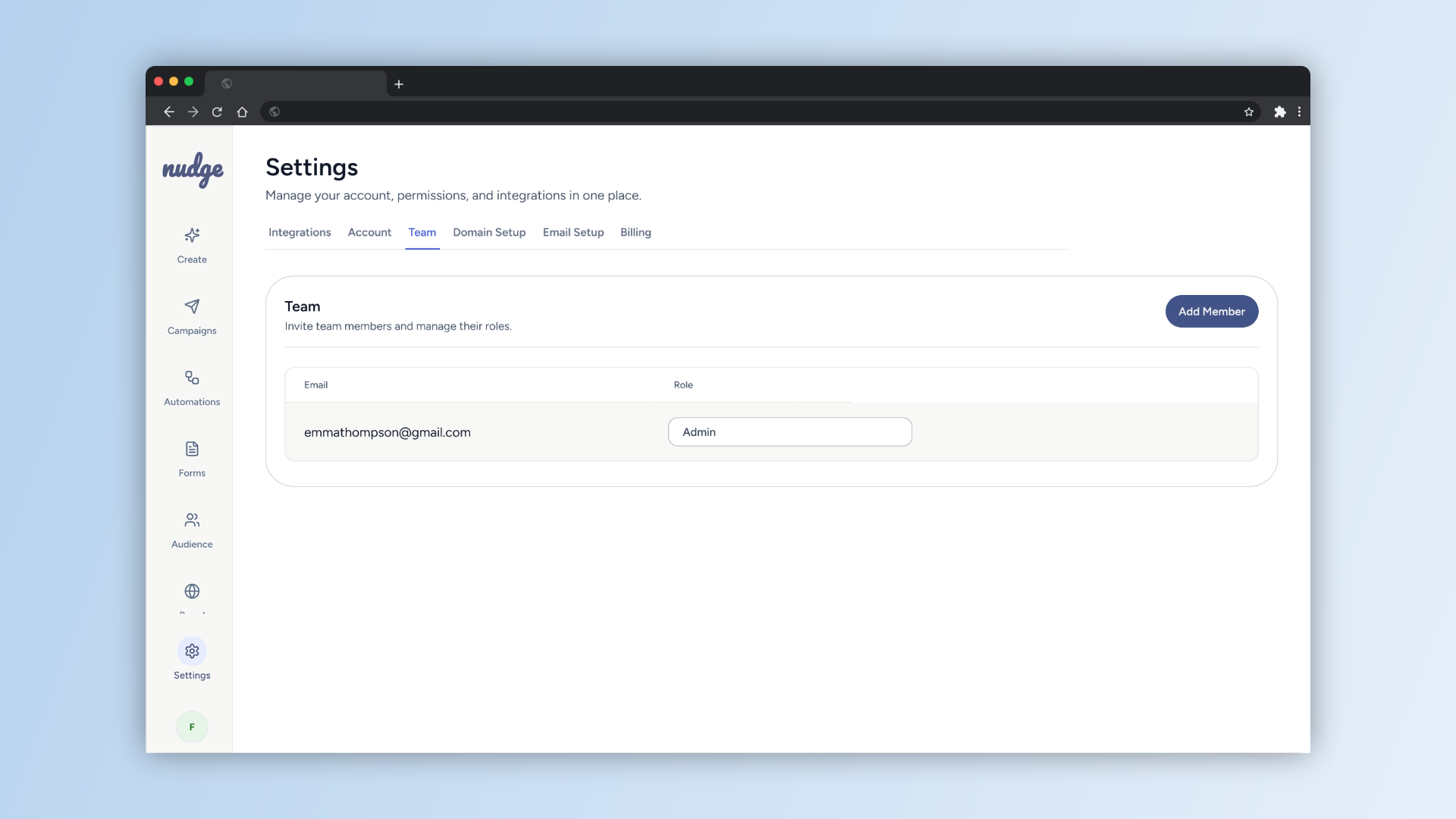
And when they accept, they will appear in your team members list and can log in straight away with their own credentials.
Managing Your Team
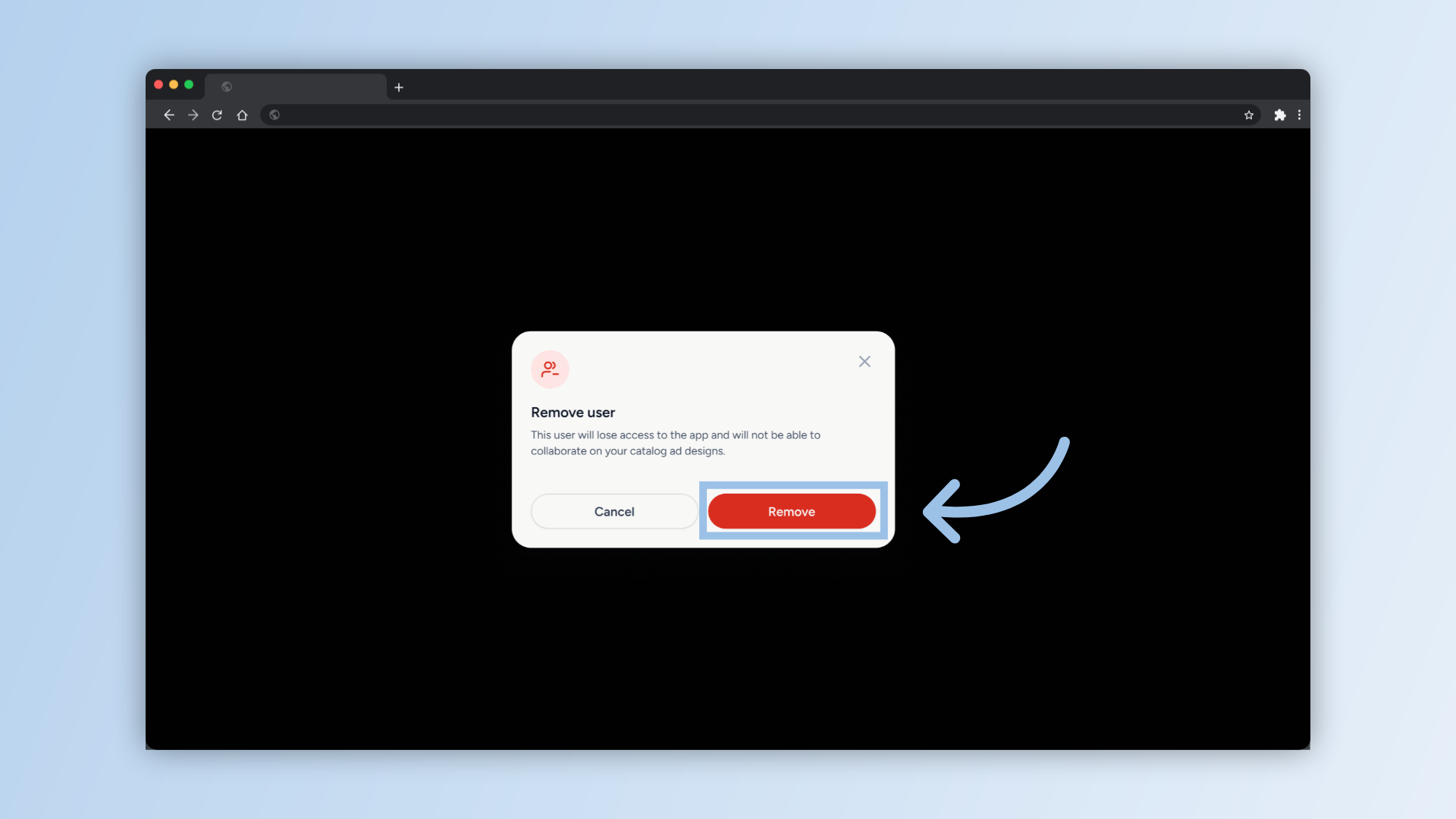
You can remove a team member at any time from the same Team section. If someone leaves or their access needs to change, it is straightforward to update from here.
Multiple Members
You can add as many team members as you need, but just remember — there can only be one Admin at a time. So choose that role carefully!
Your team is all set up and ready to collaborate on Nudge! Everyone now has their own login, their own role, and access to everything they need to help build and send great email campaigns. Check out our other guides to get the whole team up to speed on using the platform.