Create And Publish Pop-Up Forms On Nudge
In this video, we will show you how to create and publish a pop-up form on Nudge — one of the easiest ways to grow your subscriber list directly from your website.
Introduce Pop-Up Form Creation
Pop-up forms are one of the most effective tools for capturing new subscribers at exactly the right moment. On Nudge, you can build one from a template or let the AI generate one for you — and have it live on your site in just a few minutes. Let's get into it.
Access Pop-Up Form Options
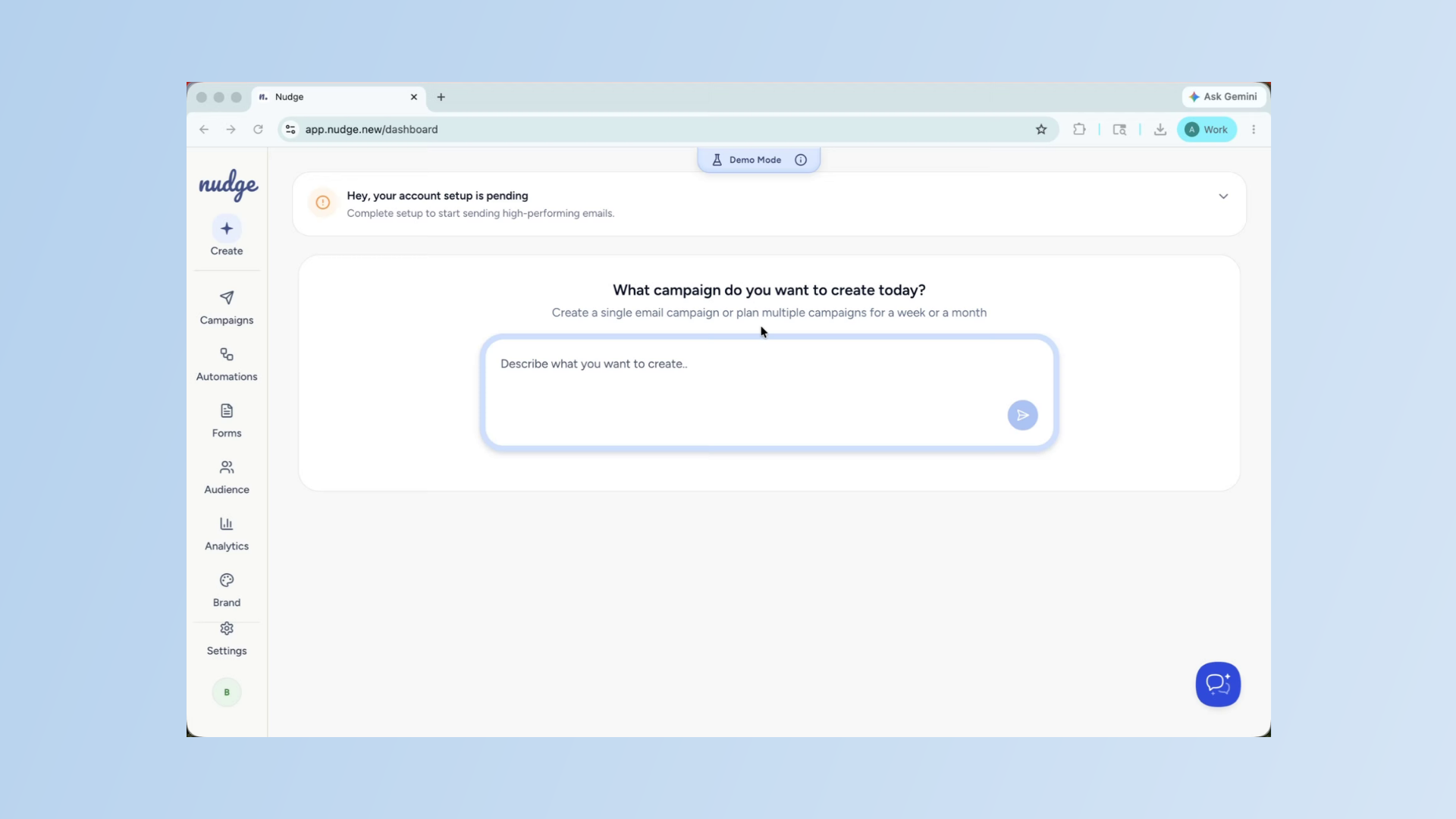
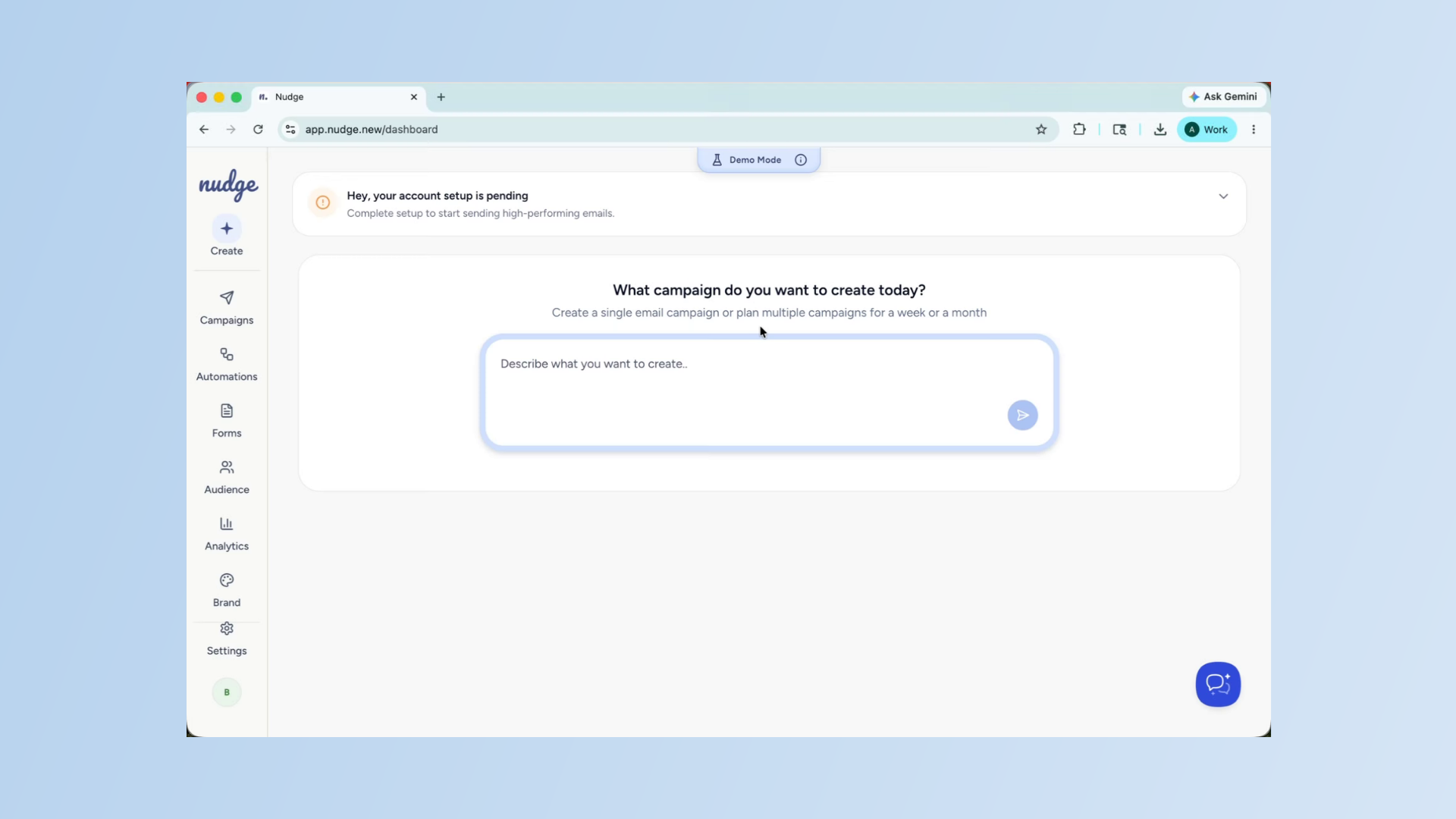
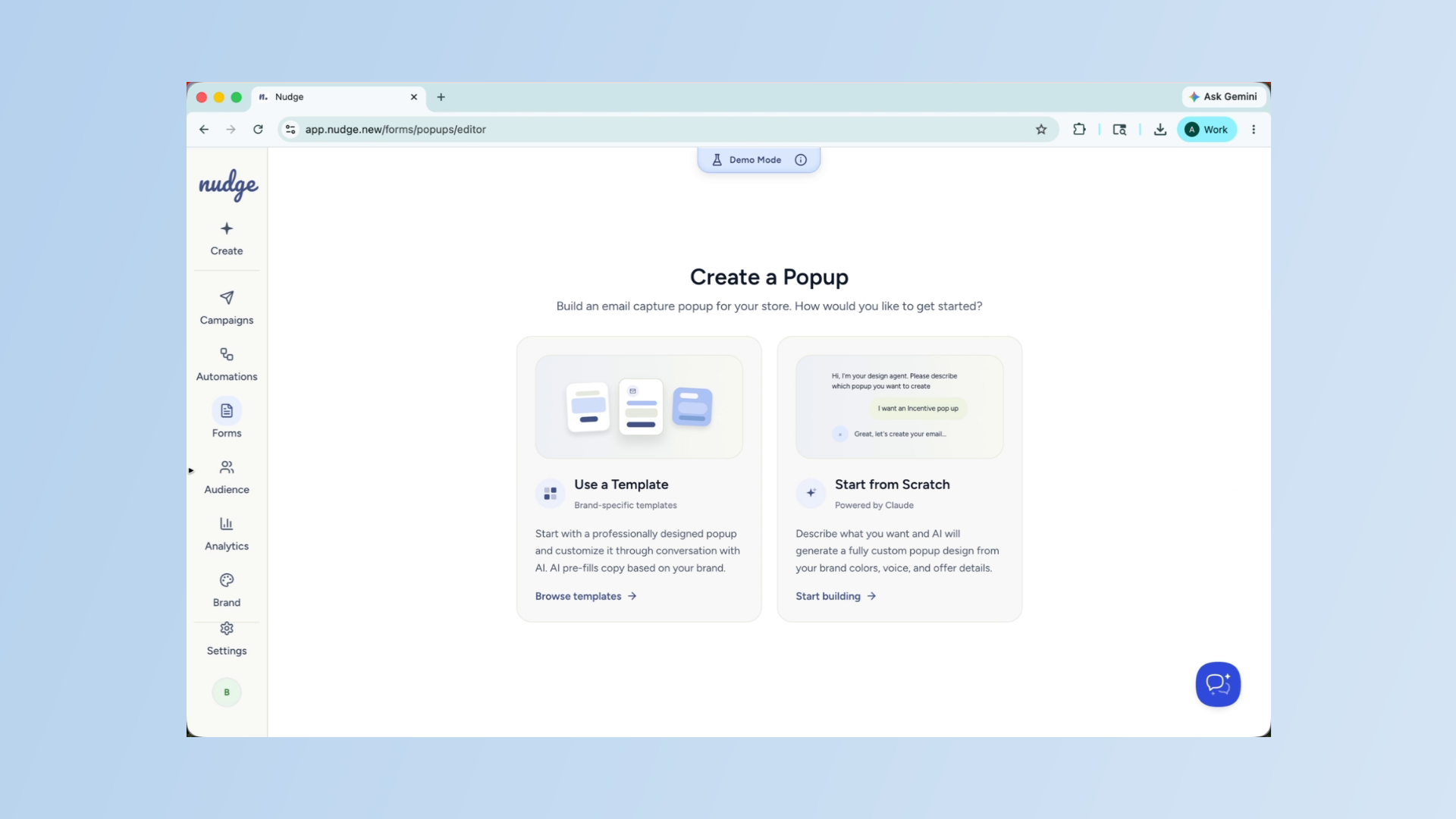
From the dashboard, click on the forms in the left panel. Here you will get two options: either select a pre-built template or create one using AI.
Understand Template Customization
Both the routes lead to the same place, a fully designed pop-up tailored to your brand. If you select a template, Nudge will use it as a structural reference only. Your brand colors and fonts and copy will automatically apply on the top. If you prefer to create something
Generate Pop-Up Using AI
From scratch, describe what you want and the AI will build it up for you.
Describe Desired Pop-Up
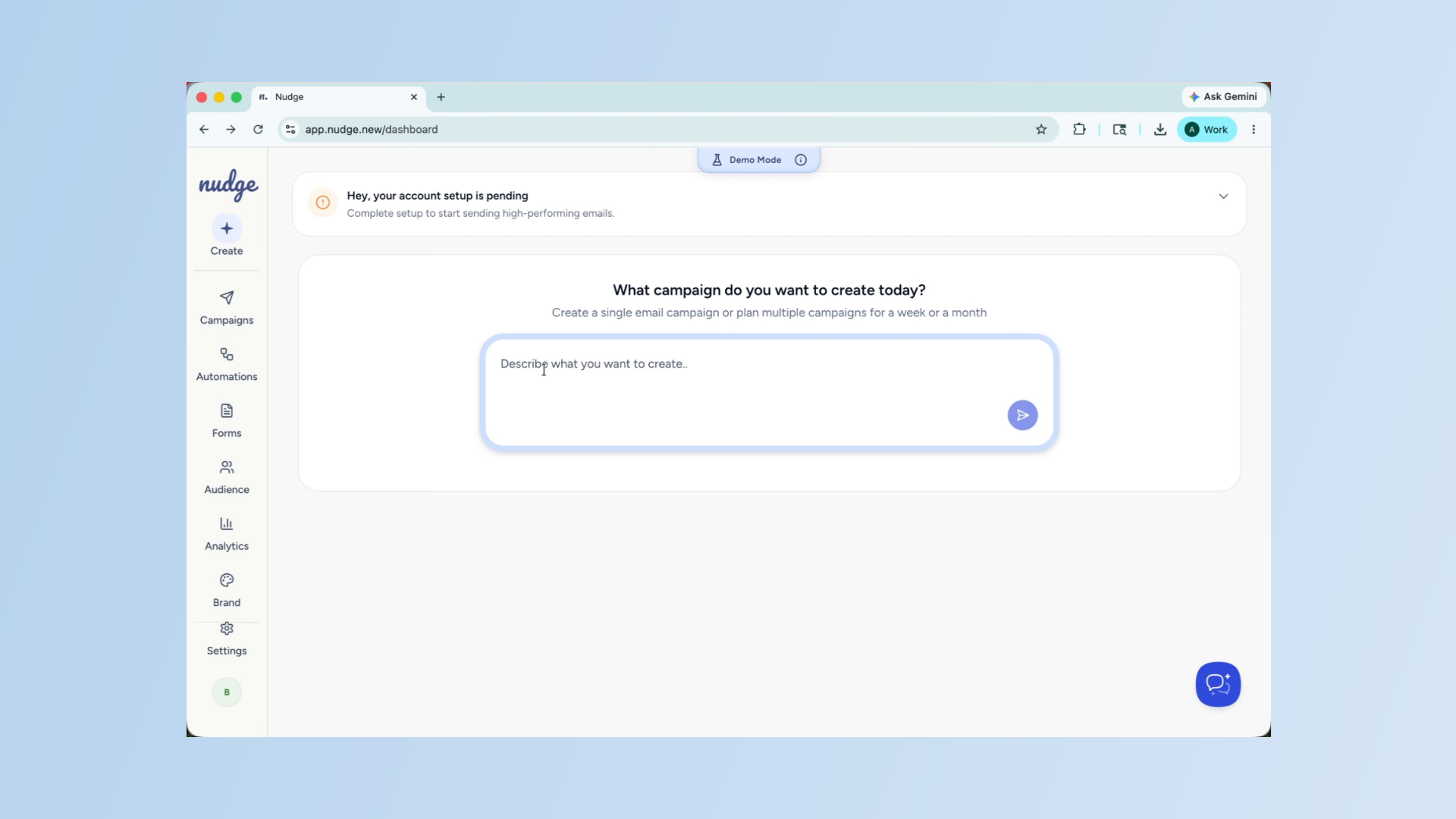
Describe the pop-up you want to create using the provided input field to guide the AI in generating your form.
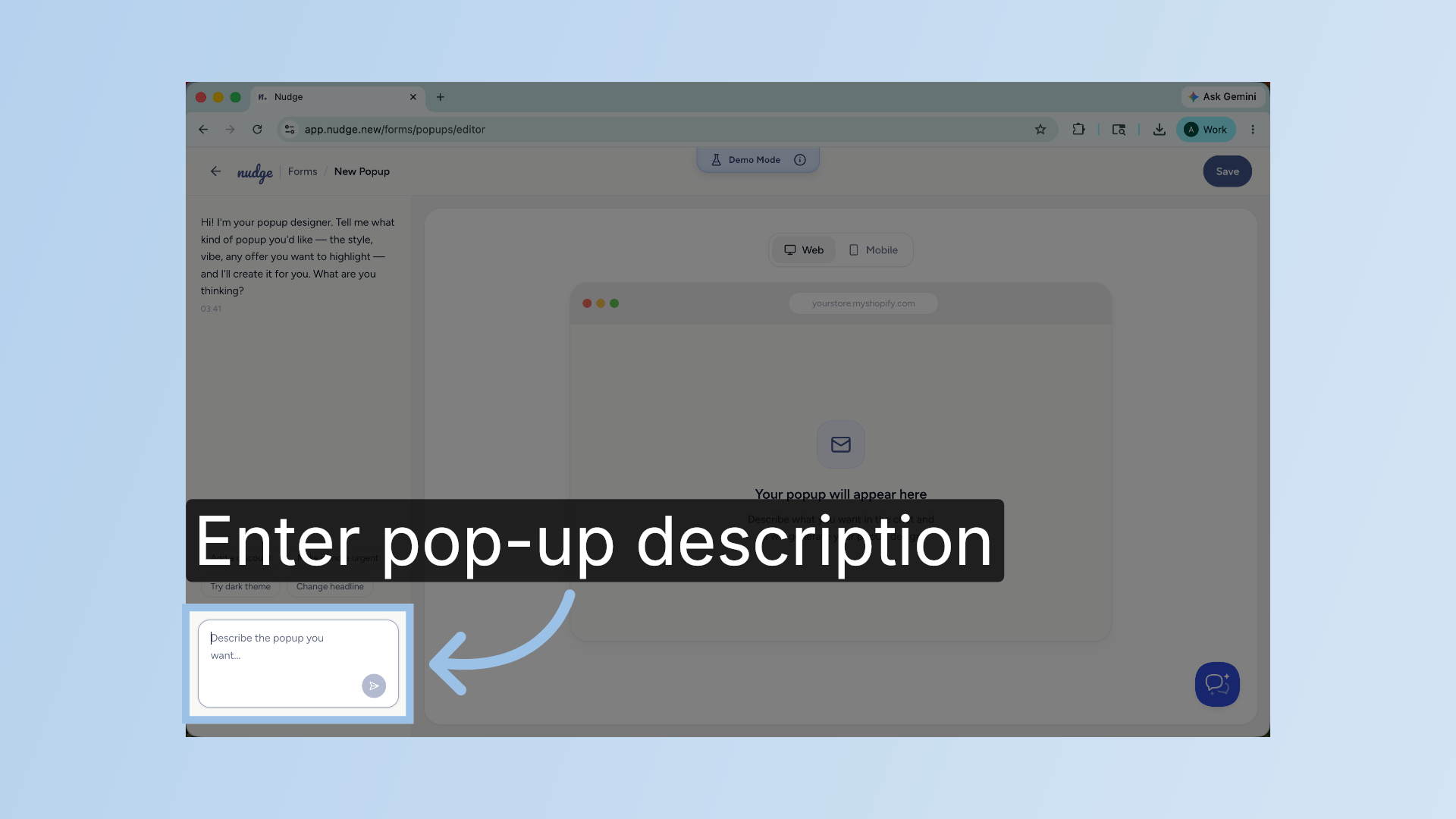
Select Template Example
For this example, we will take one of the templates.
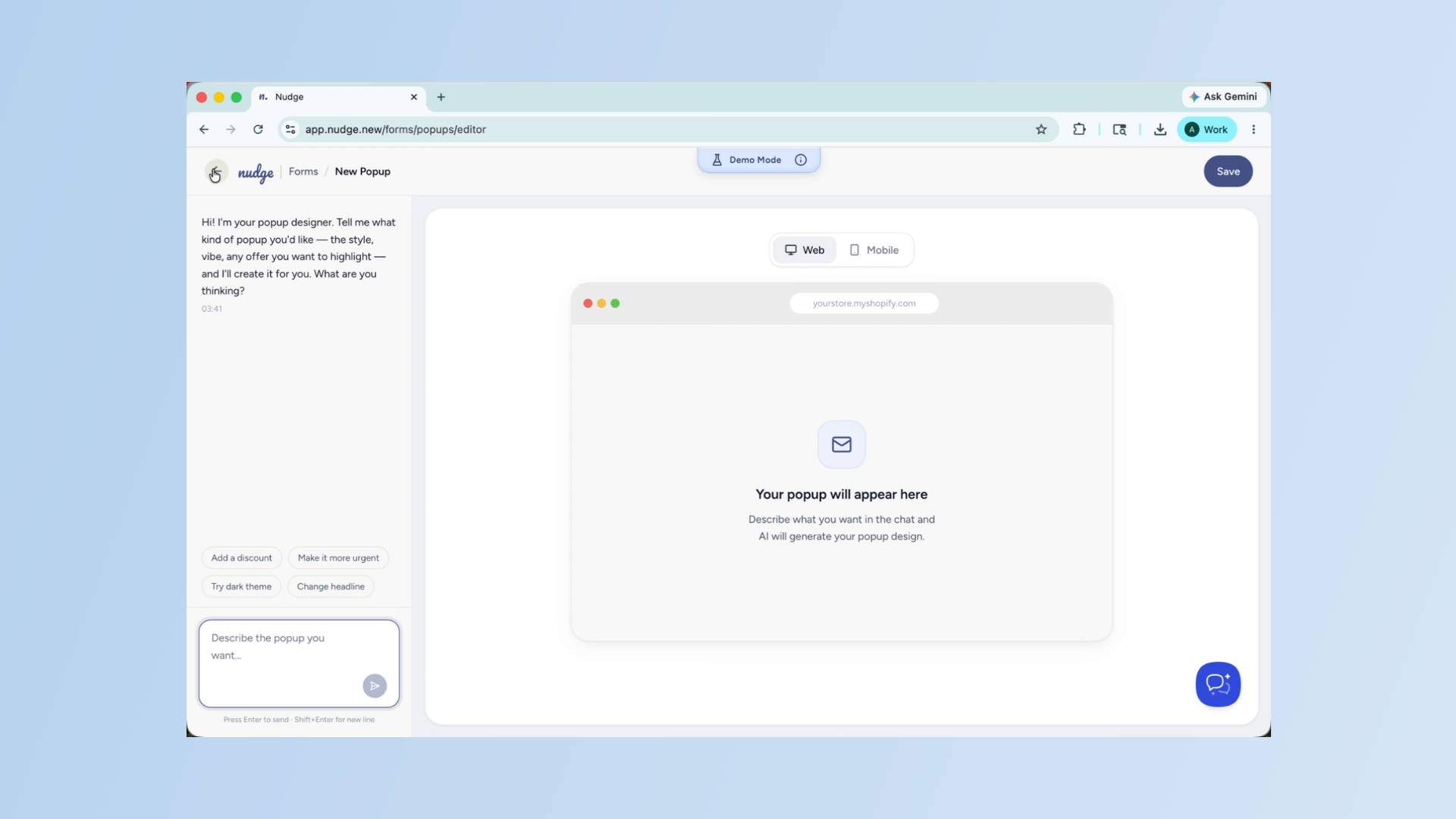
Choose Subscription Template
Select the subscription template to use as the basis for your pop-up form design.
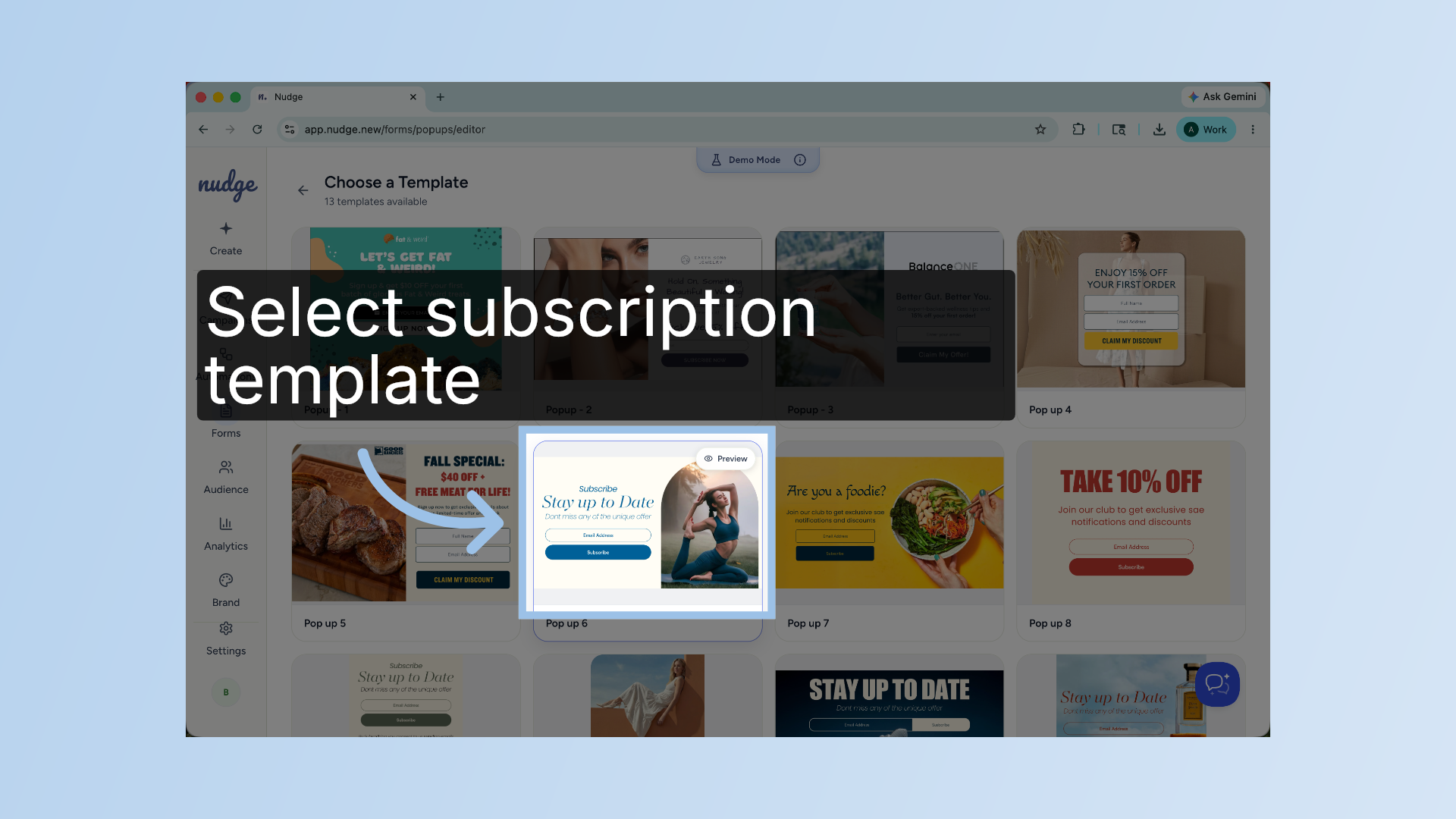
Wait for Pop-Up Structure
We give it a few minutes to generate a structure for our pop-up.
Provide Image URL
It needs a URL for the image that needs to be used. I went ahead and provided that input.
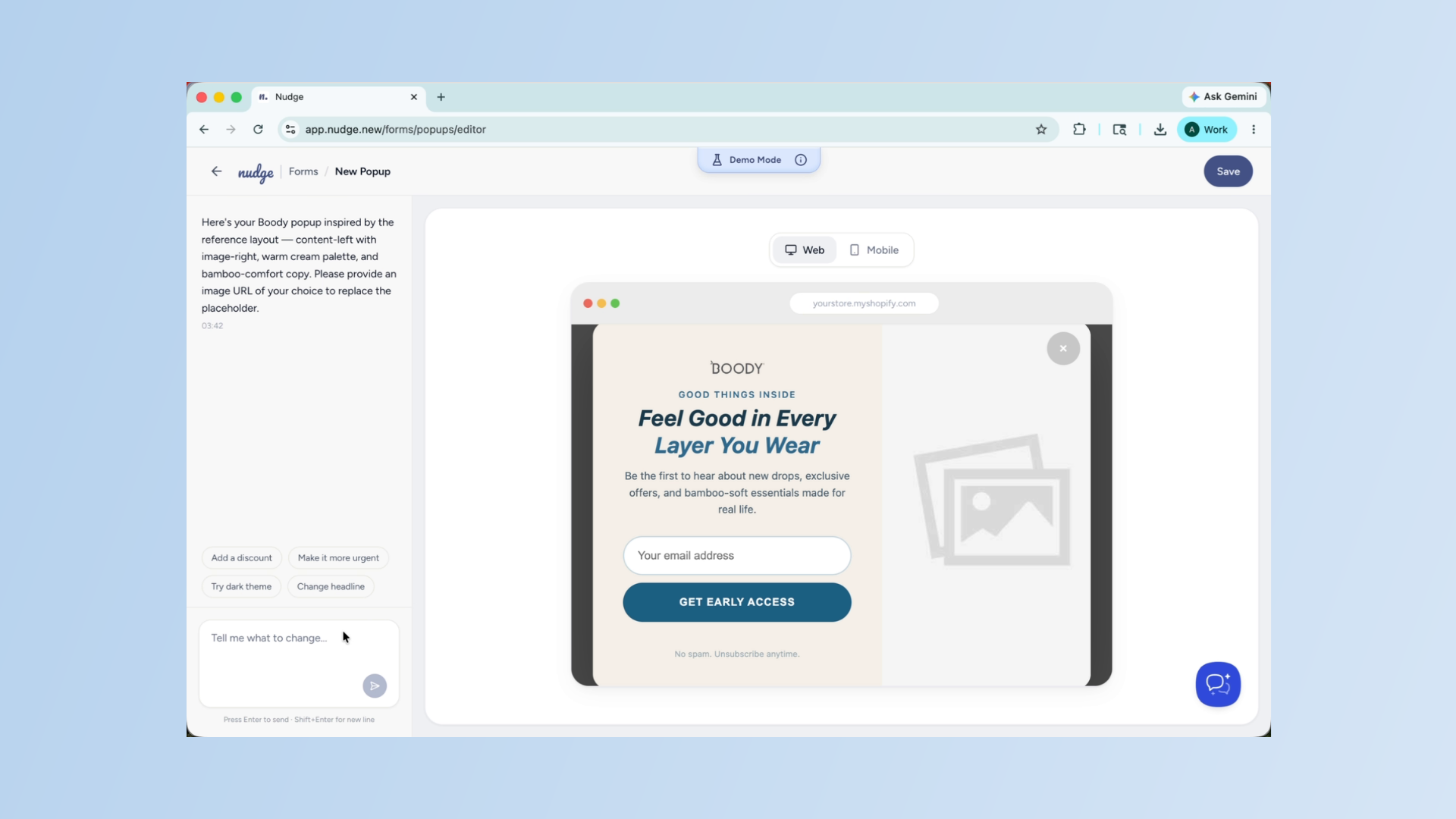
Review Pop-Up Design
Here, it has added the image that I provided. Once the popup is generated, take a close look at the design. Check it on the headlines, the call to action and the overall layout.
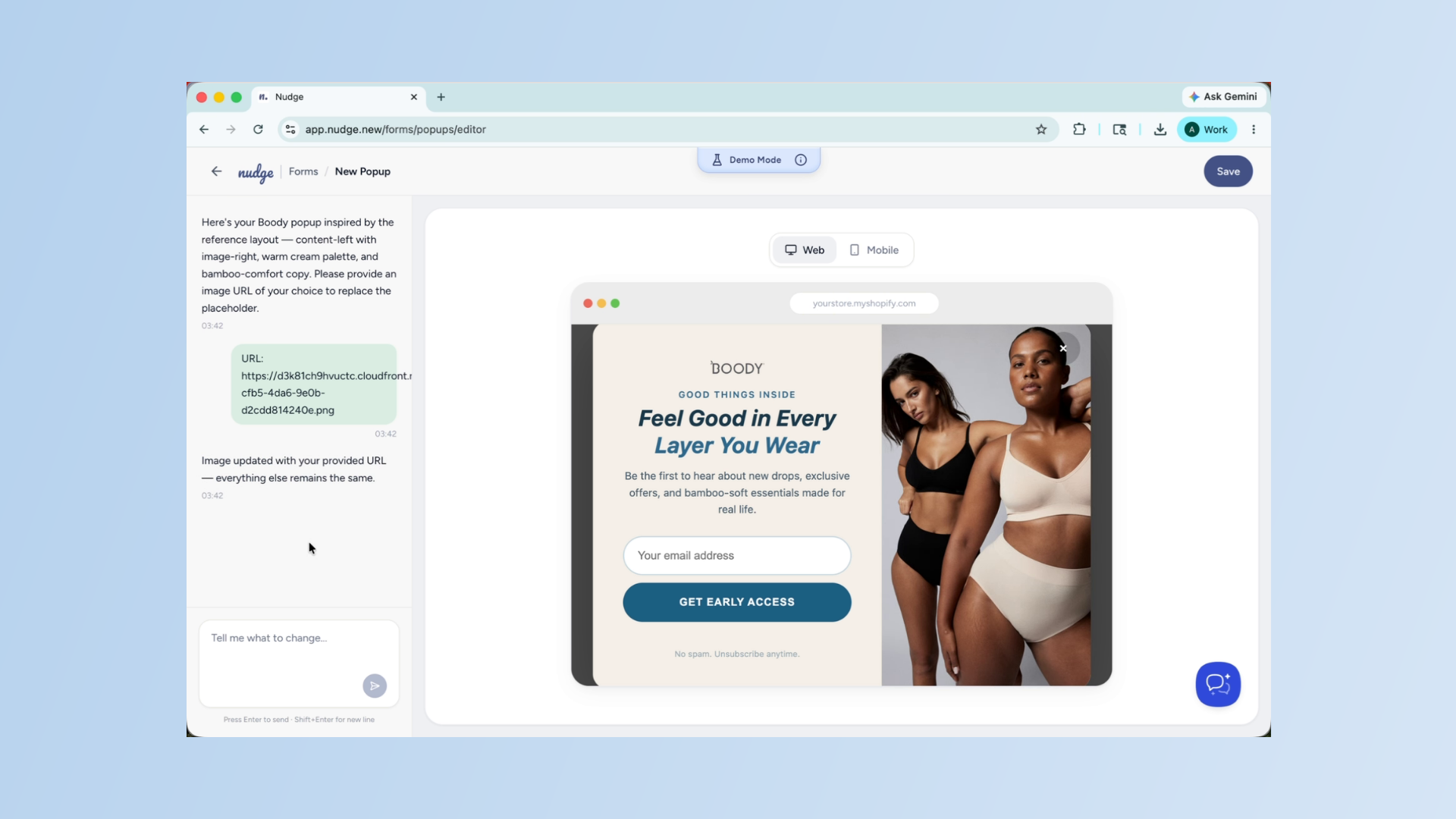
Edit Pop-Up Design
If you want to make any changes directly, mention it in the chat box.
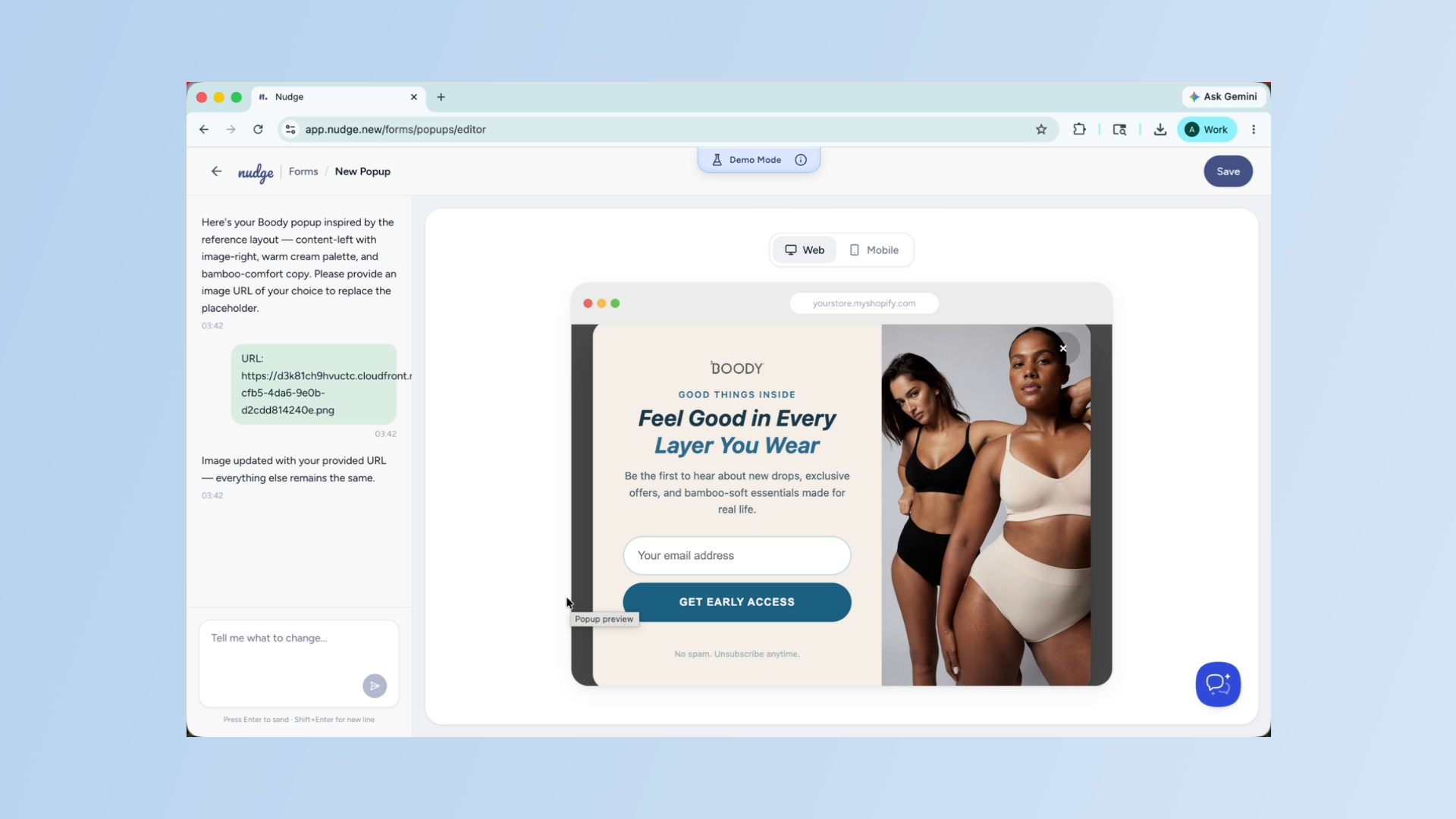
Save Web and Mobile Designs
Once you are happy with the designs we have for the web and mobile versions, click save.
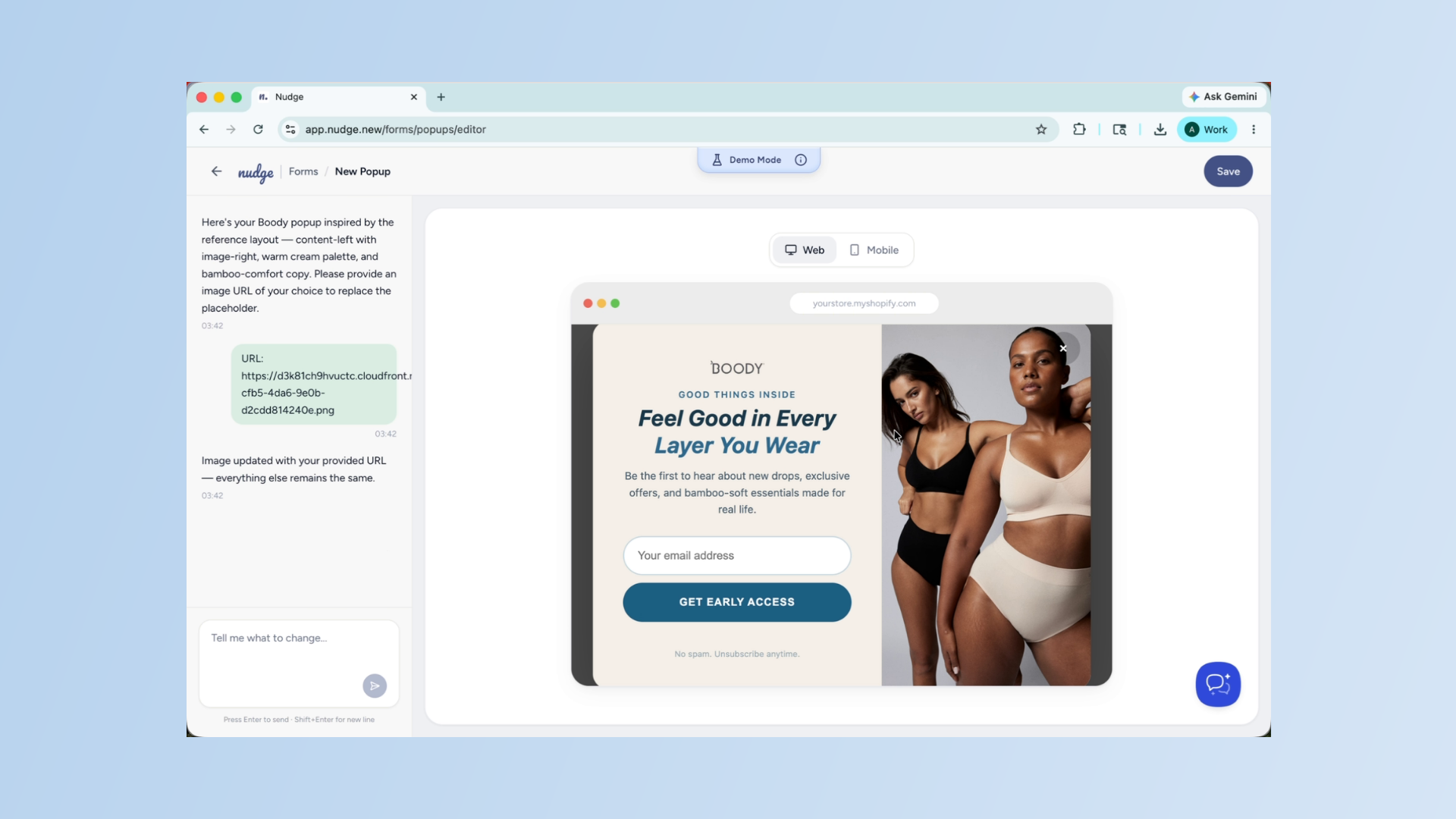
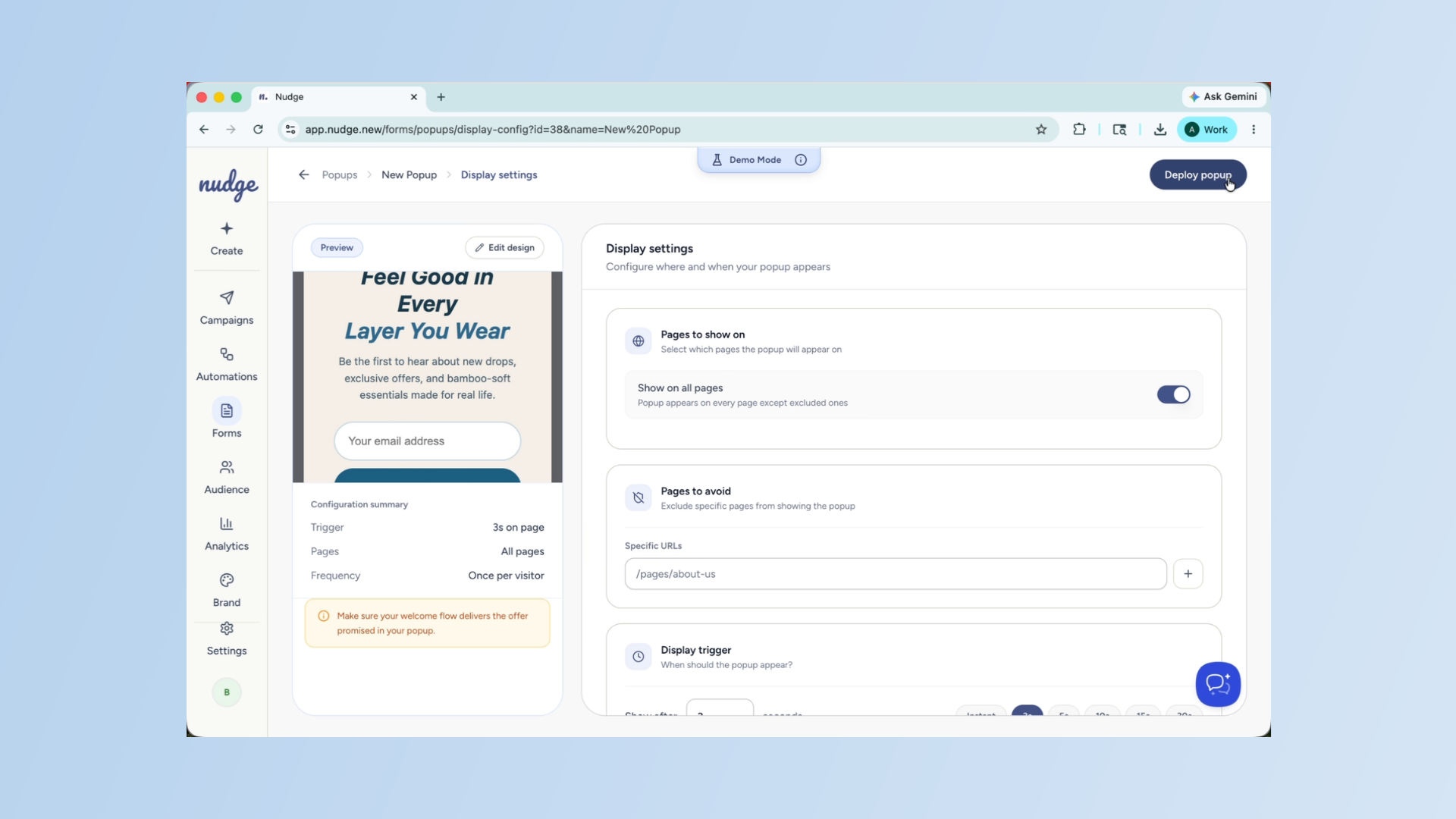
Configure Pop-Up Display Settings
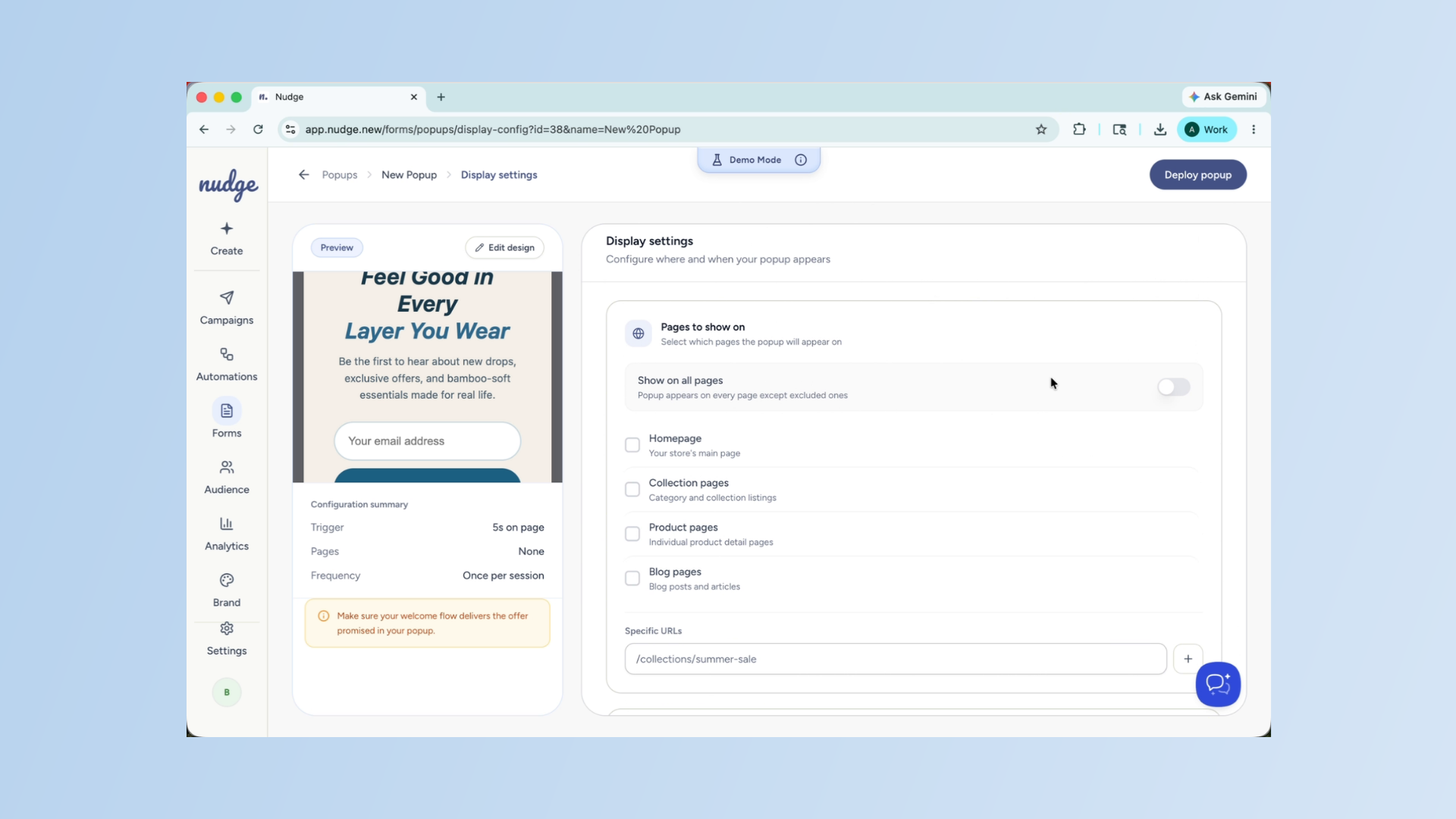
Now set up when and where your popup appears. You can choose which page to show it on, how many seconds after landing to trigger it, and how frequently it appears: per session, once per day, or once per visitor. Take a moment to make these adjustments according to what makes sense for your audience.
Deploy Pop-Up Live
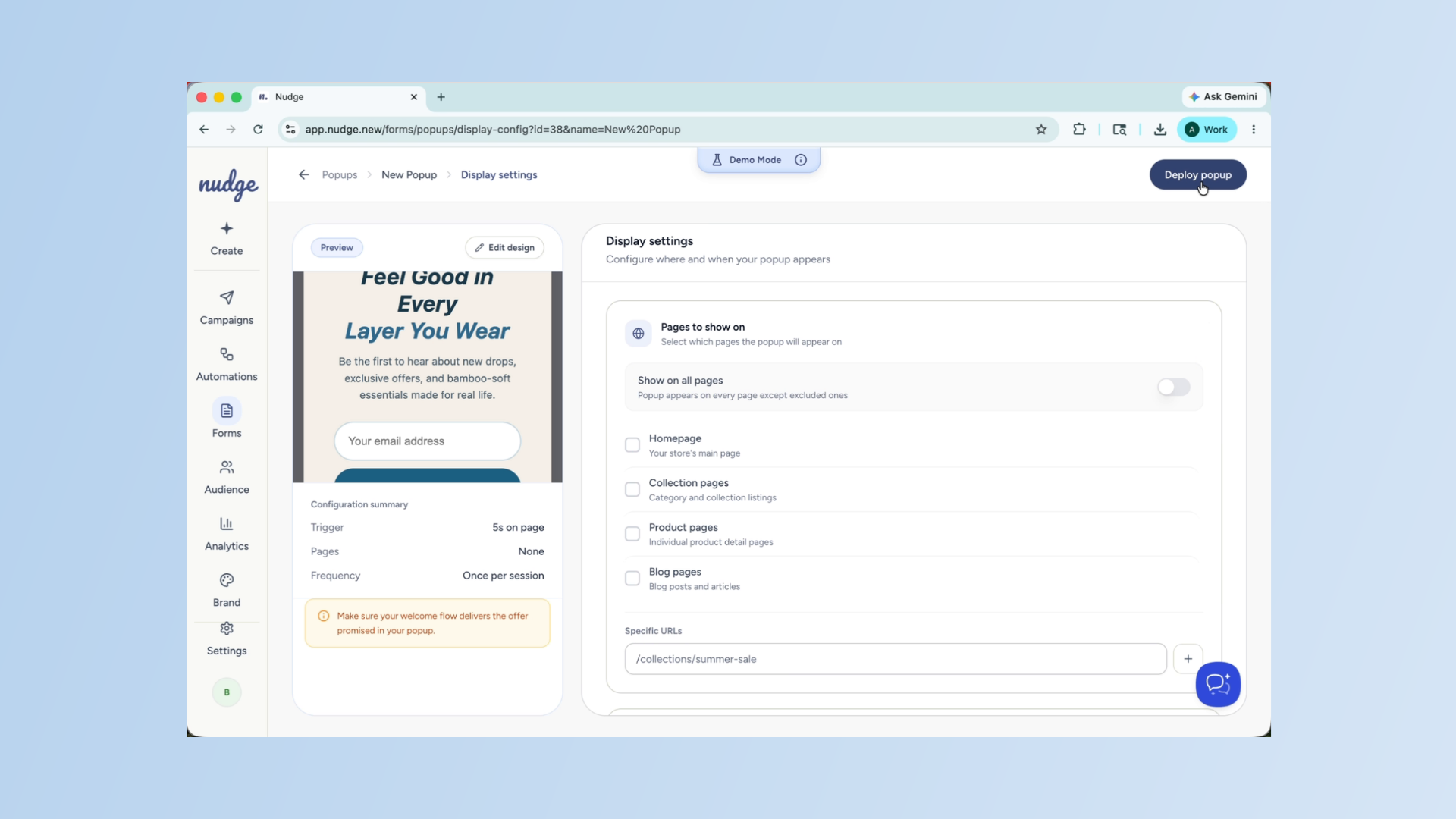
Once your display settings are configured, click on deploy to make your pop-up live.
Pause or Edit Pop-Up
You can pause or edit it at any time from the form section, and once it starts collecting submissions, you will be able to track its performance from the analytics tab.
Your pop-up form is live and ready to start growing your list. Head to the audience section to see how contacts are coming in and check out our guide on creating your first campaign to start reaching them straight away.