Creating Your First Email Campaign Using Nudge
In this video, we are going to show you how to create your very first email campaign on Nudge — step by step, from your brief all the way to a campaign that is ready to send.
Introduction To Nudge Campaigns
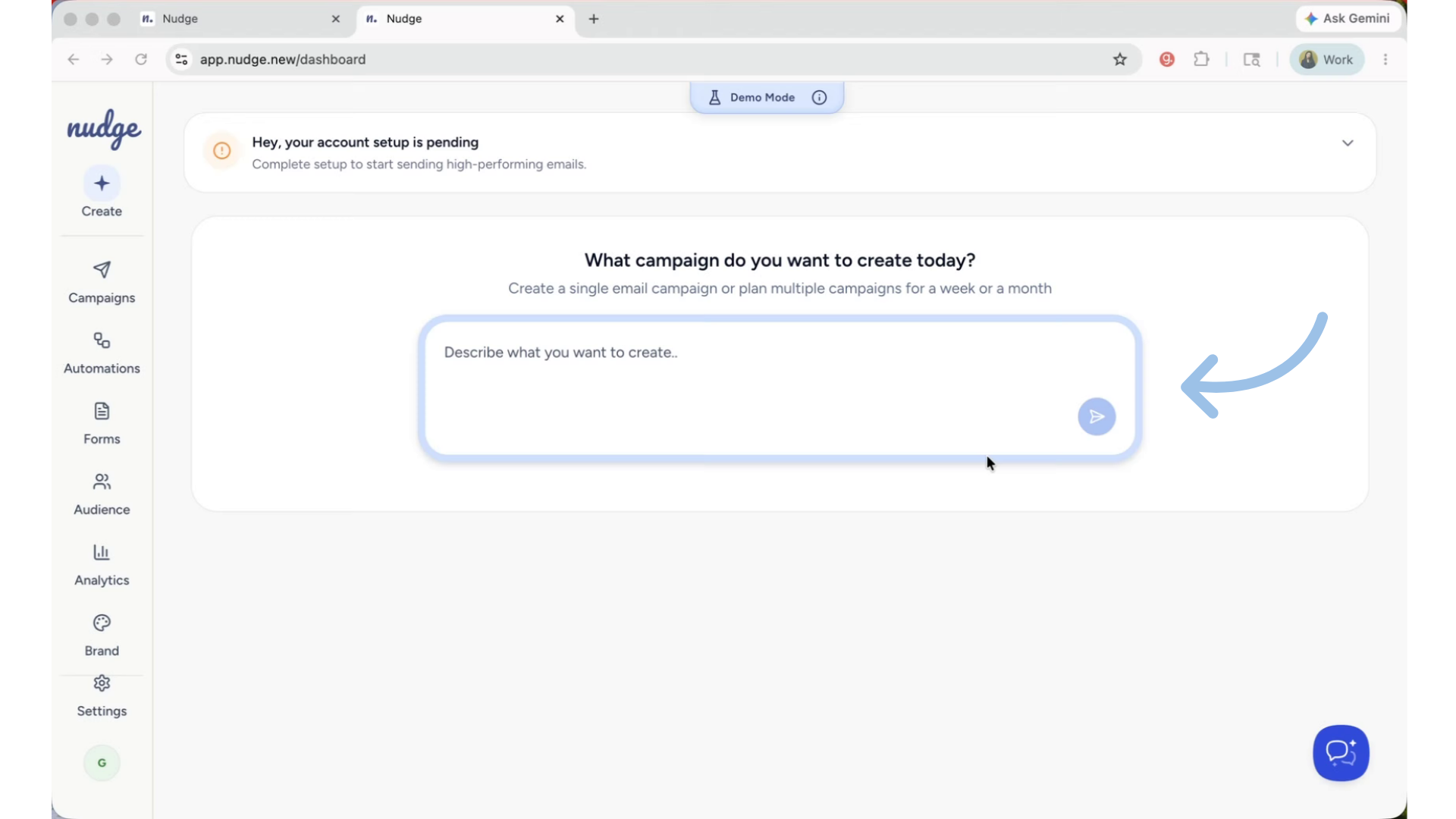
If you are new to nudge, welcome! Instead of starting from a blank canvas, you simply tell nudge what you want to run and it handles the strategy copy and design for you. Let's see it in action. Once you are logged in, you can directly go to the description box on the dashboard. Think of this as your creative brief, the more you put in, the better.
Nudge Campaign Planning Start
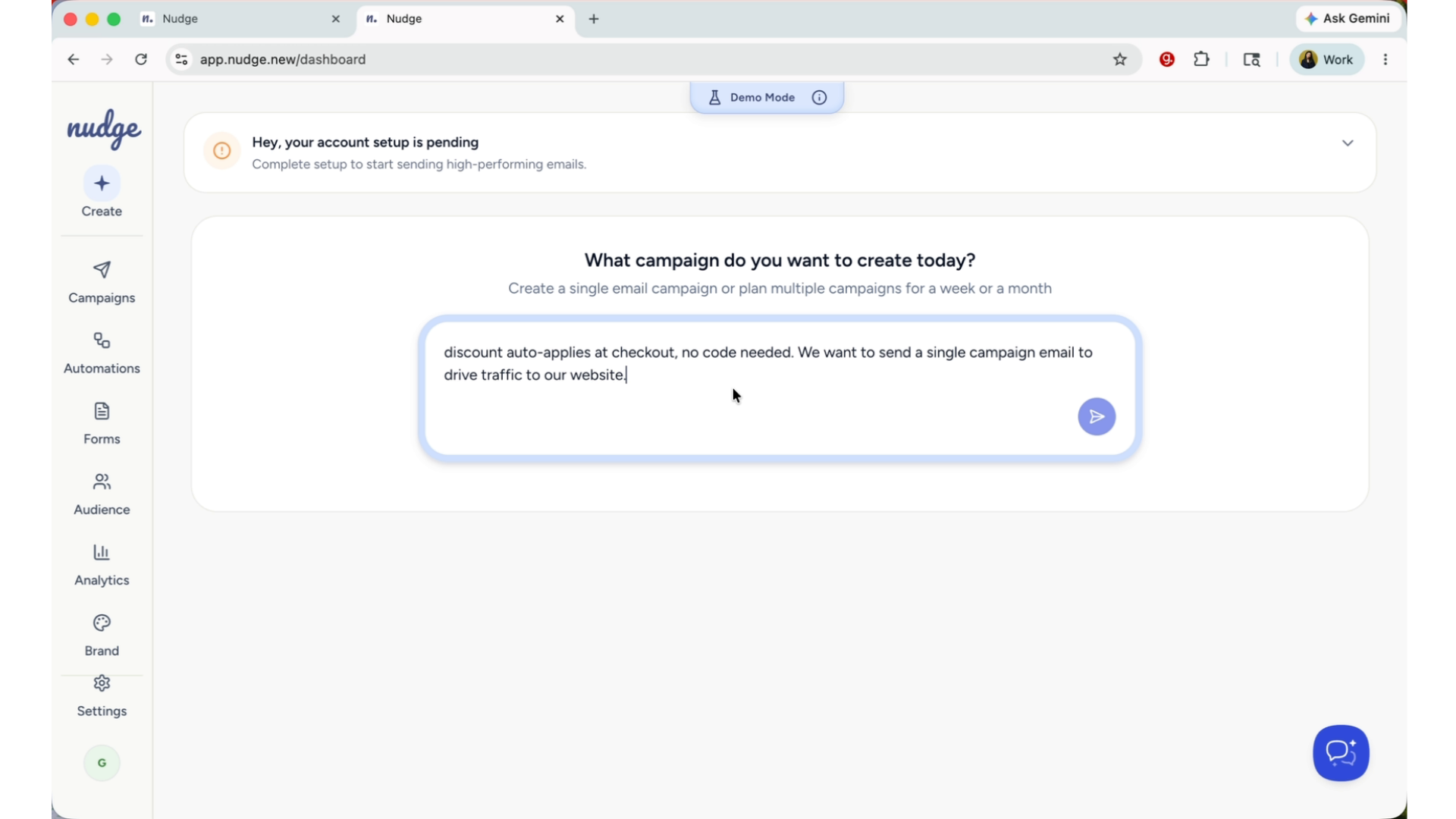
Once you hit send, Nudge gets to work. It reads your brief and maps out a campaign plan - how many emails to send, what each one should focus on, and when to send them.
Interactive Campaign Adjustments
Segment
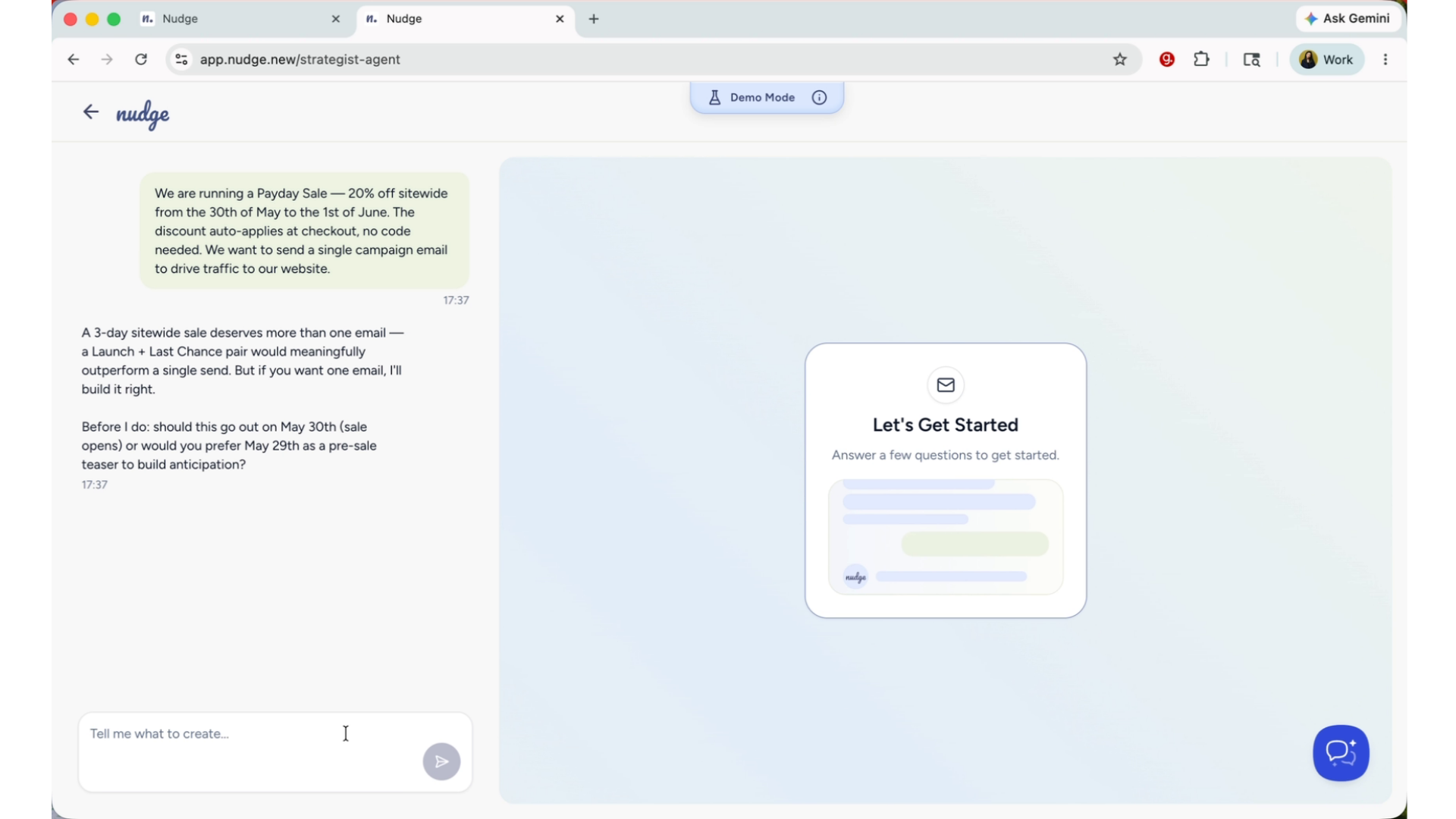
Shaping Campaign Blueprint
This back and forth is where you can really shape the campaign before any design work begins.
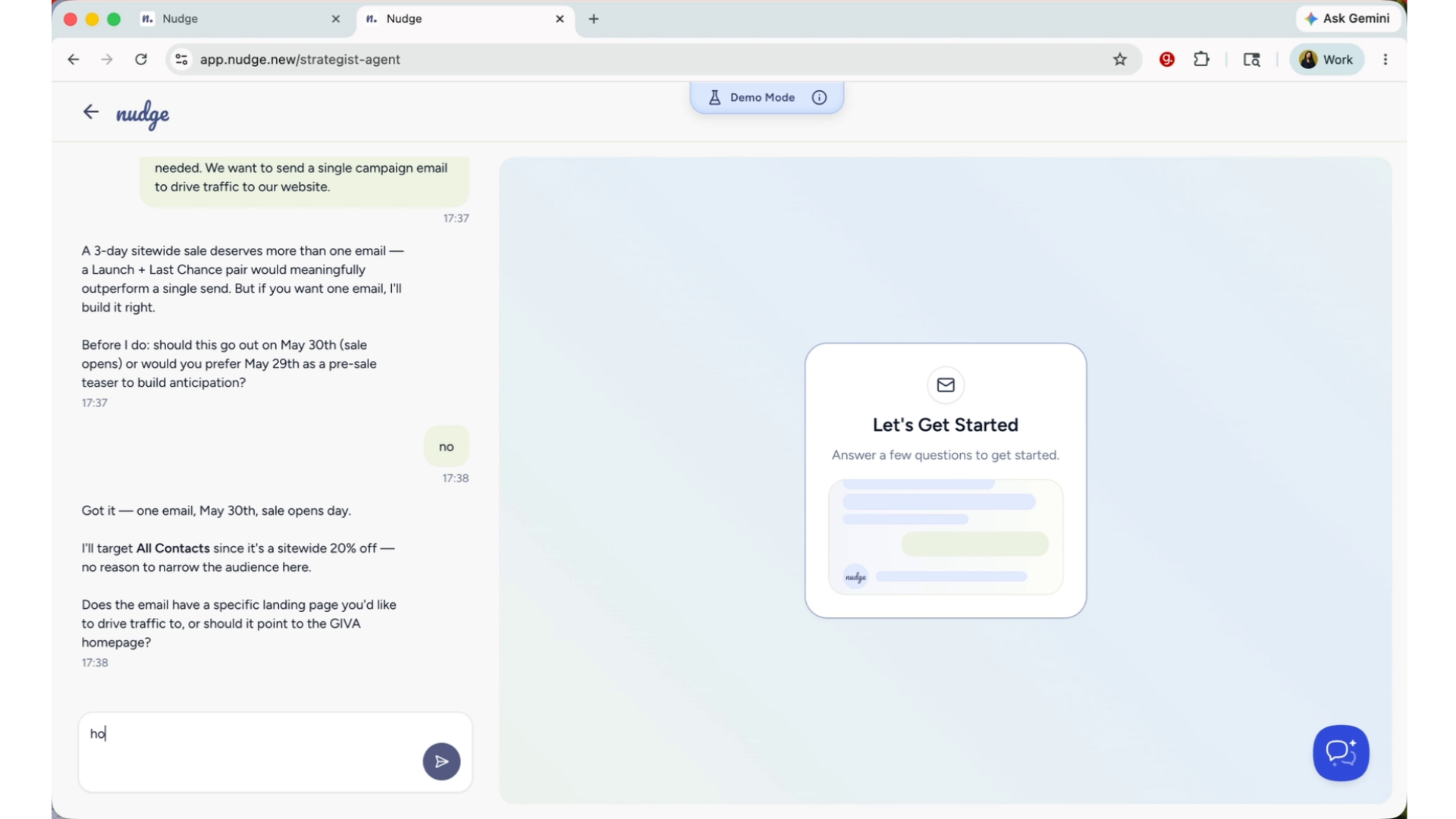
Generating Email Design
Happy with the plan? Click Create Design, and Nudge will now generate a fully designed email using your brand colours, fonts, and campaign details. Give it a few minutes — it is doing quite a lot behind the scenes!
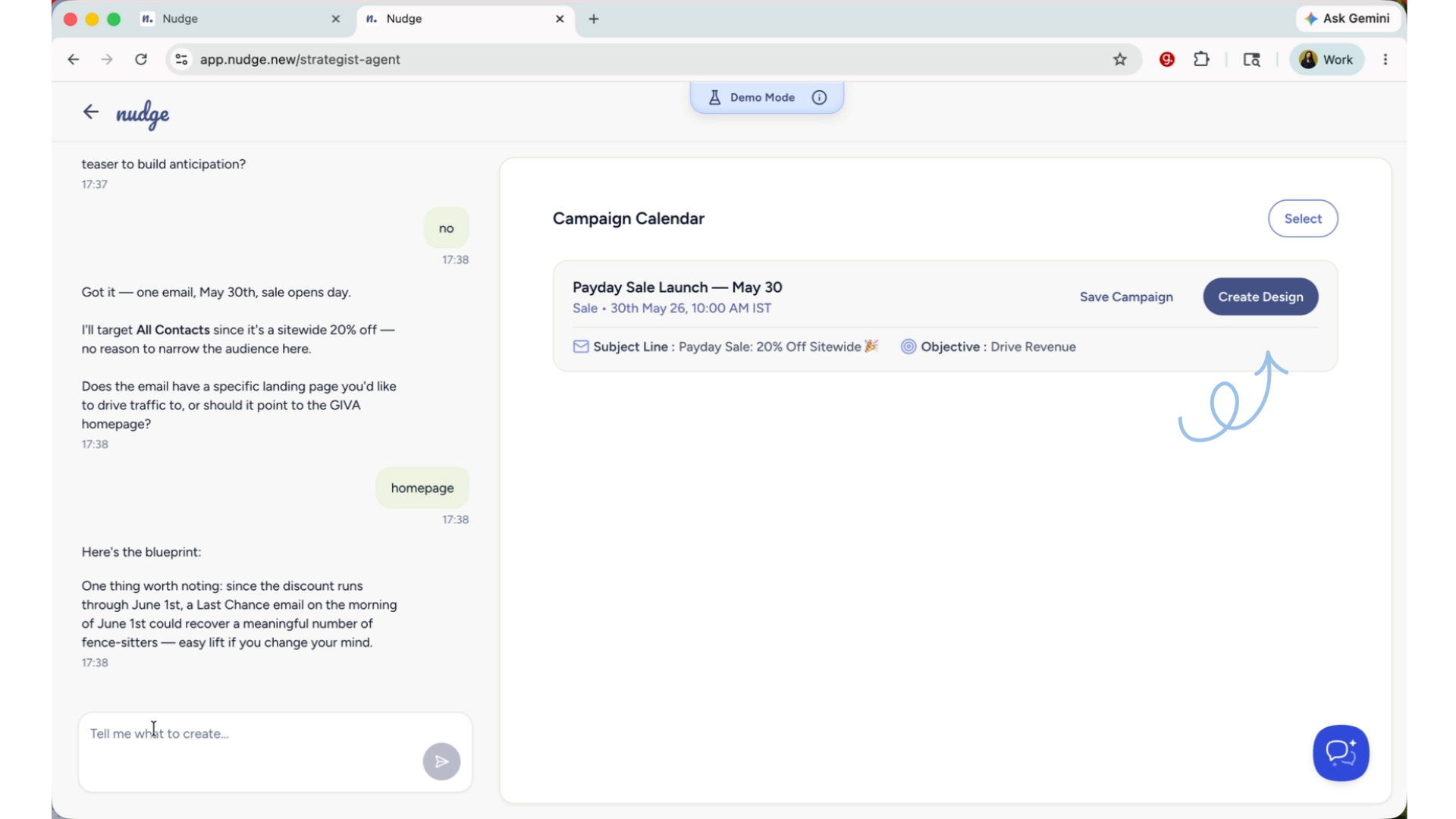
Reviewing Email Campaign Structure
Your email is ready! Have a look through it and check that the overall structure, hero image, and key messaging all feel right. At this stage you are looking at the big picture — does this look and feel like your brand? Does the offer come across clearly?
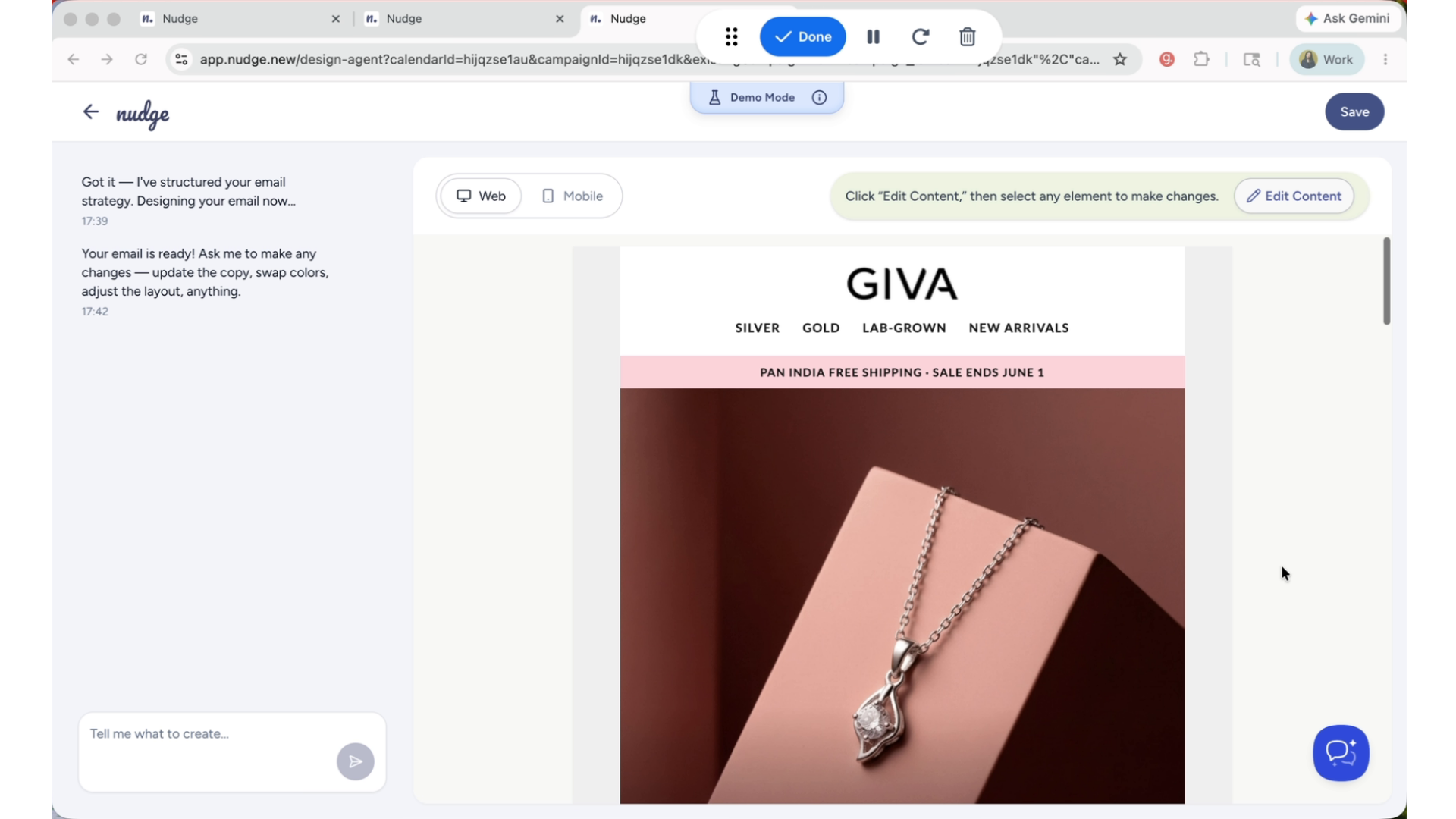
Editing Campaign Content Options
Now, to make any changes, you have two options. For quick text edits, click directly on the element you want to edit and type over it. For more detailed control, like swapping images, adjusting boxes, or restructuring sections, click on edit content. You will get a granular editing option. Once you are done, click on save changes and you're good to go.
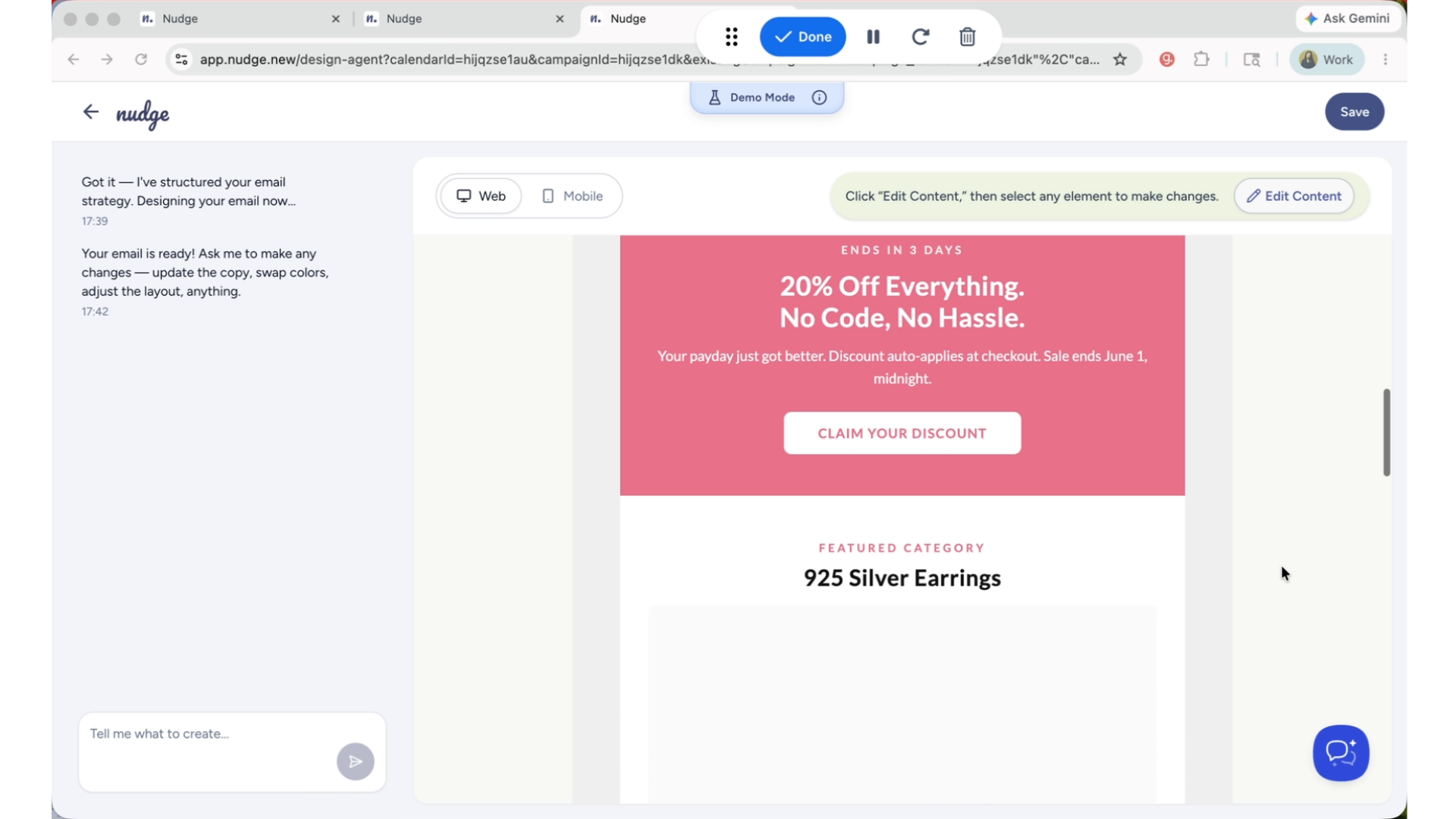
Mobile View Importance
Before you move on, always switch to the mobile view. The majority of your customers will open this email on their phone, so it is important to make sure the layout, font sizes, and images all look just as good on a smaller screen. If something looks off, head back into Edit Content and fix it.
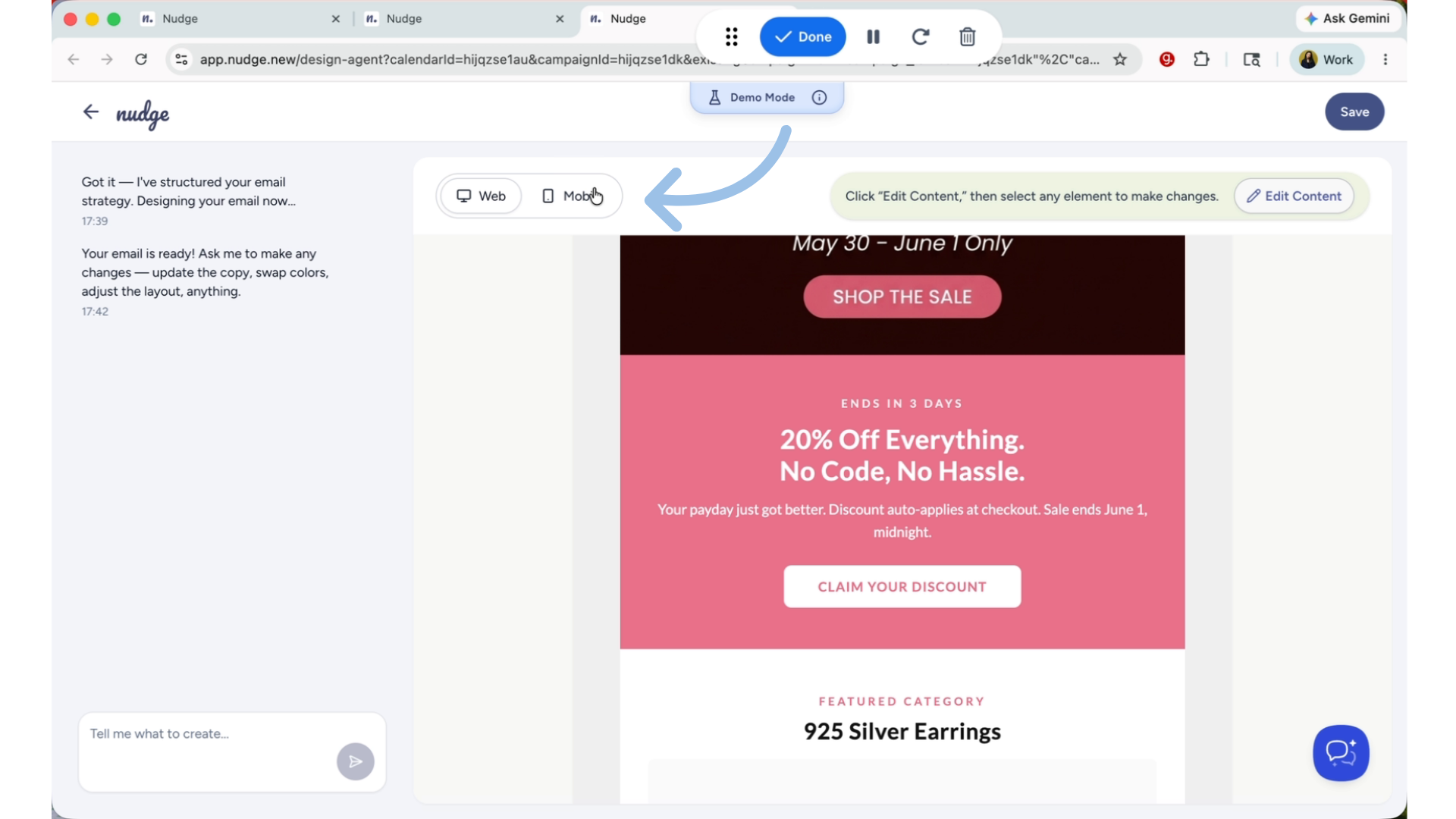
Finalizing Campaign Design
Once everything looks good, just click on save to proceed.
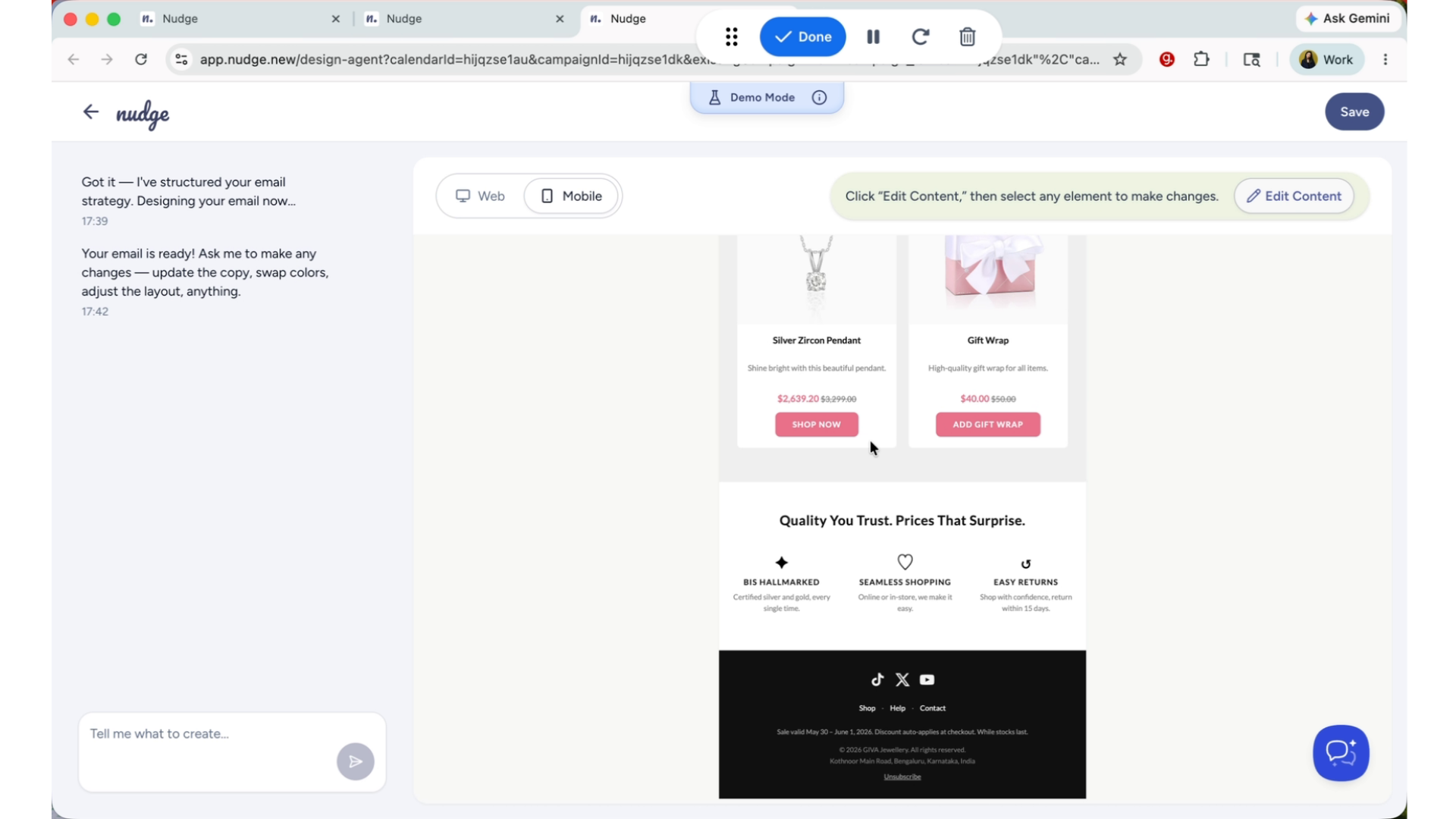
Campaign Ready For Audience Selection
Your campaign design is ready. Now it's time to decide who receives the campaign.
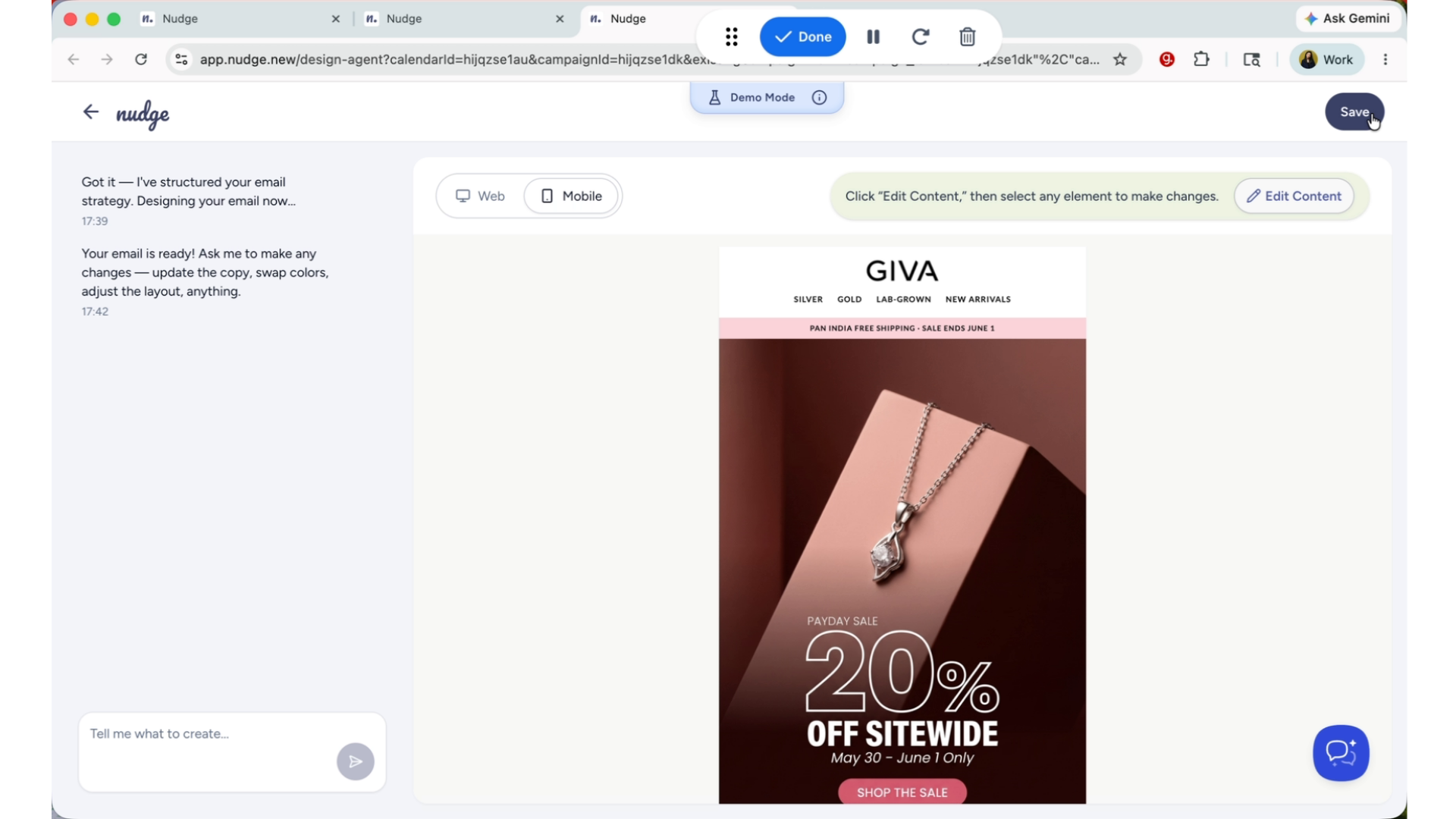
Selecting Audience Segments
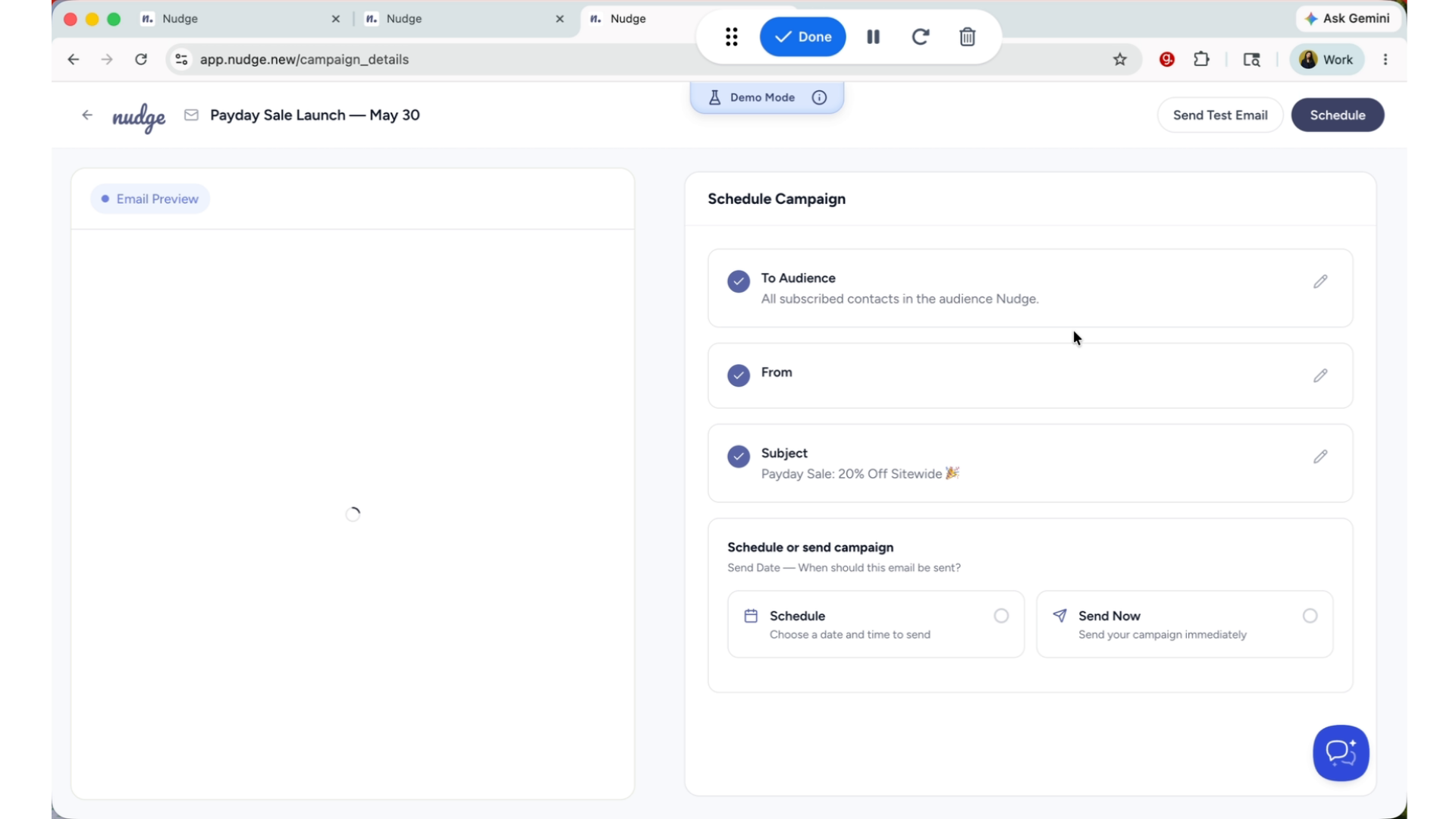
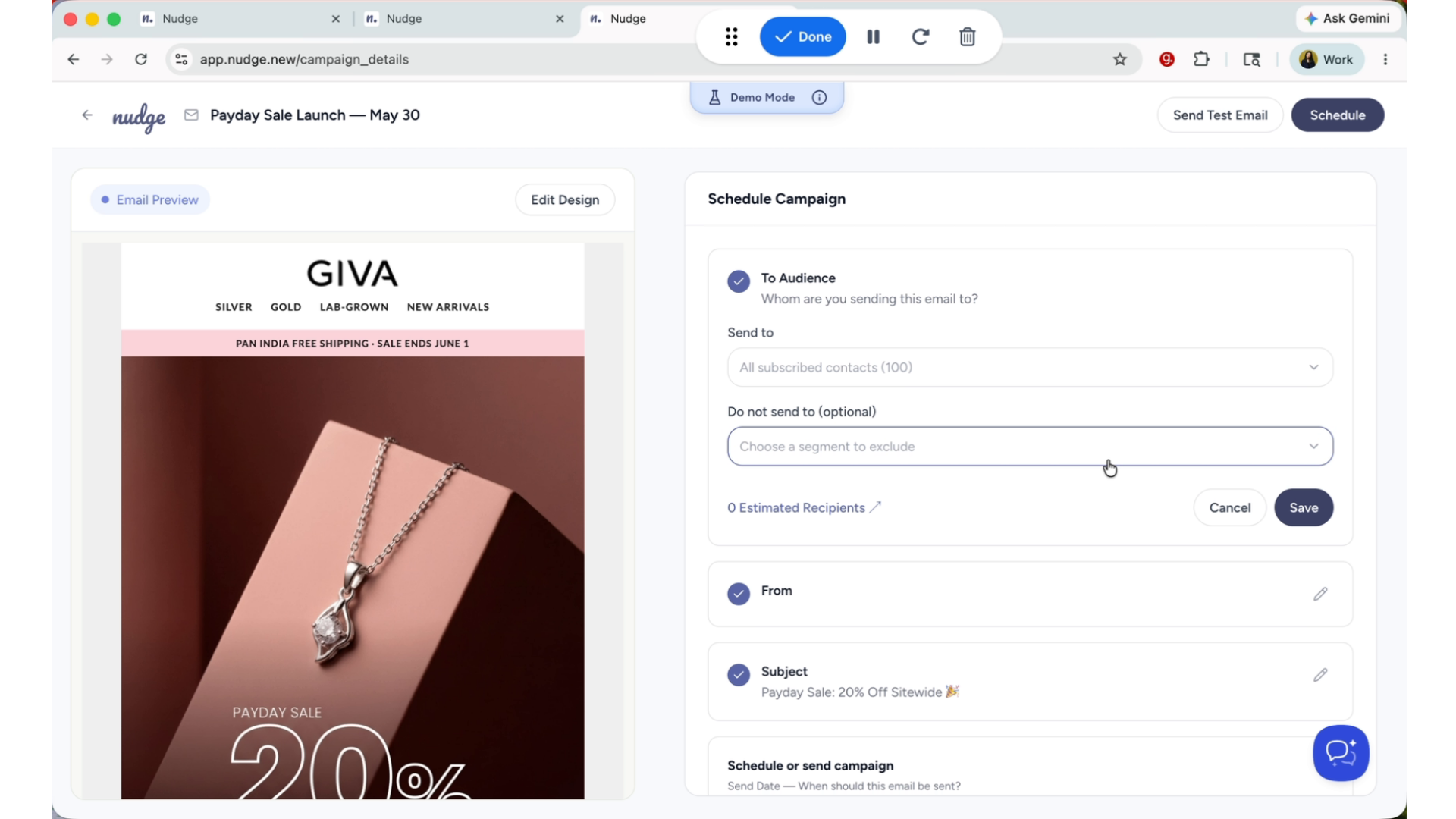
Head to the audience section, cross-check the right segments. This could be all segments or a specific list that you have uploaded or as a smart segment like First time buyers or a VIP customer.
Estimating Campaign Reach
Nudge shows you an estimated reach. So roughly, how many customers will receive the campaign?
Optimizing Subject And Preview
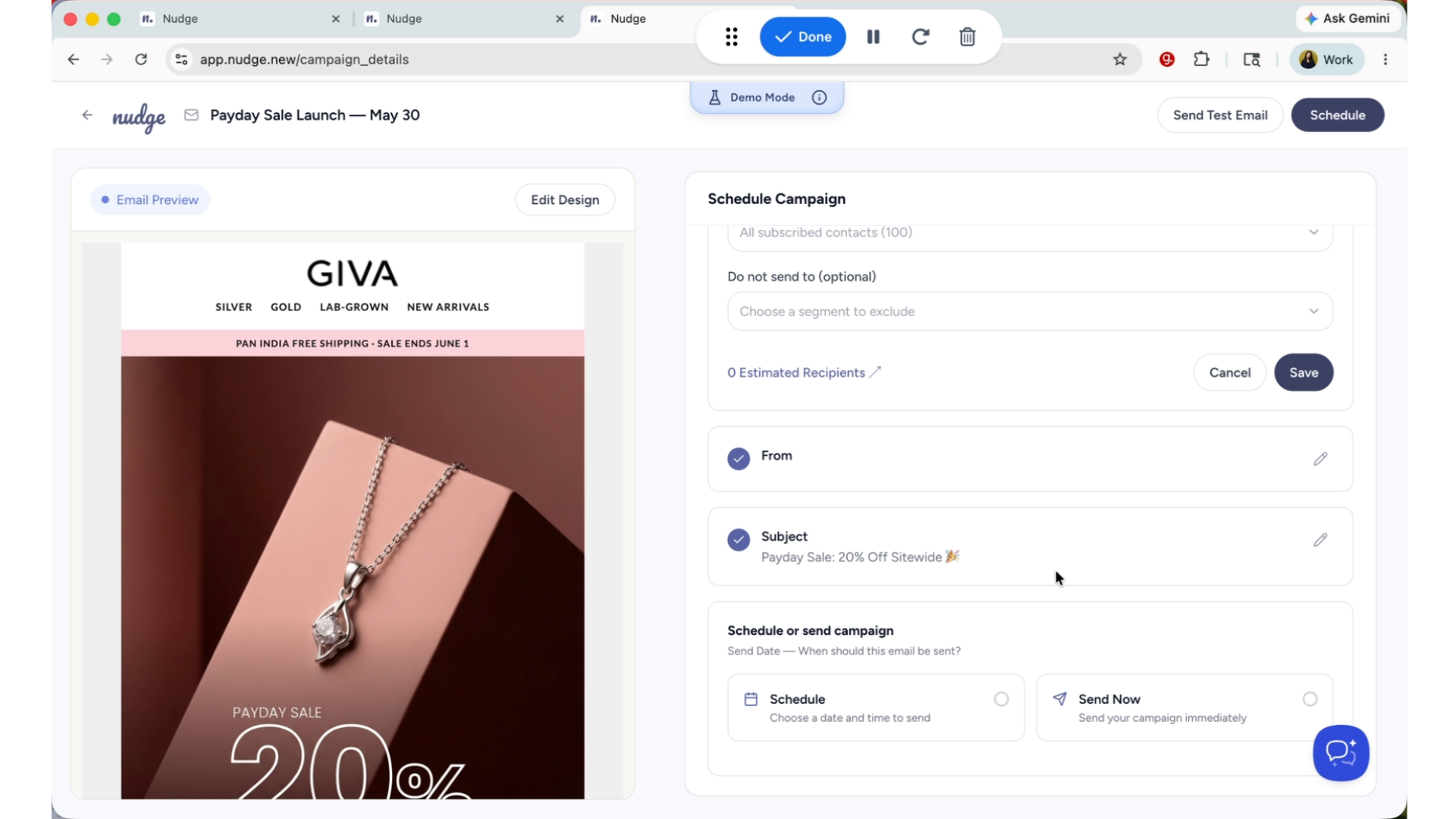
Once that's done, you can also check on your Subject line and preview text. These are the elements that the customer sees first in their inboxes, even before they open the campaign, so make them count. Keep the subject light, clear, and benefit-led, and use the preview text to add a little more context or create curiosity.
Segment
Once everything looks good, click on save.
Scheduling Campaign Send Time
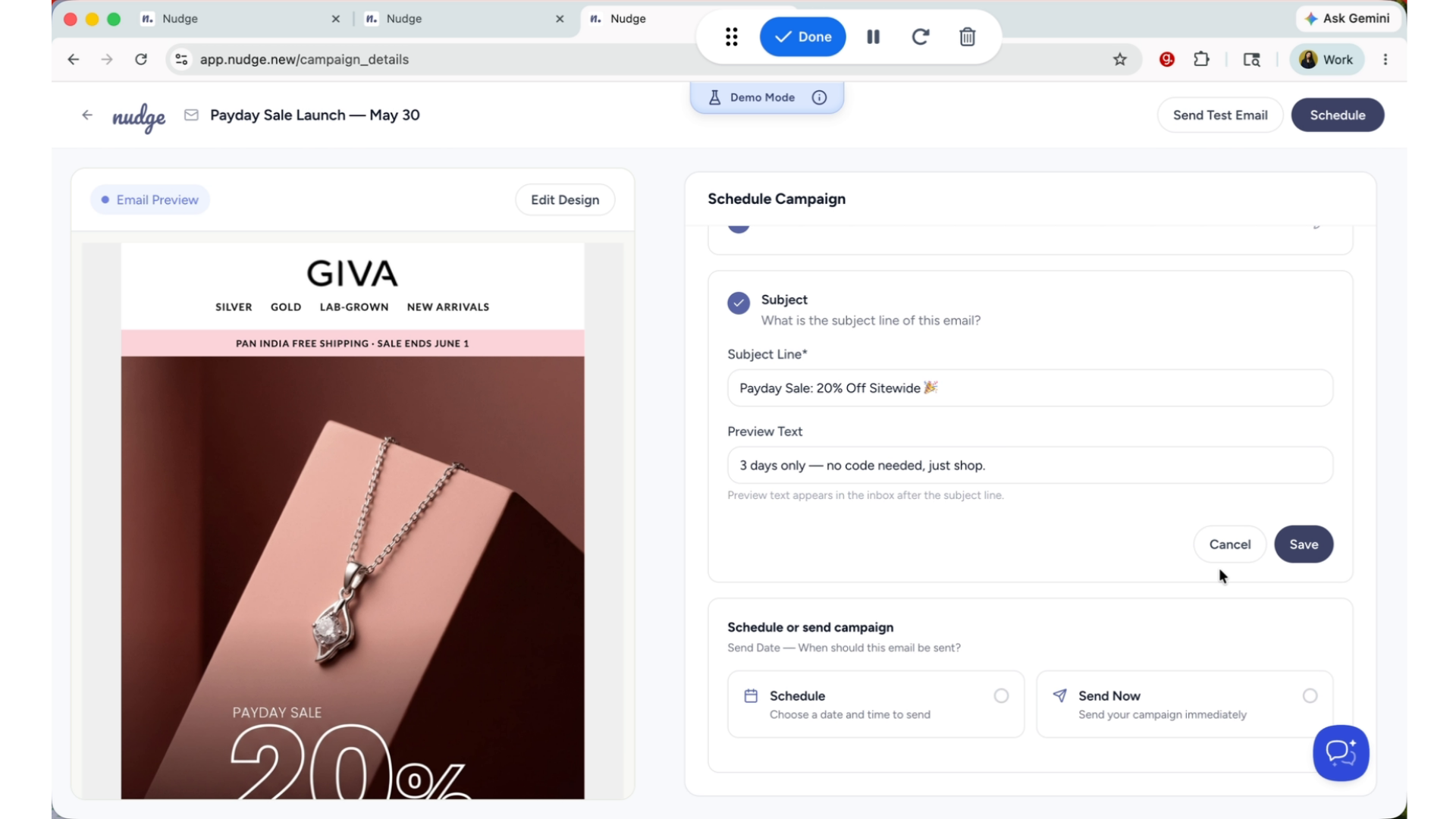
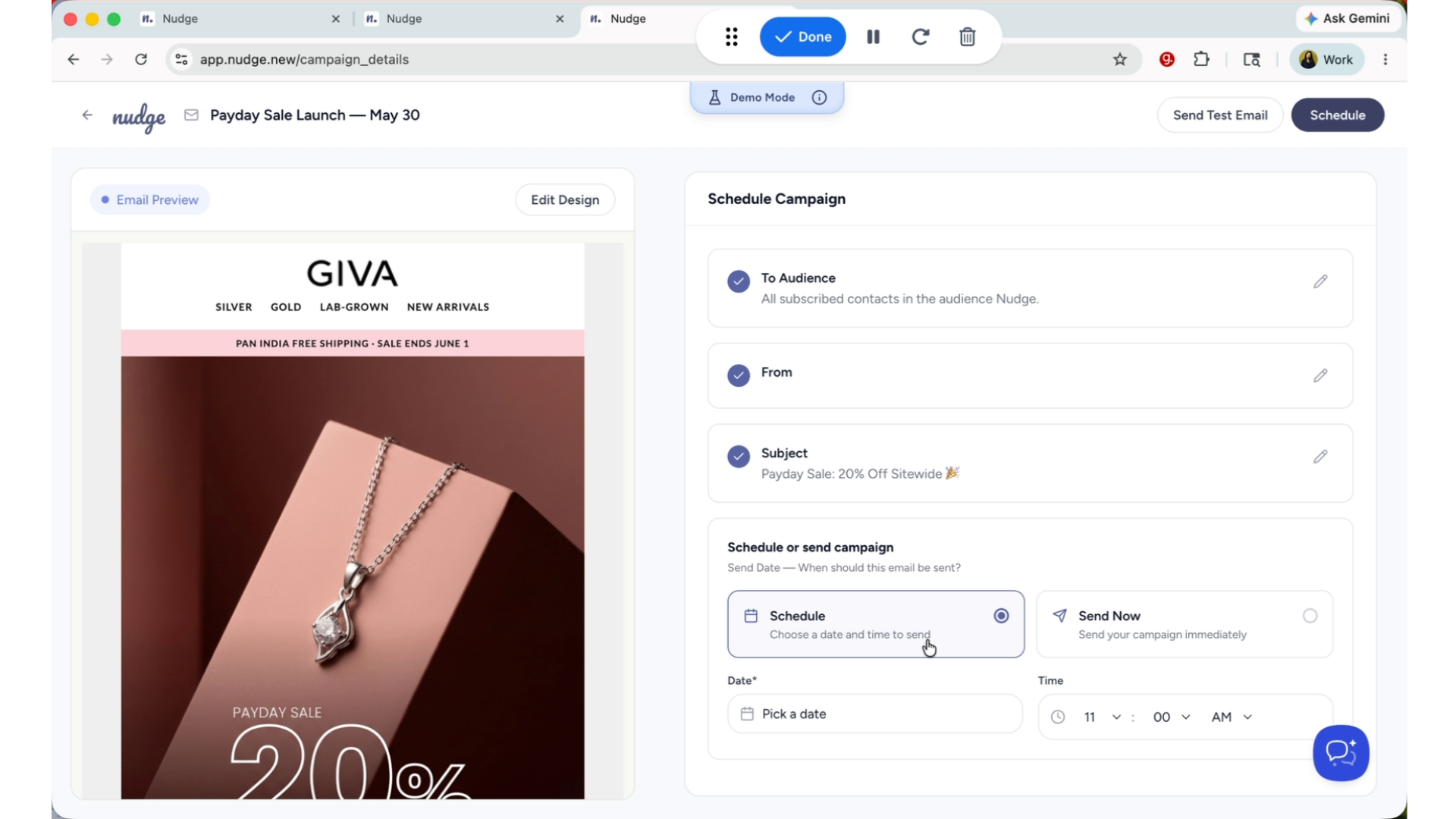
Choose when you want your campaign to go out. You can send it immediately or schedule it for a specific date and time.
Segment
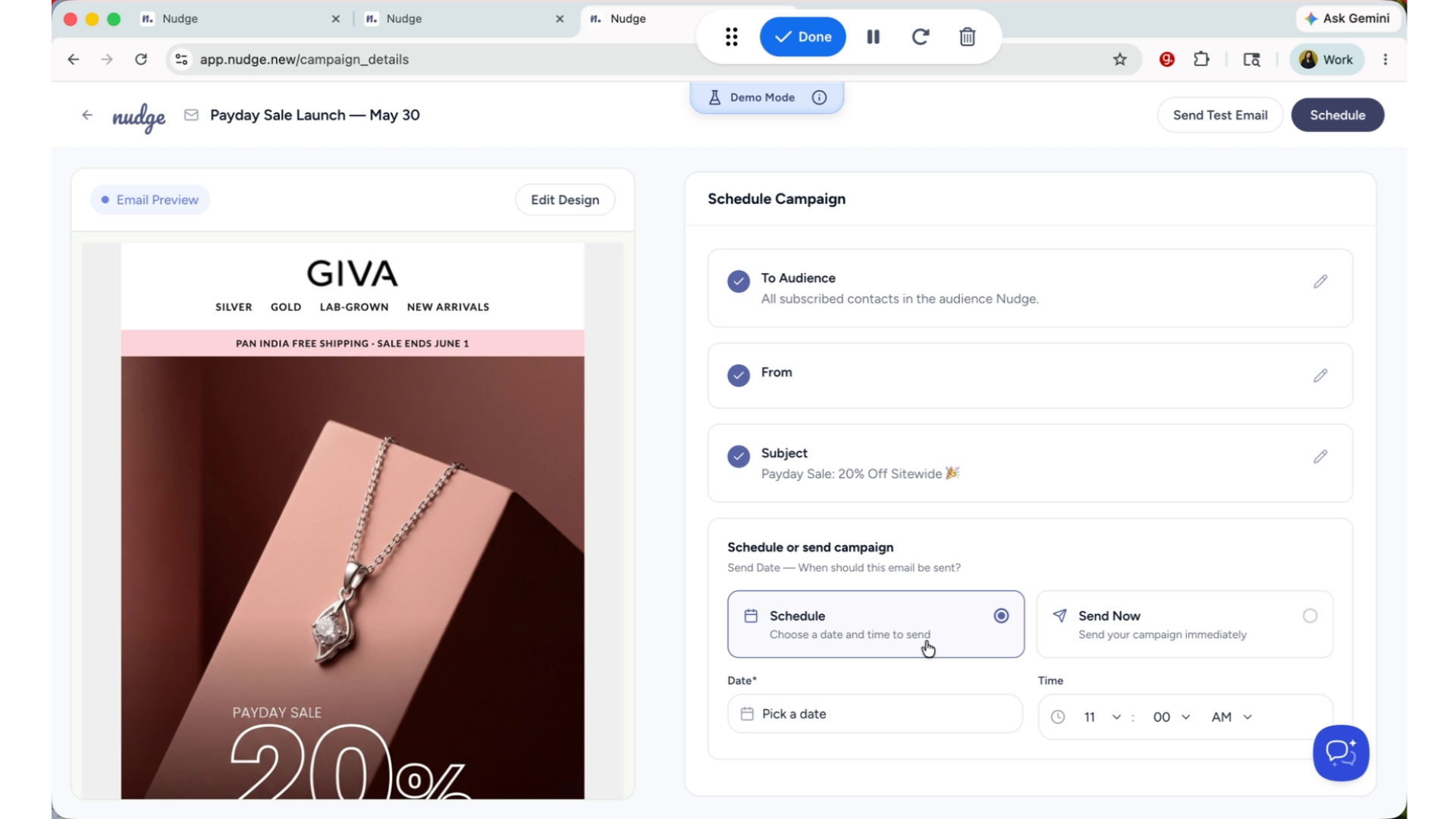
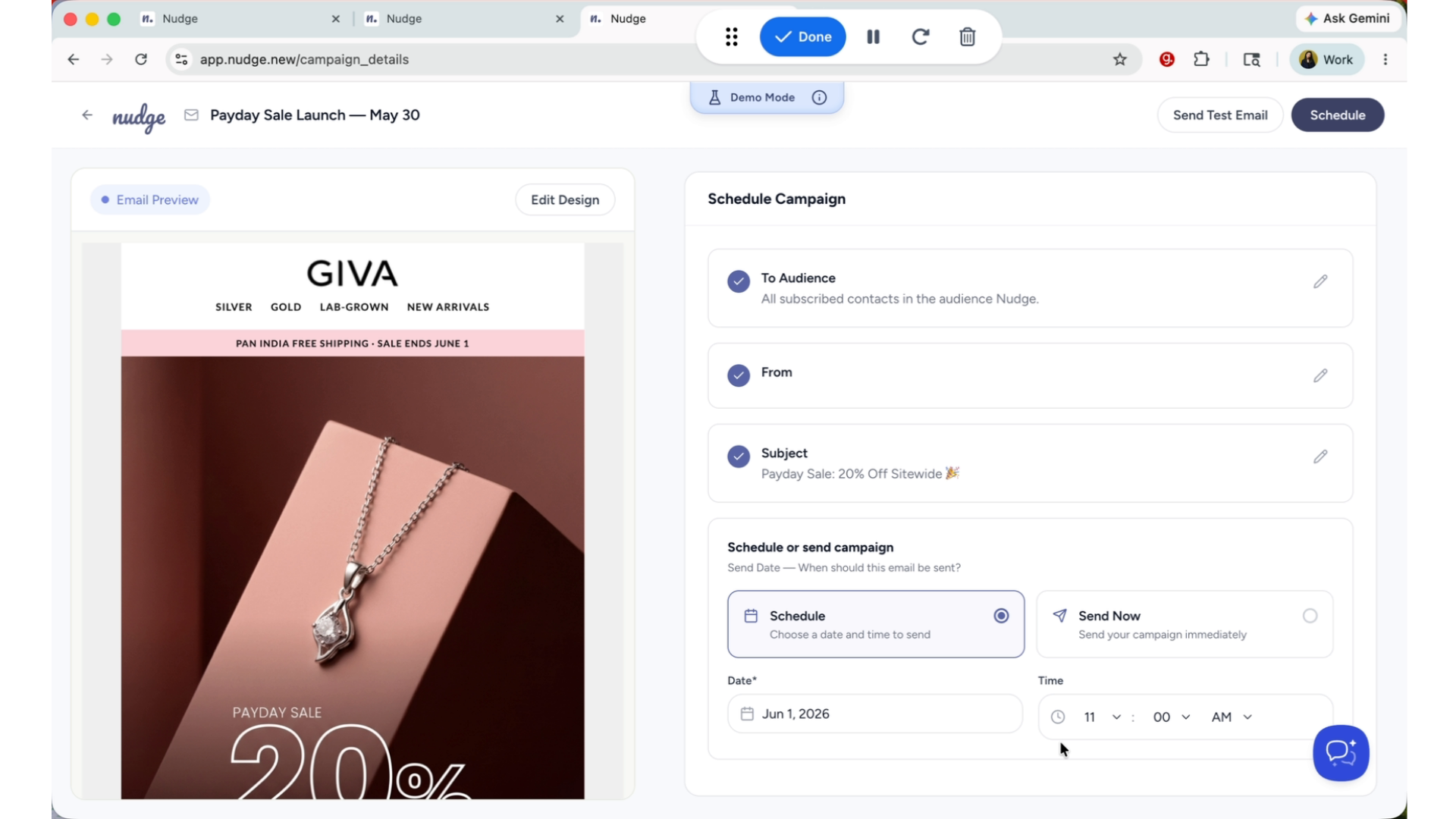
For a sale that starts on the 1st of June, you may want to schedule the campaign launch email for the morning on the first when your customers are most likely to check their inboxes.
Final Campaign Review
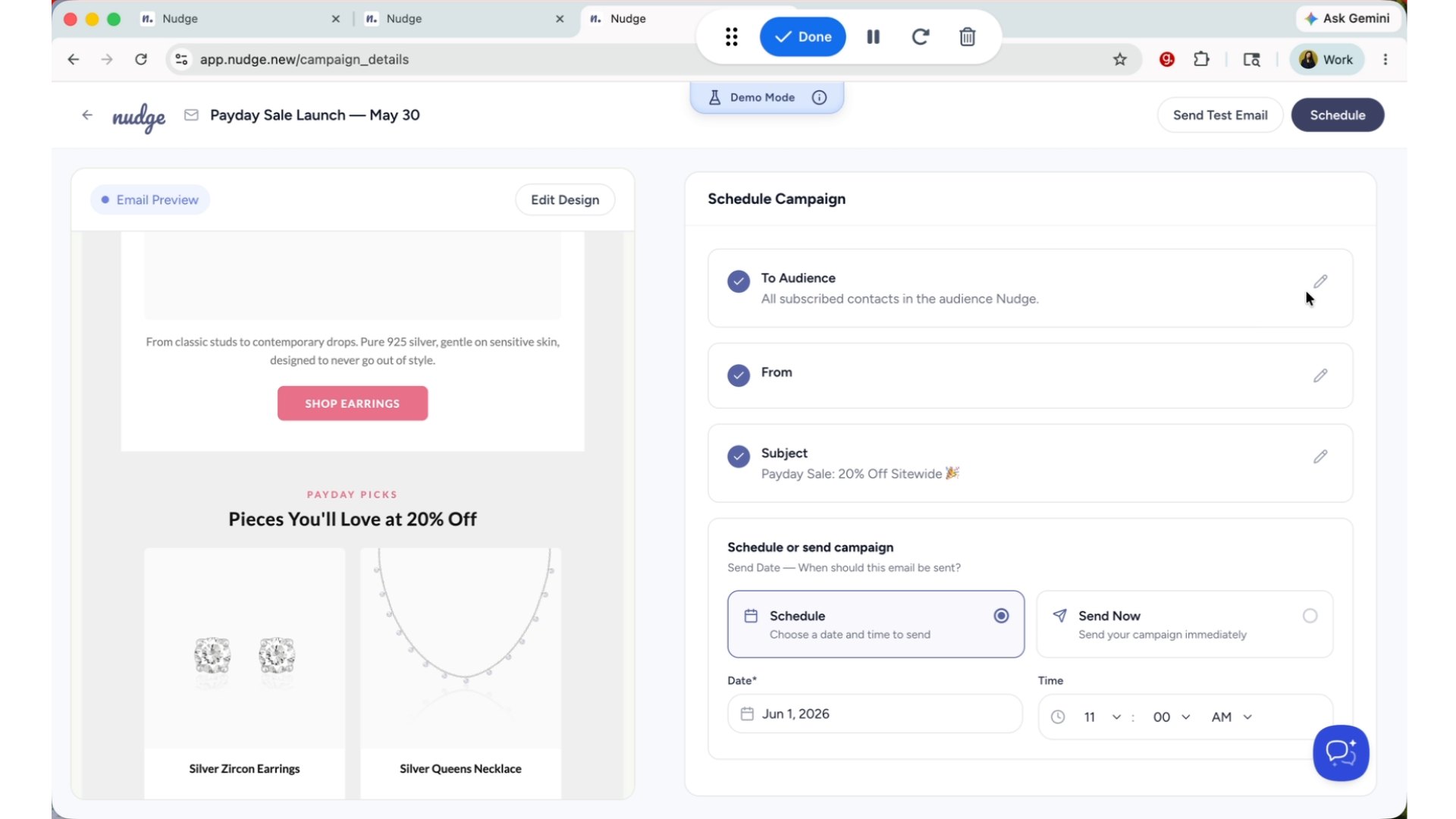
Before you hit send, take one last look at everything: your design, your audience, your subject line, your send time. Once you are confident everything is in order, just click on schedule or send now and your campaign is on its way.
Segment
What used to take hours of back and forth between a brief, a copywriter, and a designer now takes just a few minutes using nudge!
Once your campaign is live, head to the analytics section to track your open rates, click rates, and results in real time. When you are ready for the next step, check out our guide on setting up automated flows, so your emails keep working even when you are not. See you in the next one!